 Live Chat
 Contact
 Shopping Cart
 Eshan Riyaz
Imagine opening your laptop one morning, typing your website URL, and seeing nothing. A blank page. An error message. Or worse, a hacker’s message telling you your files are encrypted and demanding payment.
Everything you built is gone. Years of blog posts, customer data, product pages, booking systems, contact forms: vanished.
Now imagine you have a backup from yesterday. One click, and your site is restored within the hour. You lose a morning, not a business.
Website backups are the single most underused safety measure in small business digital life. Not because business owners don’t care but because disasters feel theoretical until they’re not. This article is about making it real before something forces you to learn it the hard way.
What Are Website Backups And What Exactly Gets Saved?
A website backup is a saved copy of everything that makes your site work, stored somewhere separate from your live website so it can be restored if something goes wrong.
A complete backup typically includes:
- Your website’s files: themes, plugins, images, uploaded documents
- Your database: all your content, blog posts, page text, customer records, settings
- Your configuration files: the behind-the-scenes settings that tell your site how to behave
If even one of these is missing during a restore, your site won’t come back properly. A backup that only saves your files but not your database, for instance, will restore a broken shell with no content inside.
This is why backup quality matters as much as backup frequency.
Why Website Backups Matter More Than Most Owners Realise
Most small business owners think of their website the way they think of a printed brochure, something that exists and stays the same. But a modern business website is more like a living document. It has data flowing through it, software running on it, and dozens of moving parts that can break.
Automated bots scan millions of websites every day looking for weaknesses to exploit. A plugin vulnerability, a hosting server failure, a team member making an accidental change, a ransomware attack, any of these can take your site offline in seconds. The question isn’t whether something will go wrong. It’s whether you’ll be able to recover when it does.
While over 60% of organisations believe they can bounce back from downtime within hours, only 35% actually do. The gap between assumption and reality is where businesses get hurt.
Website backups are your recovery plan. Without them, recovery isn’t slow, it’s often impossible.
6 Situations Where a Backup Saves Everything
1. A Hacker Attacks Your Site
Cyberattacks on small business websites are not rare events. 43% of UK businesses experienced a cyber breach or attack in the last 12 months. Globally the numbers are similar. Attackers can delete your content, inject malicious code, redirect your visitors to harmful sites, or encrypt your entire website and demand a ransom.
Without a backup, your only option is to rebuild from scratch at significant cost in time, money, and lost content. With a recent backup, you restore, patch the vulnerability, and move on.
2. A Bad Plugin or Software Update Breaks Everything
This is the most common reason small business websites go down and it happens to careful, experienced website owners too. A WordPress plugin update conflicts with your theme. A software upgrade changes how your site behaves. A single line of code runs incorrectly and takes down your entire site.
With website backups in place, you simply roll back to the version from before the update. Without one, you’re debugging a broken site line by line or paying a developer to do it for hours.
3. Human Error: Someone Deletes the Wrong Thing
A team member accidentally deleting pages, overwriting content, or making a change to the database without understanding the consequences can cause serious damage in seconds. No one intends for it to happen, but it does.
Maybe you’re doing some housekeeping and delete a folder you thought was unused. Maybe a new staff member overwrites content while trying to edit it. Maybe you accidentally uninstalled a plugin that was holding your site’s layout together.
These moments happen in every business. A backup means they’re recoverable. Without one, they’re catastrophic.
4. Your Hosting Provider Has a Server Failure
Most small business owners assume their hosting provider is backing up their data automatically. Some do but not all, and not always reliably. Server errors, accidental data deletion on the hosting provider’s side, or a migration that goes wrong can all result in data loss you cannot recover without a backup.
Servers can fail. Data centres can have outages. Hosting providers can make mistakes. If their backup also fails, which happens, and you have no independent copy of your own website, you have nothing to restore from.
5. You’re Migrating to a New Host or Redesigning Your Site
Website migrations are one of the riskiest operations for any business site. Moving to a new server, changing platforms, redesigning the layout, all of these carry a real risk of something breaking or being lost in transit.
Having a verified backup before any significant change means you have a clean restore point. If the migration goes wrong, you’re back to your original site in minutes, not weeks.
6. Ransomware Encrypts Your Files
Ransomware attacks can encrypt all connected drives, including local backups. This is the attack type that has caused real business closures. Attackers don’t just lock your site, they threaten to publish your customer data publicly if you don’t pay.
Businesses without off-site, independent backups are left with an impossible choice: pay the ransom with no guarantee of getting anything back, or start over completely. Businesses with clean, recent backups stored separately have a way out.
The Dangerous Myth: “My Hosting Provider Has It Covered”
This is the belief that gets more small businesses into trouble than any other.
Many hosting providers do take periodic backups but the fine print matters enormously. Some only back up weekly. Some retain backups for just 30 days. Some charge extra to actually restore from a backup. And some explicitly state in their terms of service that they are not responsible for data loss.
Your hosting backup is a safety net with holes in it. It should not be your only backup. Owning your own independent backup, stored somewhere completely separate from your hosting account, is the only way to guarantee you have a reliable restore point when you need it.
Think of it this way: if your hosting provider’s entire server goes down, their backup goes down with it. Your independent backup doesn’t.
The 3-2-1 Backup Rule: The Simplest Framework That Works
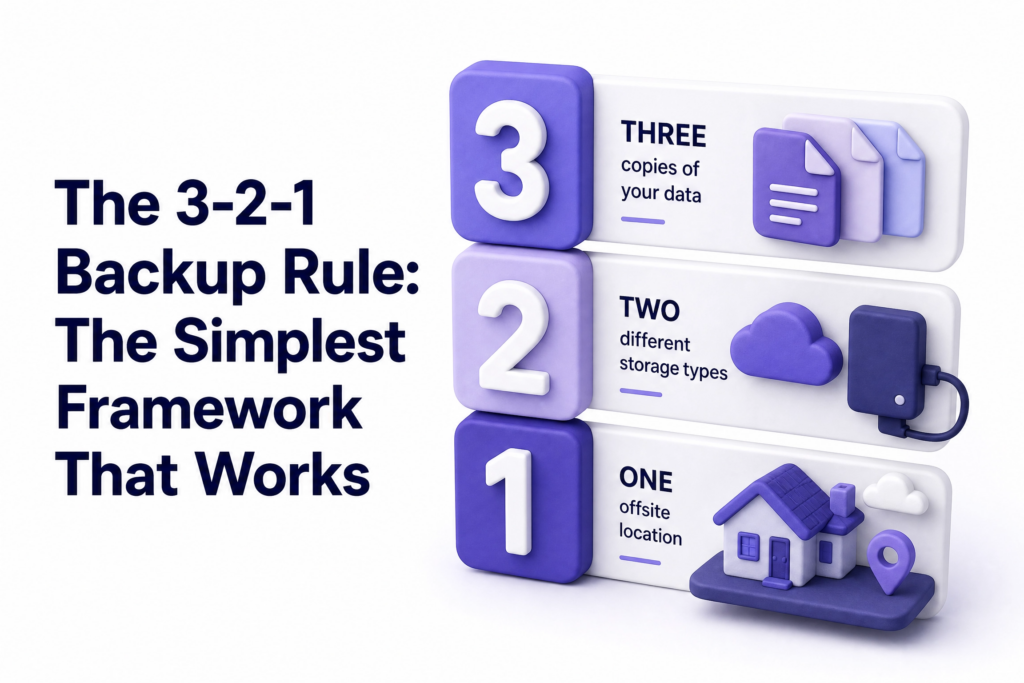
Security professionals have used the 3-2-1 rule for decades because it works at every scale, from large enterprises to small business websites:
- 3 copies of your data (your live site + 2 backups)
- 2 different storage types (e.g. your hosting server + a cloud service like Google Drive or Dropbox)
- 1 copy stored completely offsite (somewhere physically separate from your main setup)
For a small business website, this might look like: your live WordPress site, an automated daily backup stored in your hosting account, and a weekly backup downloaded to cloud storage you control.
You can learn more about how to implement this framework through Google’s guidance on data resilience, the principles apply at any scale.
It sounds like more work than it is. Most of this can be automated with the right tools, running silently in the background without you touching anything.
How Often Should You Back Up Your Website?
There’s no universal answer, it depends on how frequently your site changes:
Daily backups: Right for any business site that has regular content updates, active blog publishing, eCommerce orders, or form submissions coming in. If something valuable is happening on your site most days, back it up daily.
Weekly backups: Suitable for simpler brochure sites that don’t change often. If your five-page service site is updated once a month, weekly backups give you enough coverage without storing excessive data.
Real-time or incremental backups: Worth considering for eCommerce sites processing orders continuously, or any site where losing even a few hours of data would have direct financial consequences.
The key rule: your backup frequency should match the rate at which you’d be upset to lose data. If losing a week of blog posts and customer inquiries would hurt your business significantly, back up daily.
Common Backup Mistakes Small Business Owners Make
Relying solely on the hosting provider’s backup. As covered above, this is the most dangerous assumption in website management. Always have an independent backup you control.
Never testing the backup. In 2025, only 15% of businesses tested backups daily. A backup you’ve never tested is a backup of unknown quality. Run a test restore at least once to verify your backup actually works before you need it in an emergency.
Storing the backup on the same server as the site. If the server is compromised or fails, you lose both the site and the backup simultaneously. Off-site storage is not optional — it’s the whole point.
Backing up too infrequently. A monthly backup for an active business site means potentially losing 30 days of content, orders, and customer data. Match your backup schedule to your site’s activity.
Forgetting backups after a redesign. Many business owners set up backups when they first launch a site, then forget to check whether the backup system survived a redesign or platform migration. Verify your backups are still running after any significant site change.
Not knowing how to actually restore. The backup is only useful if you know how to use it. Spend 15 minutes understanding how your backup tool restores a site before the day you actually need to do it under pressure.
What You Can Do Today
You don’t need a complex system. You just need something running:
- If you’re on WordPress: install UpdraftPlus (free version available) and configure it to back up daily to Google Drive or Dropbox. Takes about 20 minutes to set up properly
- Check your hosting provider’s backup policy: log in and find out exactly how often they back up, how long they retain backups, and what it costs to restore
- Create a manual backup today: before doing anything else, export a full backup of your current site and download it somewhere safe. This takes 10 minutes and gives you immediate peace of mind
- Set a calendar reminder: to check your backup system monthly, confirm it’s running, confirm the files are being saved, and do a test restore once a quarter
If your website is managed by someone else and you’re not sure what backup system is in place, ask. Today. Not after something goes wrong.
At ElySpace, every website we manage includes a proper backup system configured from the start: automated, off-site, and verified. If your current site doesn’t have this in place, we can help you set it up or take over ongoing website management so you never have to think about it again.
FAQs (Frequently Asked Questions)
Do I really need backups if my hosting provider already backs up my site? Yes. Hosting provider backups are a starting point, not a complete solution. They may be infrequent, limited in retention, or unavailable in certain failure scenarios. Having your own independent backup stored separately is the only way to guarantee a reliable restore point.
How much storage do website backups take up? It depends on your site size. A standard small business WordPress site might be 500MB to 2GB for a complete backup. Cloud storage services like Google Drive offer 15GB free, more than enough for several rolling backup copies of most small business websites.
What’s the best free backup plugin for WordPress? UpdraftPlus is the most widely used and trusted free option. It backs up your files and database, lets you schedule automatic backups, and stores copies in external cloud storage like Google Drive or Dropbox with minimal setup.
How long does it take to restore a website from a backup? For most small business sites, a full restoration takes between 30 minutes and a few hours depending on site size, the backup tool being used, and how the restore is being done. Having a backup doesn’t just reduce data loss, it dramatically reduces recovery time compared to rebuilding from scratch.
What if my backup is also infected by malware? This is a real risk if malware was sitting undetected in your site before the backup was taken. This is why retaining multiple backup copies over time matters, you can roll back to a version from before the infection, not just the most recent one.
Is cloud storage safe for website backups? Yes, when using reputable services like Google Drive, Dropbox, or Amazon S3. For maximum safety, combine cloud storage with a local copy, following the 3-2-1 rule ensures no single point of failure can eliminate all your backups simultaneously.
My website hasn’t changed in months, do I still need regular backups? Yes. Your site might not change, but the threats to it don’t pause either. Hackers, server failures, and software vulnerabilities exist regardless of whether you’ve updated your homepage recently. A site that hasn’t changed in months still needs to be recoverable.