 Live Chat
 Contact
 Shopping Cart
 Ely Space
In this article, I will explain how to start a web hosting business.
You will learn that the web hosting market is very big and how you can find customers.
One good thing about using a hosting reseller is that starting is easy. You can begin this business with just a few hundred euros, and you do not need to know much about technology. Hosting resellers provide all the tools you need. They also provide customer support, which makes it easier for you to manage your business.
You can check out our hosting reseller comparison to understand the costs better.
Let’s look at this in detail.
Understanding Today’s Web Hosting Market
People often say that the web hosting market is too full and that you can’t make money in this field.
I think every market today is full, but if you know how to do it right, you can still find a place and make your business successful.
If you want to start a web hosting business, you need to find your own space, just like in any other business.
The good thing about this market is its size. For example, there are millions of domains registered worldwide, like .com, .org, .net, .eu, and .info.
We are talking about a big market, and this is all over the world.

Also, this market is only online. This means that with a good website that is optimized for SEO, you can reach all your potential customers.
So, the question is not: is the web hosting market full? The real question is: how can I make myself different to get a share of such a big and varied market?
How to Set Up Your Web Hosting Business
If you want to start a web hosting business, you don’t need much.
You don’t need to have a data center.
You don’t even need a server in your home with a special internet connection.
Surprising but true: You don’t need any technical knowledge.
Does this seem unbelievable to you?
Keep reading, and you’ll see that starting a web hosting business requires much less than you think.
What do you need?
You need a website so that potential customers can find you, see your services, and, if they like what they see, choose you as their provider.
You need a service to resell. The best way to start is with a reseller hosting plan. As your business grows, you can switch to a VPS cloud hosting plan or a dedicated server. This way, the initial cost is low, and you can handle the cost of a cloud plan or dedicated server later when your business gets bigger.
You need a system to automate orders, billing, payments, and support tickets.
We’ll look at these solutions in a moment.
How to Create Your Own Web Hosting Site
Your website is like your business card. Without it, people won’t know about your services or become your clients.
My suggestion is to use WordPress to create your site. It’s the most popular tool for making websites right now.
If you’re familiar with other website tools, feel free to use them too.
The real challenge is getting people to visit your site, but we won’t cover that in this guide.
There are some important sections you should have on your web hosting site.
You’ll need pricing tables, which customers can easily add to their shopping cart. We’ll talk more about this soon.
You’ll also need a privacy policy, terms and conditions, and an SLA (Service Level Agreement) for your customers.
That’s the easy part. Now, let’s move on to the fun part.
Getting Started with Account Hosting Reseller
You don’t need to know much about systems engineering to start this business. All you need is to know how to use cPanel well and be willing to learn more.
Think of Hosting resellers as sharing a hosting space. We, at SupportHost, handle the server, while you handle the websites.
With reseller hosting, you can sell hosting space. You can make packages based on what you need and then set up cPanel accounts for your customers. You do all this using a control panel called WHM.
WHM (Web Host Manager) helps you create and manage your clients’ cPanel accounts.
Excellent Client Support
For example, if a customer asks how to create a database, you can explain how to do it from cPanel.
If there is a problem on the server that you don’t know how to solve (for example, if your customer says the site is offline), you can open a ticket with SupportHost to get help.
In other words, you can handle the easy questions yourself, and for the harder ones, you can get help from SupportHost.
Your customers will never know about SupportHost or that you are a reseller.
Now that we’ve covered the basics of how this service works, let’s see how to use it.
Sure, here is a simplified version of the title:
How to Use the WHM Panel
You will give support to your customers. There are different levels of support.
For example, if a customer asks how to create a database, you can explain how to do it using cPanel.
If there is a server problem you can’t solve (like if the customer’s site is offline), you can ask SupportHost for help.
This means you can answer the easy questions yourself and get help for the harder ones.
Your customers will never know about SupportHost or that you are a reseller.
Now that we’ve covered the basics of how this service works, let’s see how to use it.
yourdomain.com/whm
yourdomain.com:2087
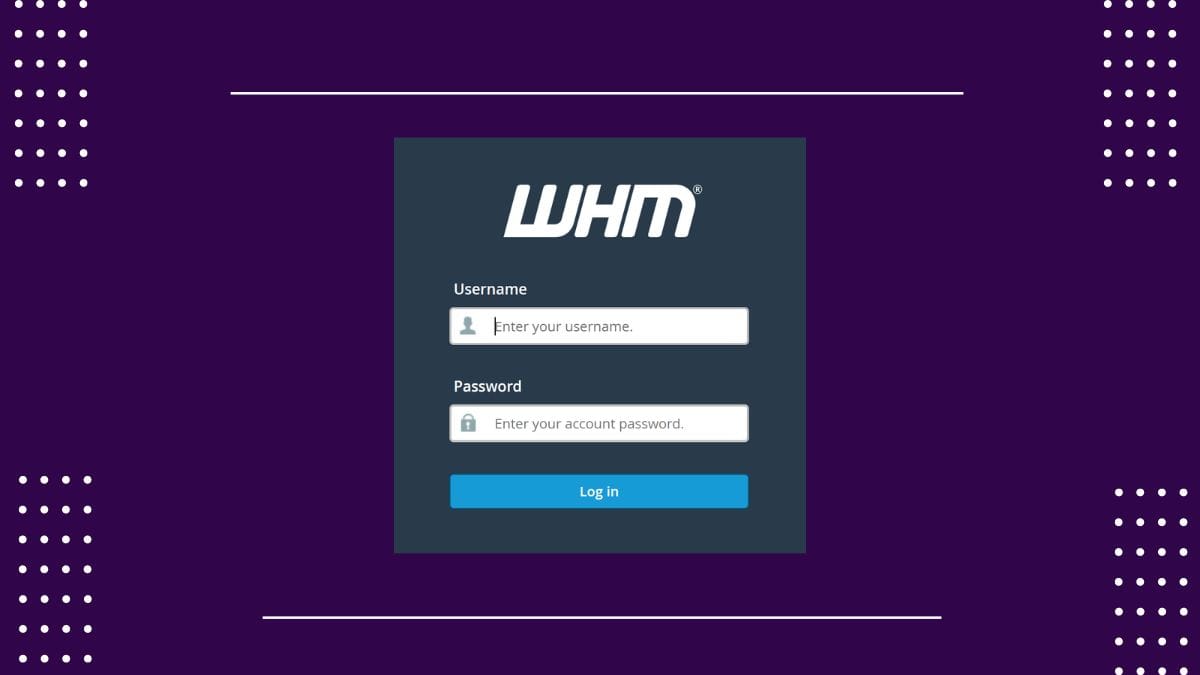
After you log in, you can start making packages.
How to Set Up a Hosting Package in WHM
The first step to starting a web hosting business is to create packages for our users.
For example, in our WordPress 1 hosting plan, we offer 180 GB of cloud SSD storage and unlimited monthly traffic.
To create a web hosting package, look for “add a package” in the menu on the left.
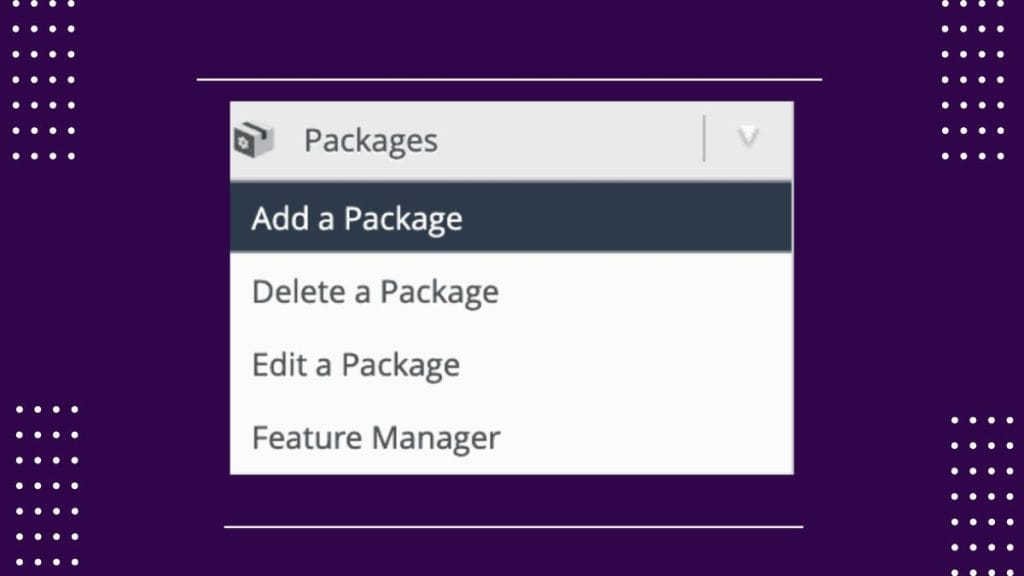
Then, we fill in the necessary details based on the type of package we want to create.
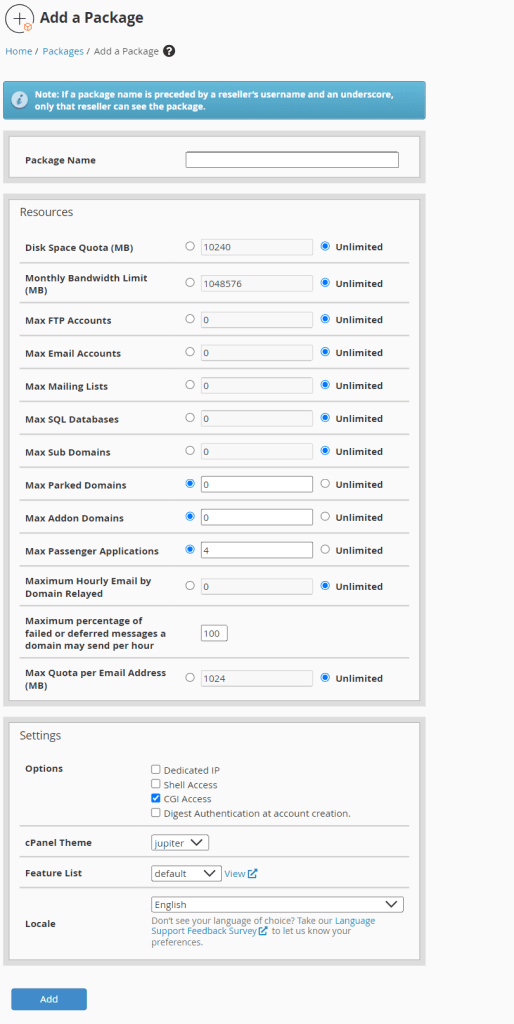
Let’s decide the package name and set the limits based on the type of package we want to offer our customers.
The first section is simple and doesn’t need more explanation.
In the second section, we can set some options.
Resellers cannot give a dedicated IP to an account. They have to buy the IP from us and ask us to assign it to an account.
If you check the “Shell Access” option, you allow your customer to connect via SSH.
“Digest Authentication at account creation” is for web disk access. You can leave this unchecked.
In the next option, you can choose the theme, default language, and feature list, which we will discuss in the next section.
Customizing Your WHM Feature List
From the menu on the left, click on “Feature Manager.
Here, you can make a new list, change, or remove an existing list.
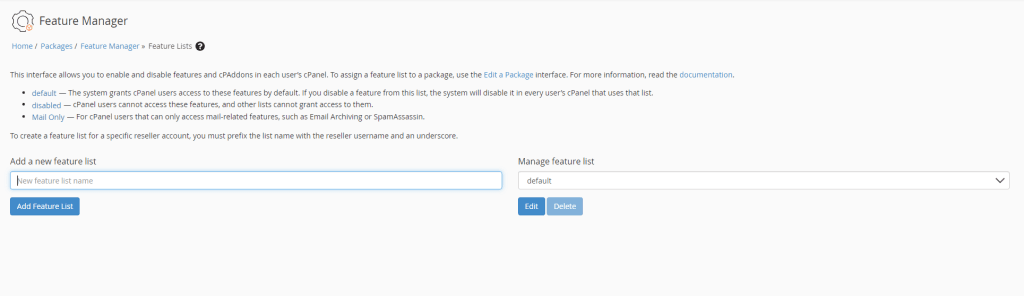
This lets us pick which parts of the cPanel to display to our clients. For instance, if you’re making a plan just for email use, you can turn off most features and only show the ones for email.
This way, you give them a panel with fewer features, making it easier for them to use.
Usually, if you’re offering a hosting package, it’s best to keep all or almost all options turned on.
Now that we have the packages ready, how can we make hosting management automatic?
Getting Started with Billing Systems
If we want to run a proper business, we need to make our main tasks automatic.
When a customer visits our website, checks our prices, and decides to buy something, they click on the order button. Then, they go to the order page to see if the domain name they want is available. If they already have a domain, they can choose to transfer it. They can also pick any extra options they want for their hosting account.
After they finish setting everything up, they’ll see a summary of what they’re buying and the option to pay.
Once we get the payment, we can either automatically create the account or wait and do it manually after an administrator checks it. We can also use an anti-fraud system to check the order automatically.
After the order is activated, whether by us or automatically, the system should make a cPanel account for the customer and send them an email to activate it.
To manage our web hosting service better, we should have a ticket system integrated. This way, we can handle support requests and see the customer’s history easily.
What is WHMCS: What You Need to Know?
There are many billing systems for hosting, but WHMCS is the most popular and thought to be the best. It’s professional software, so it costs money to use, but it’s worth it.
I heard about some free hosting billing systems a while back, but I didn’t bother trying them after hearing mostly bad things.
WHMCS (WHM Complete Solution) helps you handle your clients, payments, support tickets, billing, and more.
Getting Started with WHMCS: Initial Setup Tips
Once you install WHMCS, you’ll see a setup wizard. If it’s your first time using WHMCS, I recommend following the steps it shows.
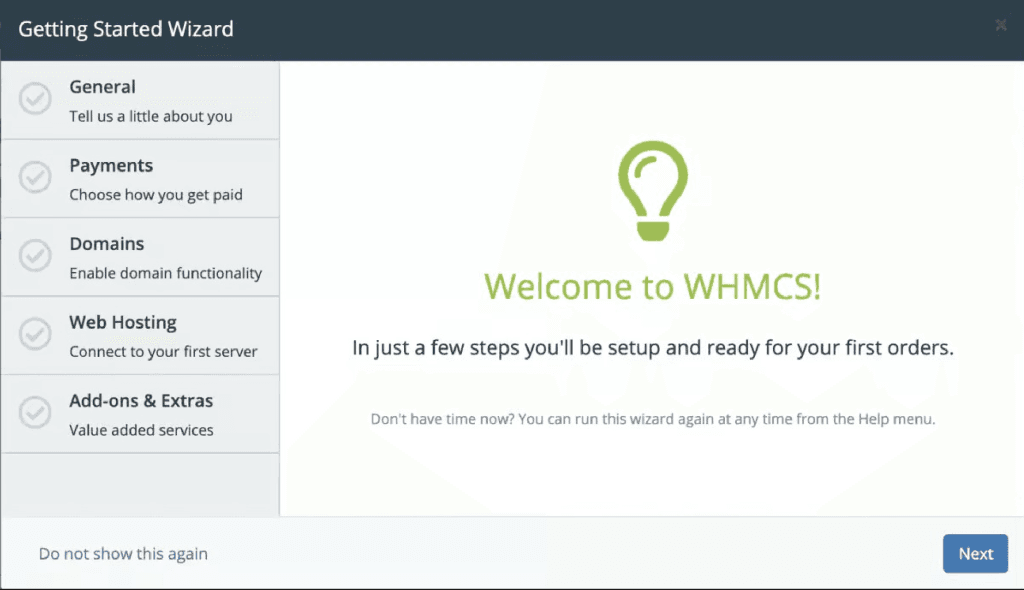
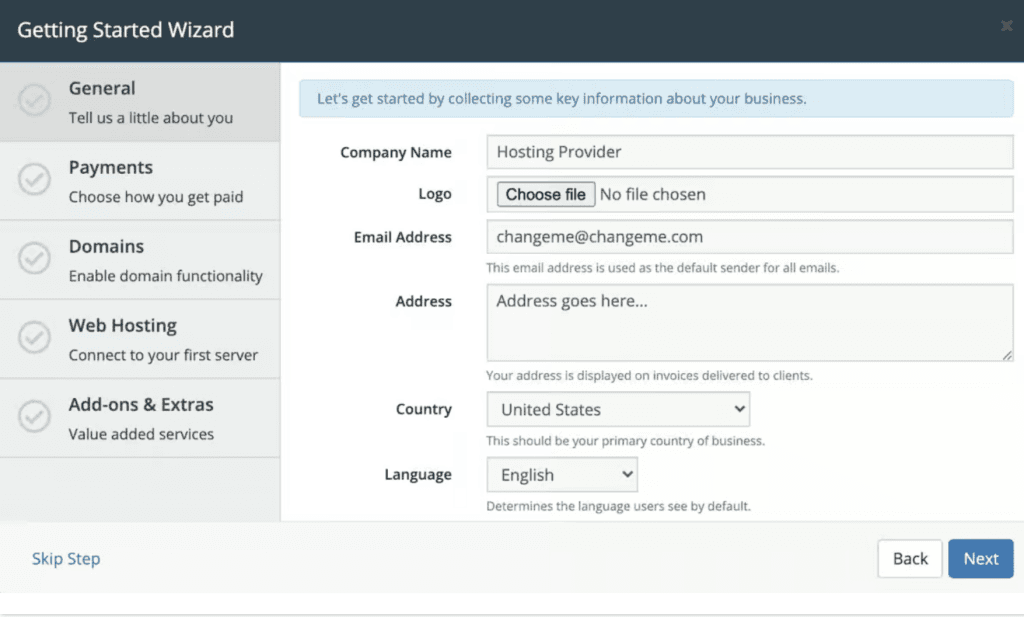
First, you need to enter some information about your web hosting business: the name, logo, address, location of your company, and the language you want to use for the customer area (the admin area in WHMCS is only in English).
If you don’t have some of this information, you can use temporary or fictional data, or leave it blank. You can update these settings anytime in the WHMCS settings.
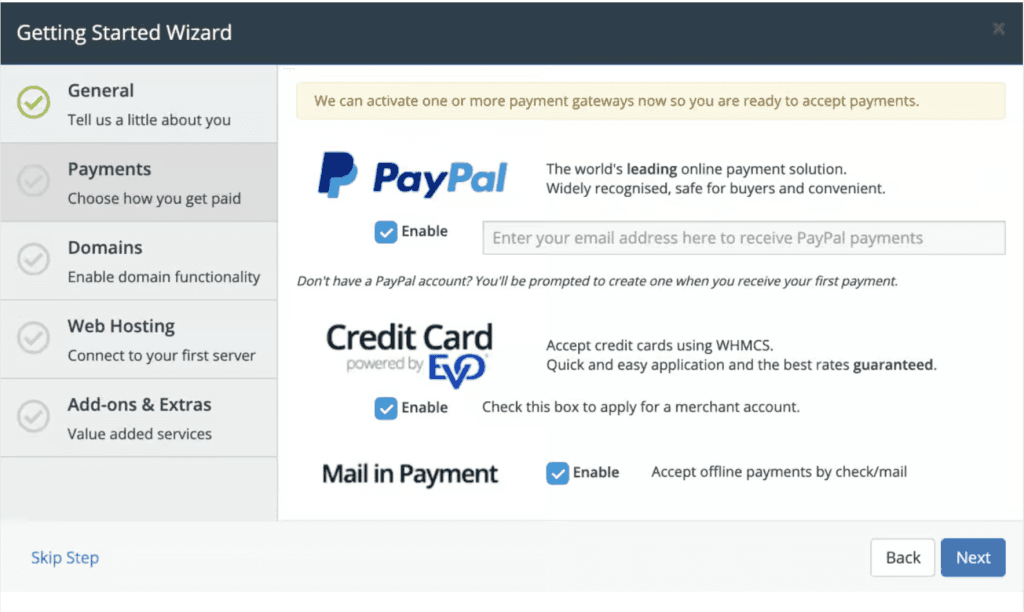
In the next step, you need to enter your payment information. You can change this later. For now, I recommend using only PayPal.
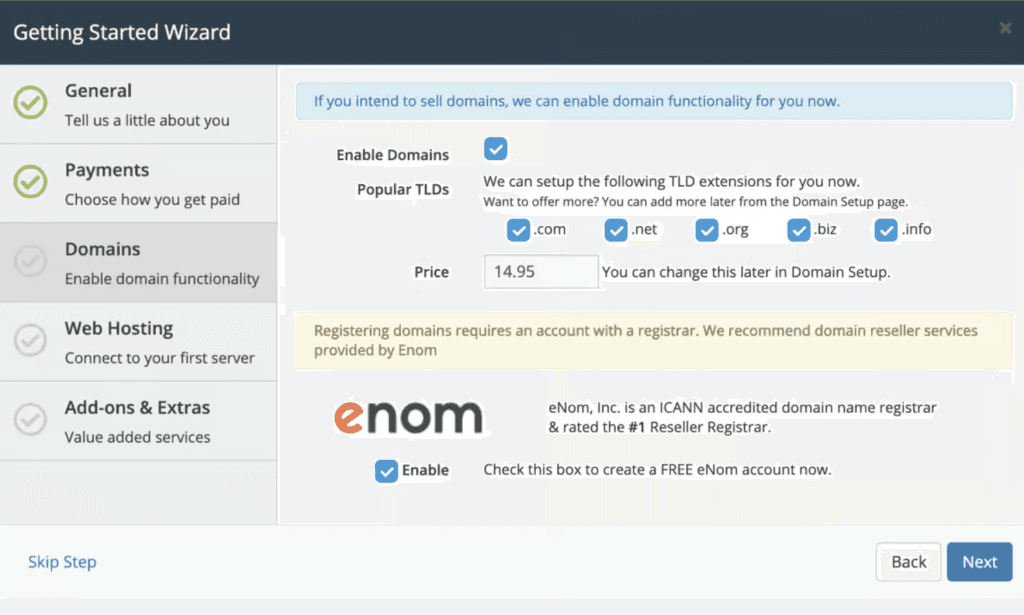
Next, we need to set the prices for the main domain extensions in our billing system for our web hosting business.
WHMCS has several tools for selling domains, allowing you to manage domains from both the admin area and the customer area. This means your customers, and your future system administrators, can manage domains themselves without needing to access the registrar’s panel every time to make changes.
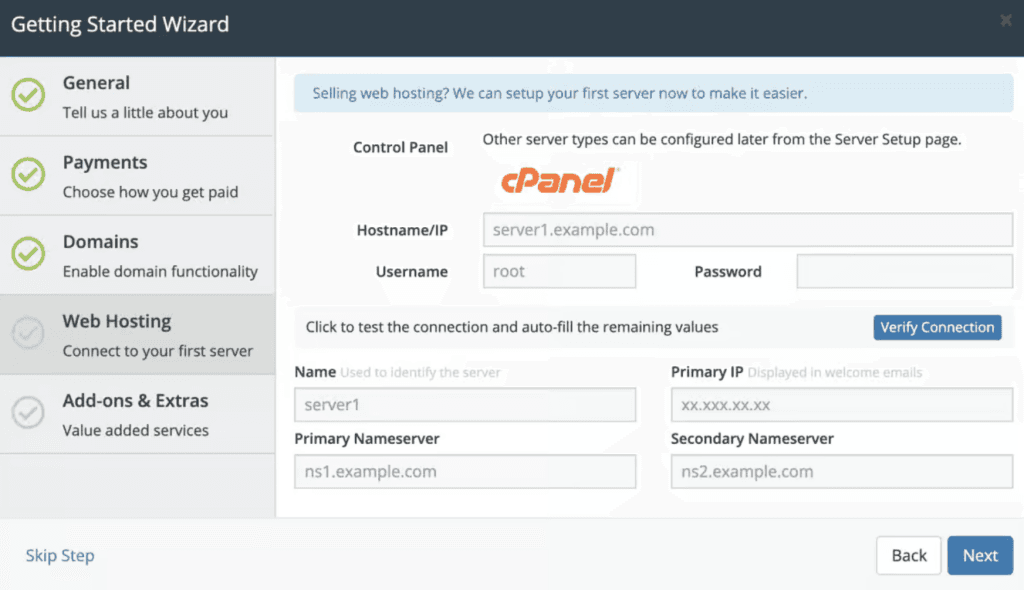
The next step is to add your web hosting reseller account to WHMCS. This lets the billing system talk to WHM and create cPanel accounts whenever you get an order.
You can find all the needed information in your activation email. Just fill in the fields, verify the connection, and continue.
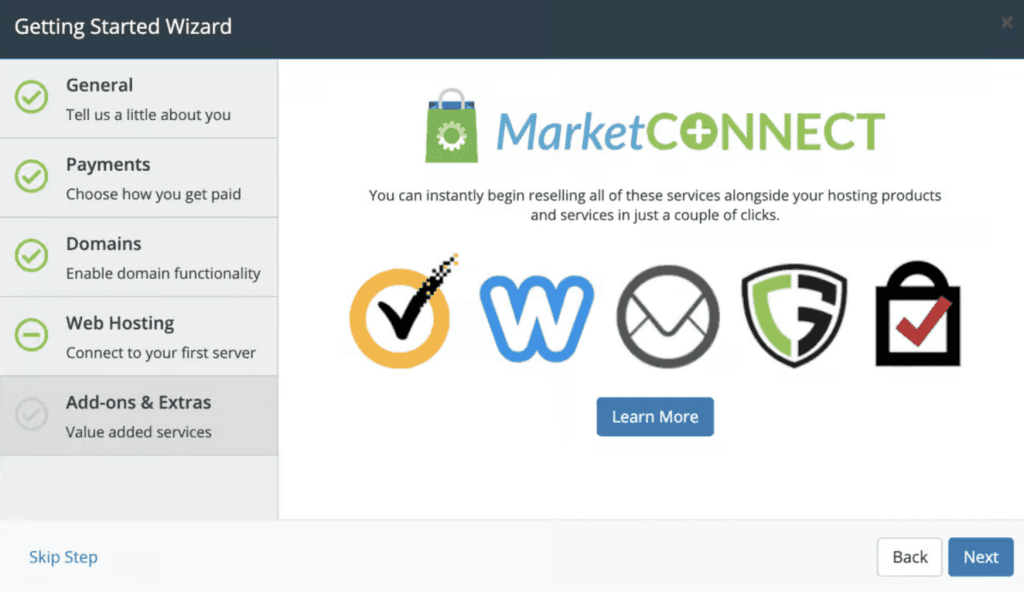
In the last step, WHMCS asks if you want to resell products from their partners, besides web hosting. This choice is up to you and depends on your business plans.
At this stage, the initial setup is done.
Now we need to create our products, and then we’ll be ready to start our web hosting business.
Set Up Web Hosting Packages in WHMCS
Now, we’re almost ready to start, but we need to create the products.
In the top right corner, click on “Settings”.
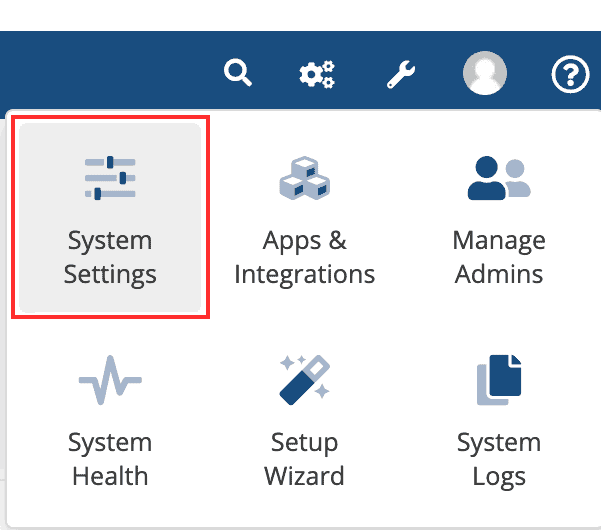
Now, let’s click on “Products/Services” and then on “Create a new group.”
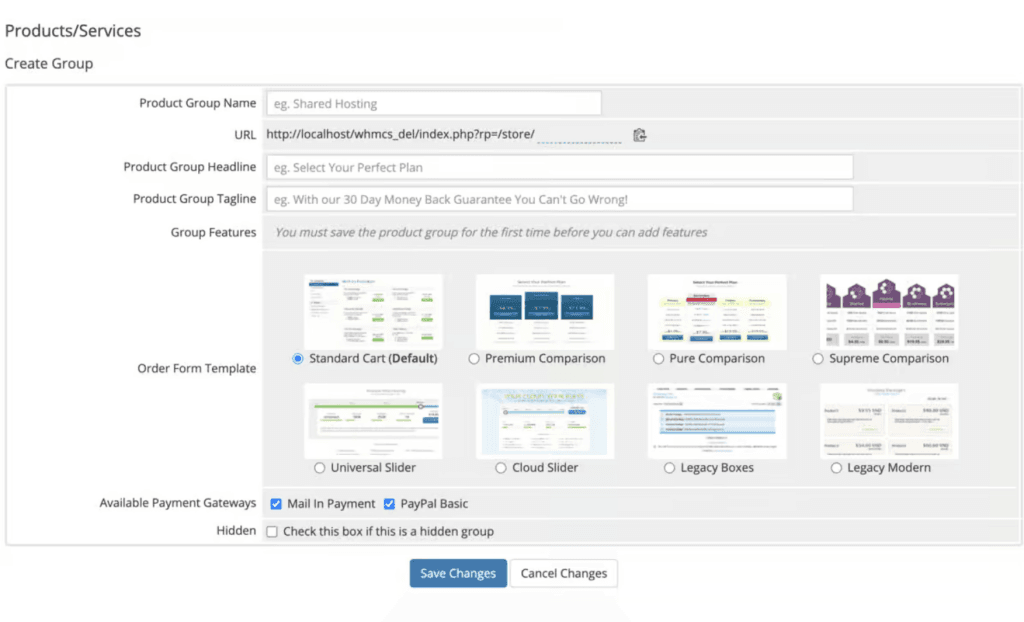
We’ll name our group “Shared Hosting”, pick a theme, and a payment method, and if the theme allows, we can add a title and description.
Now, let’s create our first product. Click on “Create a new product” to make your first web hosting plan.
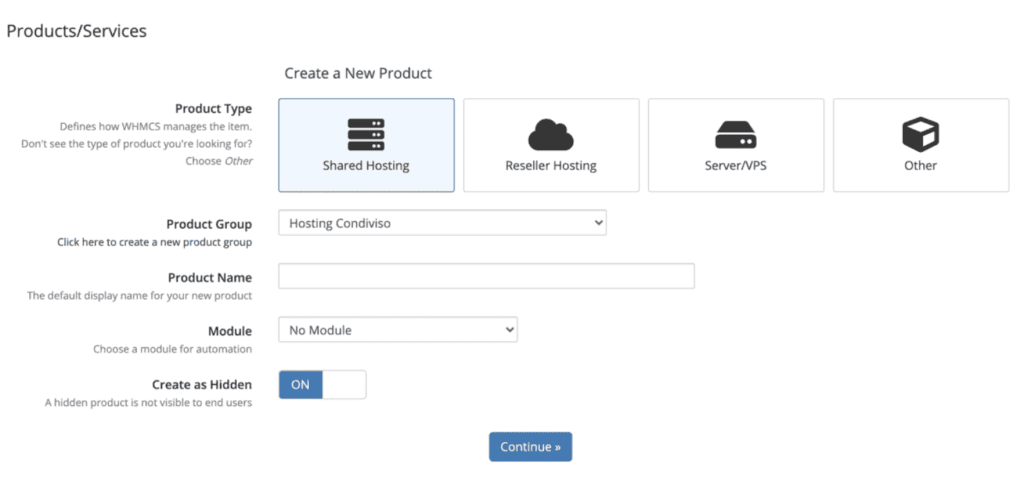
First, we pick the type of product. Let’s go with “Shared hosting” and give it a name like “Silver 1”.
Then, we choose the cPanel module and make sure to turn off “Create as hidden”.
On the next page, we write a description for the product. Remember, you can use HTML tags and add more details.
To display a pricing table with shopping carts:
- Click on the “Pricing” tab.
- Choose the “Recurring” option.
- Check the payment periods you want to activate.
- Save your settings.
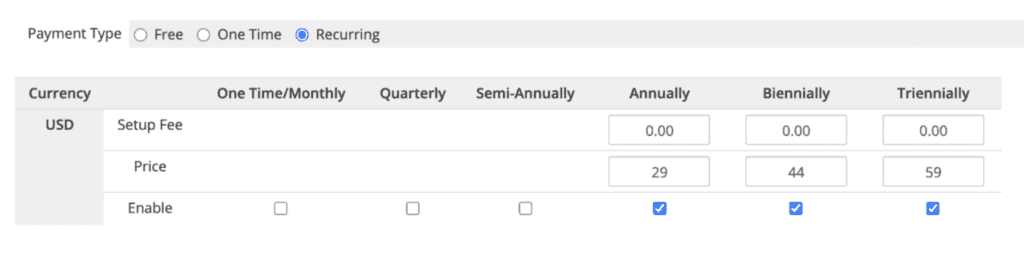
Now, let’s move to the “Module Settings” tab and select a package from the list, like the silver 1 package in our example.
After that, we need to decide if we want the plan to be activated automatically when the first payment is received or when you manually approve a pending order. This depends on what you prefer. Since we automatically check all orders for fraud, we usually activate them automatically.
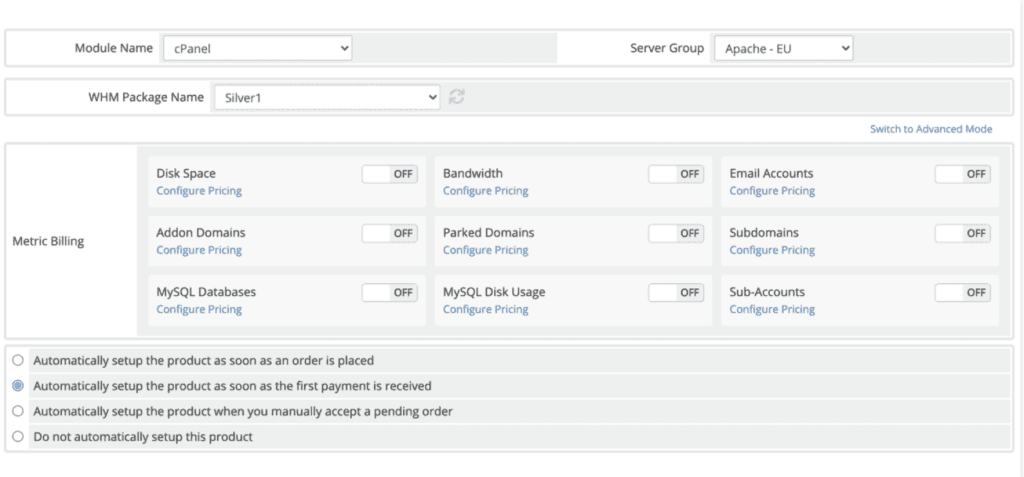
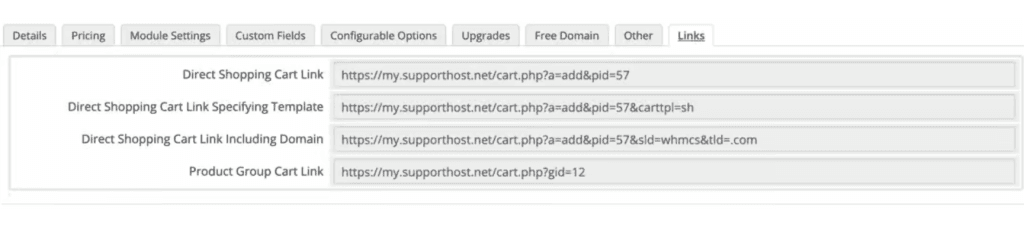
Our product is ready to go. We just need to take the link and put it into our pricing table on the WordPress site.
Go to the “Links” tab and copy the first link: “Direct Shopping Cart Link..”. When someone clicks on that link, they’ll see the same page as when they try to order a shared web hosting plan from our site.
Utilize the Ticket System
Like I said before, a good web hosting company needs a ticket system. WHMCS can help with this too.
First, we need to create a support department. We’ll use an email like [email protected] for this.
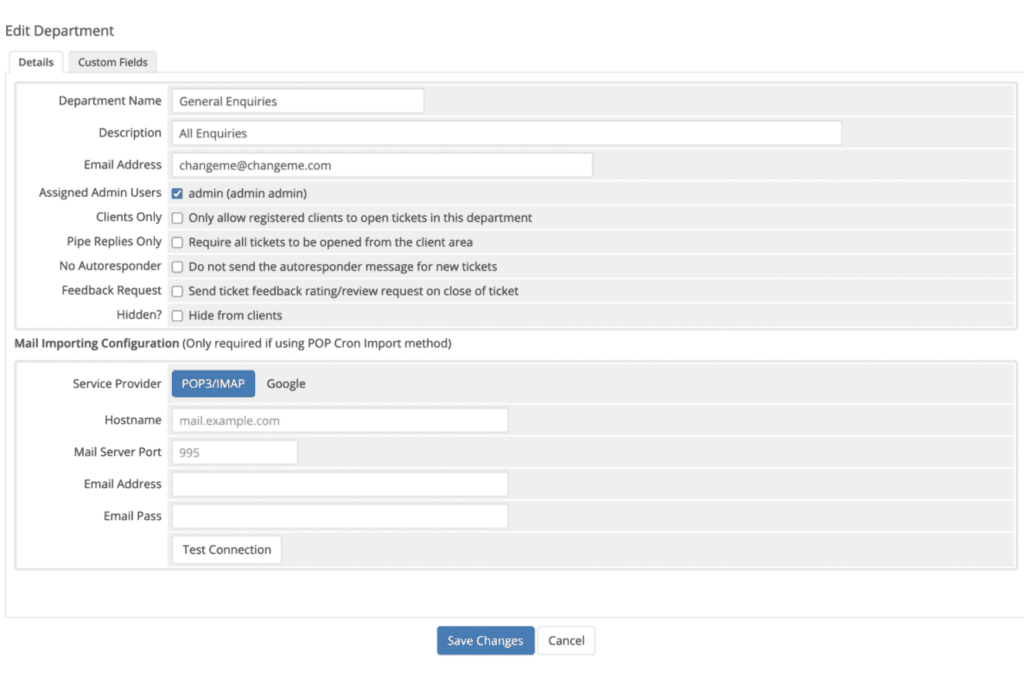
Go back to settings and choose “Support Departments.”. You’ll see a department already made. Click the right icon to edit it.

From this page, you can set a name (like Support), a short description, and an email address.
We suggest selecting the “Feedback request” option to ask for feedback from your customers after their ticket is closed.
You can decide how WHMCS receives emails, either through pipe or pop.
For safety, it’s a good idea to install WHMCS in a subdomain, as we did with my.supporthost.com, and create a new cPanel account for that subdomain. This way, if your WordPress site gets hacked, they won’t be able to access WHMCS or your client’s data.
If you set up WHMCS like this, you can’t use pipe to handle emails; you’ll have to use pop.
This means WHMCS downloads emails using Pop. To make it work correctly, you’ll need to enter your mailbox access details accurately.
Now, you have a team ready to help your customers.
Conclusion

In this article about starting a web hosting business, I’ve only covered the basics. There’s much more to learn and do to make it successful.
If you want to do well in the web hosting business, you’ll need to know a lot about cPanel/WHM and WHMCS. You’ll spend a lot of time with their documentation at first.
This guide will help you get started, but you’ll have to figure out many details on your own. Web hosting and computer science are exciting fields, and if you’re passionate about them, you can learn something new every day.