 Live Chat
 Contact
 Shopping Cart
 Irfan Bhat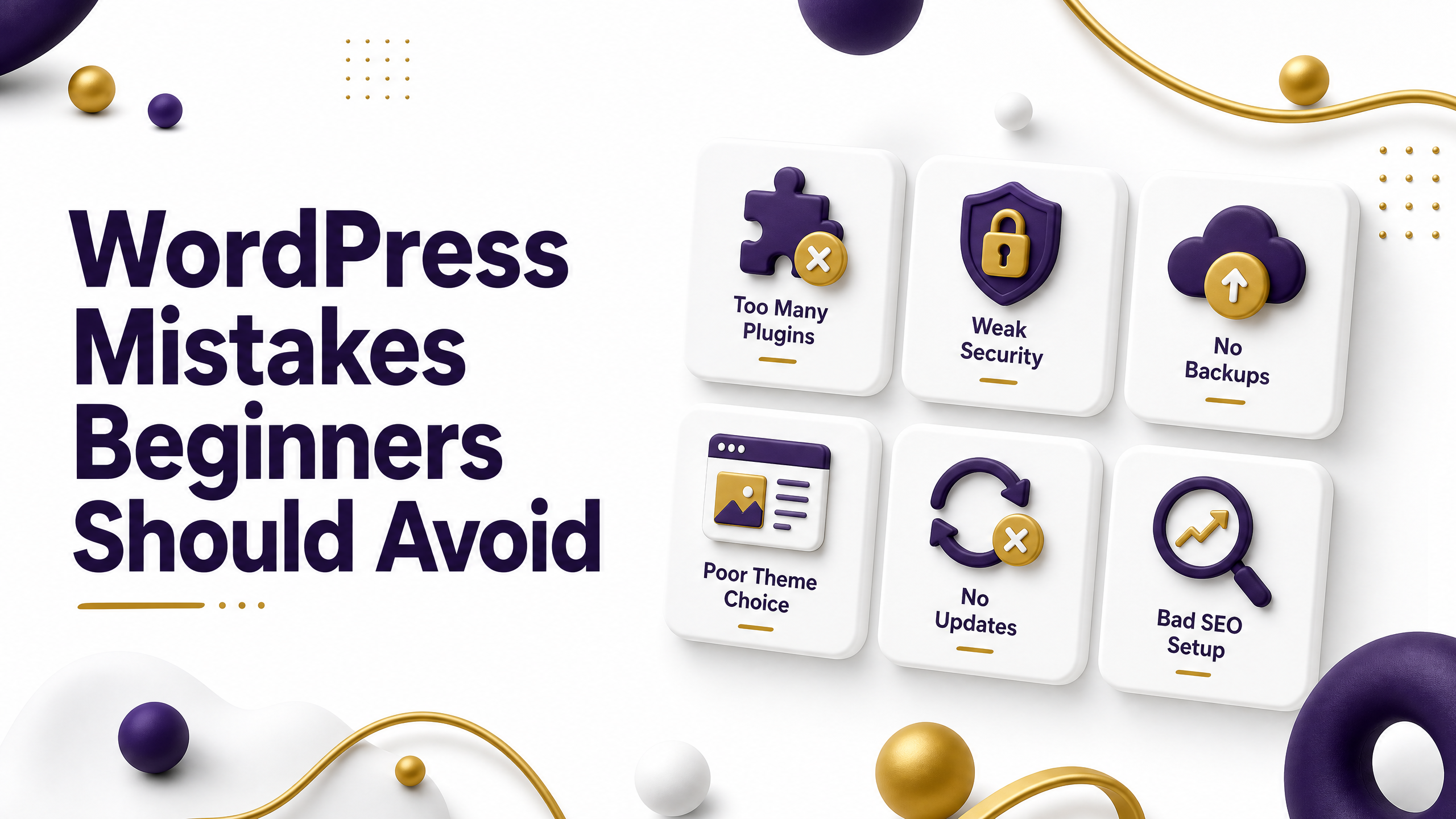
So you launched a WordPress site. Nice work. Now comes the part nobody warns you about: the slow, quiet decline caused by a few WordPress mistakes made in the first week and never fixed.
I’ve rebuilt more “why is my site so slow” sites than I can count. Almost everyone had the same three or four problems. Not weird bugs. Not hacking attempts. Just plain, avoidable WordPress mistakes that piled up until the site felt broken.
This isn’t a list copied from some forum thread. It’s what actually breaks new WordPress sites, in the order it usually happens, with a simple fix for each one. No jargon. No fluff. Just the stuff that matters.
Here’s the thing about WordPress. It’s genuinely one of the easiest platforms to get started on. That’s exactly why so many small mistakes slip through. Nothing stops you from clicking “install” on a plugin, or skipping an update, or leaving a weak password in place. The platform won’t warn you. It just quietly lets you build on a shaky base until something eventually gives way.
The good news is that fixing these problems doesn’t take a rebuild. Most of what’s below takes minutes, not hours. Read through the list, check your own site against each point, and knock out whatever applies to you.
Picking the Wrong Hosting Plan

This is where most WordPress mistakes actually begin, before a single page is even built.
Cheap shared hosting looks great on a pricing page. Three dollars a month, unlimited everything, free domain thrown in. Then your site gets a little traffic, and pages start taking eight seconds to load. Shared hosting crams hundreds of sites onto one server. When one of those sites gets hit with a traffic spike or runs a plugin that eats up resources, everyone else on that server feels it too.
You don’t need fancy managed hosting on day one. But you do need a host that’s actually built with WordPress in mind, not one that just happens to support it. Read reviews from real users, not the same five affiliate blogs pushing the same three companies. Look at real uptime numbers. Ask how they handle traffic spikes. WordPress.org keeps an official list of recommended hosting providers, which is a solid starting point if you’re not sure where to look.
A good host won’t make your site perfect on its own. But a bad one will hold it back, no matter what else you do right. If you’re still weighing options, see the ElySpace guide to choose WordPress hosting for a closer look at what to check before you buy a plan.
Ignoring Updates Until Something Breaks
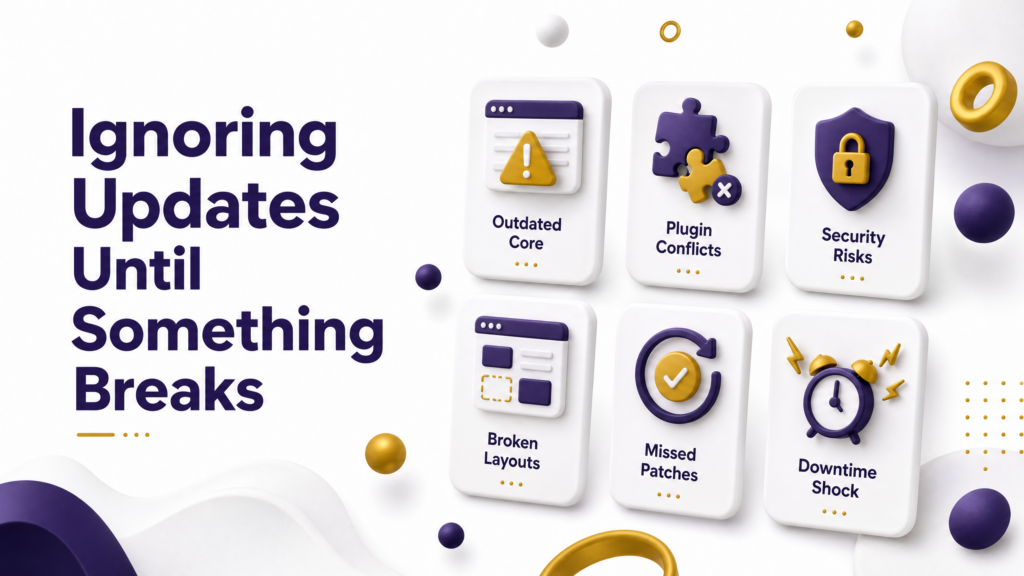
WordPress, its themes, and its plugins all get updated for a reason. Usually, it’s security. Sometimes it’s a bug fix. Often it’s both at once.
Here’s the part that surprises most people. A huge share of hacked WordPress sites weren’t hacked because of some clever new trick. They got hacked because a plugin from years ago had a known weak spot that got fixed ages ago, and nobody ever clicked the update button.
Set a weekly reminder. Ten minutes, check for updates, apply them, done. If you’re nervous something might break, take a full backup first, and if your host offers a staging site, test the update there before pushing it live. WordPress’s own guide to updating plugins and themes safely walks through the exact steps if you want to double-check yours. This one small habit prevents more damage than any security plugin you could buy. Ely Space’s WordPress security checklist covers a few more habits worth building alongside this one.
Installing Too Many Plugins
Plugin overload is one of those WordPress mistakes that feels harmless at first. Need a contact form? Add a plugin. Want a slider on the homepage? Add a plugin. Need social share buttons? Add another one. Six months later, you’ve got forty plugins running, and honestly, you can’t even remember what half of them do.
Every plugin adds code the browser has to load. Every plugin is a possible conflict with another plugin. Every plugin is one more thing that could have a security hole nobody’s keeping an eye on.
Go through your plugin list today. Turn off anything you’re not actually using. Ask yourself if a feature could be handled with a small code snippet instead of a full plugin. Fewer, better plugins will beat a pile of random ones almost every time. If you need a starting point, Ely Space’s list of essential WordPress plugins sticks to a lean set that covers most sites without the bloat.
Skipping Backups Entirely
I’ll say this plainly. Not having backups is the single riskiest thing a WordPress owner can do, and it’s shockingly common.
Your hosting company has a server failure. A plugin update breaks something important. Someone gets into your admin login. Any one of these can wipe out months of work in minutes. Without a backup, you’re not fixing anything. You’re starting from zero.
Set up automated daily backups stored somewhere off-site, meaning not on the same server as your live site. WordPress’s own backup documentation covers a few reliable ways to set this up if your host doesn’t handle it automatically. And here’s the step most people skip: actually test the restore process once, so you know it works before you ever really need it. A backup you’ve never tested is just a guess.
Using a Weak or Reused Password
“admin123” is not a password. It’s an open door.
Weak logins are one of the most common WordPress website mistakes, and also one of the easiest to fix. Use a password manager, generate something long and random, and turn on two-factor authentication for your admin login. While you’re at it, change the default “admin” username too, since that’s the first thing automated bots try when they go looking for a way in.
This whole fix takes about fifteen minutes. It closes off one of the most common ways sites get broken into. You can check whether any of your old passwords have already been exposed in a data breach using a free tool like Have I Been Pwned, and swap out anything that shows up.
Not Optimizing Images Before Upload
Someone snaps a photo on a modern phone and uploads it straight to a blog post. That one image might be six or eight megabytes. Now picture that happening across every image on the page.
Compress images before you upload them. Use newer formats like WebP where you can. Resize the image to the actual size it’ll display at on the page, not the giant resolution straight from the camera. A page full of properly sized images loads faster, ranks better in search, and doesn’t punish visitors who are on slow mobile data. ElySpace guide to image optimization for WordPress has step-by-step settings if you want to get this exactly right.
Leaving the Default Permalink Structure
By default, WordPress can generate URLs that look like yoursite.com/?p=123. That tells a visitor nothing, and honestly, it tells Google very little, too.
Go to Settings, then Permalinks, and switch to something people can actually read, like /post-name/. WordPress explains each of the available permalink structures if you’re not sure which one fits your site. Do this early. Changing permalinks after your site already has traffic and links pointing to it can break those links unless you set up proper redirects. Clean, readable URLs are a small change that quietly helps both real visitors and search engines.
Choosing a Bloated Theme
Flashy demo themes with built-in sliders, animations, and a dozen page-builder widgets look great in a preview. Then you install one, and your homepage takes six seconds to load before a visitor sees anything at all.
Pick a light, well-built theme and add on from there as you actually need things. A simple theme paired with a handful of purposeful plugins will almost always beat a “does everything” theme that’s dragging around code nobody ever uses. Ely Space’s roundup of lightweight WordPress themes is a good place to compare options before you commit to one.
Forgetting Mobile Users Exist
More than half of all web traffic today comes from phones. Yet plenty of new WordPress sites are still being built and checked only on a desktop monitor.
Check your site on an actual phone, not just a browser’s mobile preview mode. Tap your buttons for real. Try filling out your own contact form on a small screen. Google’s Mobile-Friendly Test is a quick, free way to spot obvious problems if you want a second opinion beyond your own phone. If something feels awkward to use on a six-inch phone, fix it before worrying about anything else on the page.
Never Checking Site Speed
You can’t fix what you never measure. Run your site through a free speed testing tool like Google PageSpeed Insights and actually read the results instead of just glancing at the score.
Slow images, unused plugins, and cheap hosting are usually the biggest culprits behind a slow WordPress site. And speed isn’t a one-time job either. Check again after adding new plugins or doing a redesign, because it’s surprisingly easy for a fast site to slowly turn sluggish again without anyone noticing. For a deeper walkthrough, see the ElySpace WordPress speed optimization guide.
Writing Content Without a Plan
This one isn’t technical, but it’s still one of the bigger WordPress mistakes people make. They build the site, get everything set up nicely, and then just start writing pages without any real plan behind them.
No clear topic. No clear reader in mind. No thought about what someone might actually type into Google before landing on that page. The result is a site that looks fine but never really grows, because it wasn’t built around what people are searching for in the first place.
Before writing a page, ask a simple question. What is someone actually trying to find when they land here? Answer that clearly, and the rest of the page tends to fall into place. Ely Space content planning guide for WordPress sites breaks this down into a simple process you can reuse for every new page.
Skipping an SSL Certificate
If your site address starts with “http” instead of “https”, browsers will flag it as not secure. Visitors notice that warning, and so does Google.
Most hosting providers now offer a free SSL certificate through services like Let’s Encrypt, and turning it on usually takes just a few clicks. There’s really no good reason to skip this one. It protects visitor data, builds trust, and it’s one of those small technical details search engines do take into account.
Ignoring the Comment Spam Problem
Turn on comments and forget about them, and within a month your posts will be full of fake replies selling watches, loans, or “cheap followers.” It looks bad to real visitors, and it can quietly drag down how trustworthy your site looks to search engines, too.
This is a small thing, but it’s still one of the WordPress mistakes that pile up fast because it’s so easy to ignore. A free anti-spam plugin can catch most of it automatically. Turning on comment moderation, so nothing publishes until you approve it, closes the rest of the gap. It takes a few minutes to set up once, and then you barely think about it again.
Frequently Asked Questions
What are the most common WordPress mistakes beginners make?
The most common WordPress mistakes are picking cheap, unreliable hosting, skipping updates, installing too many plugins, and never setting up backups. These four alone cause the majority of the “why is my site broken” problems beginners run into.
Can WordPress mistakes hurt my SEO ranking?
Yes. Slow speed, broken links, missing SSL, and poor mobile design all affect how search engines rank a page. Fixing these common WordPress website mistakes often improves rankings without touching your actual content.
How often should I update WordPress plugins and themes?
Check for updates at least once a week. Most updates are small and safe, but always back up your site first in case something doesn’t play well together.
Do I need a lot of plugins to run a good WordPress site?
No. A small number of well-chosen plugins almost always works better than dozens of random ones. More plugins means more code to load and more chances for something to break.
Is shared hosting bad for a new WordPress site?
Shared hosting isn’t bad by itself, but a low-quality shared host can slow your site down once traffic grows. Look for a host built specifically with WordPress in mind, even if it’s still an entry-level plan.
How long does it take to fix most WordPress mistakes?
Most of the fixes in this guide take fifteen minutes or less. Updating passwords, turning on SSL, compressing images, and cleaning up plugins are all quick jobs. The hard part isn’t the fix itself; it’s actually sitting down and doing it instead of putting it off.
Should beginners hire someone to fix these WordPress mistakes, or do it themselves?
Most of what’s covered here doesn’t need a developer. It just needs patience and a checklist. If your site has already been hacked, or you’re not comfortable touching code at all, it’s worth bringing in help. Otherwise, working through this list yourself, one item at a time, is completely doable.
Final Thought
None of this needs a developer, a big budget, or years of experience. It just needs a fresh look at your own site and the willingness to fix the small stuff before it turns into the big stuff.
Pick one item from this list and fix it today. Not next week. Today. Your future self, staring at a slow, half-broken site at 2 a.m., will thank you for it.
WordPress rewards people who keep it simple and stay consistent. It doesn’t reward the fanciest theme or the longest plugin list. Fix the basics first, keep them fixed, and everything else you build on top will actually hold up.