 Live Chat
 Contact
 Shopping Cart
 Eshan Riyaz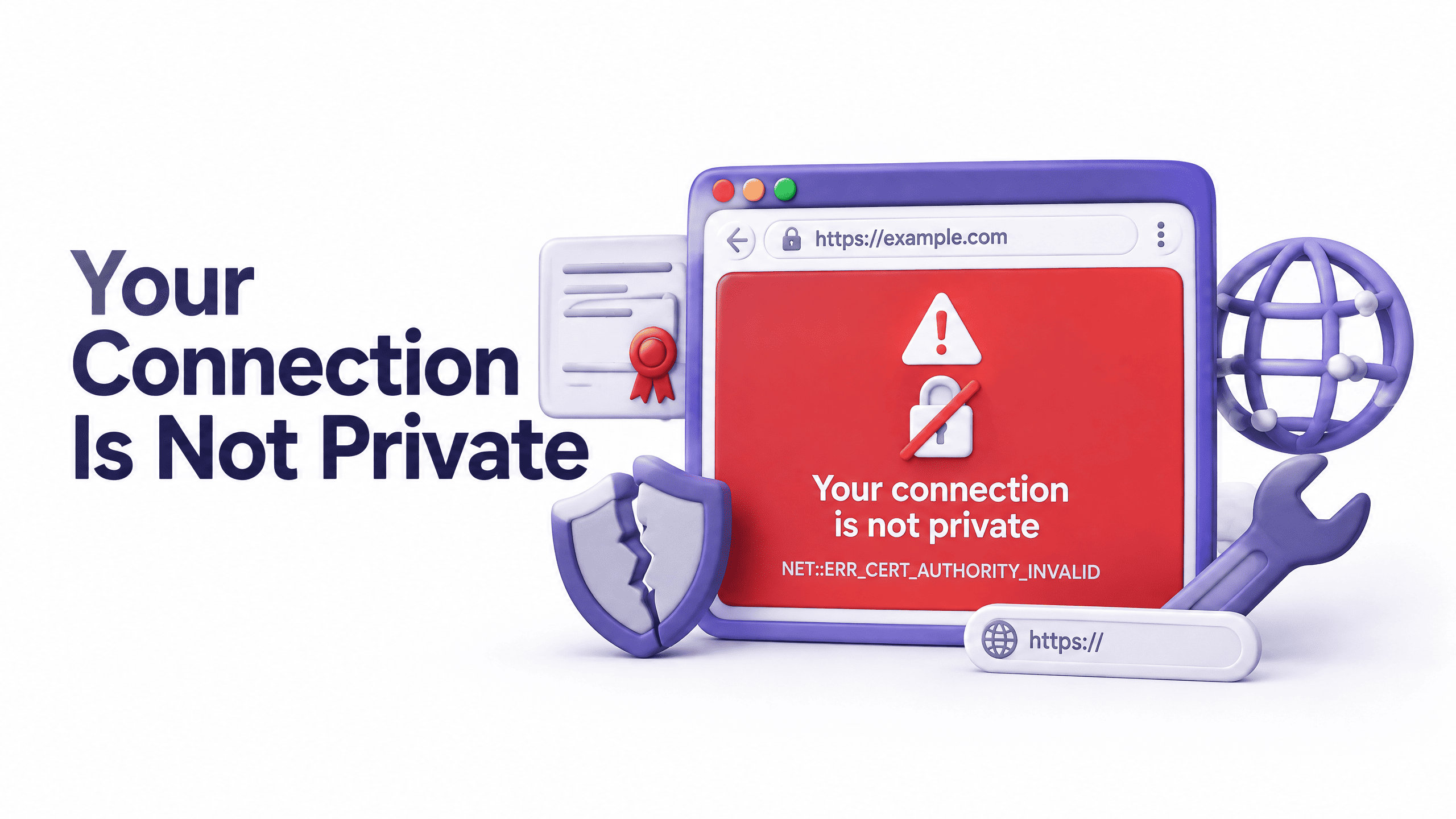
You’re trying to visit a website, maybe your own, and Chrome puts up a red warning screen. Your connection is not private. Attackers might be trying to steal your information from this site.
It looks alarming. And sometimes it is. But more often, it’s a fixable technical problem that has nothing to do with an actual attacker.
The trouble is that “your connection is not private” is a catch-all warning that shows up for several different underlying reasons, and the right fix depends entirely on which one is actually happening. Trying random fixes without understanding the cause wastes time and sometimes makes things worse.
This guide explains every common cause clearly, how to figure out which one applies to your situation, and exactly what to do about it, whether you’re a visitor trying to reach a site or a website owner whose visitors are seeing this warning.
What This Warning Actually Means
When you visit a website that uses HTTPS, which is almost every site today, your browser and the website’s server go through a quick security exchange called an SSL/TLS handshake. The website sends your browser its SSL certificate, which proves the site is who it says it is and that the connection can be encrypted.
“Your connection is not private” appears when that certificate check fails. The browser couldn’t verify the certificate, and because it couldn’t verify it, it can’t establish a secure, encrypted connection. Rather than let you continue unprotected, it stops you and shows the warning.
The error code that appears underneath the main message tells you exactly what went wrong:
- NET::ERR_CERT_DATE_INVALID: the certificate has expired
- NET::ERR_CERT_AUTHORITY_INVALID: the certificate wasn’t issued by a trusted authority
- NET::ERR_CERT_COMMON_NAME_INVALID: the certificate doesn’t match the domain you’re visiting
- NET::ERR_CERT_REVOKED: the certificate has been revoked
- ERR_SSL_PROTOCOL_ERROR: there’s a problem with the SSL configuration itself
Write that error code down. It tells you more than the main warning message does.
Is the Problem on Your Side or the Website’s?
This is the question to answer before doing anything else, because the fixes are completely different.
Try these two things immediately:
Test the site on a different network. Pull out your phone, switch to mobile data instead of Wi-Fi, and try the same website. If it loads fine there, the problem is your network or browser. If you still see “your connection is not private” on mobile data, the problem is with the website’s SSL configuration.
Try the website in an incognito window. Open an incognito/private browser window and visit the same URL. If it loads there, your browser cache or an extension is causing the issue on the regular window.
Got a result? Good. Now let’s look at what’s actually causing it.
What Is an SSL Certificate and Why It Matters
Before getting into specific causes, a plain-English explanation of what SSL actually is, because understanding it makes the causes make much more sense.
SSL stands for Secure Sockets Layer. When a website has a valid SSL certificate installed, two things happen: the connection between your browser and the server gets encrypted (so data can’t be intercepted in transit), and the website’s identity gets verified (so you know you’re actually talking to the real site, not an impostor).
That’s what the padlock in your browser address bar means, the certificate is valid, the identity is verified, the connection is encrypted.
When any part of that process breaks down: the certificate expired, it doesn’t match the website’s address, it wasn’t issued by a recognised authority; the browser has no way to verify the site is safe. So it blocks you. And shows you “your connection is not private.”
This is the browser protecting you. Most of the time, that protection is appropriate. The question is why it’s triggering, and whether the site is actually dangerous or just misconfigured.
The Main Causes: Explained One by One
Cause 1: Expired SSL Certificate
The most common cause. By a wide margin.
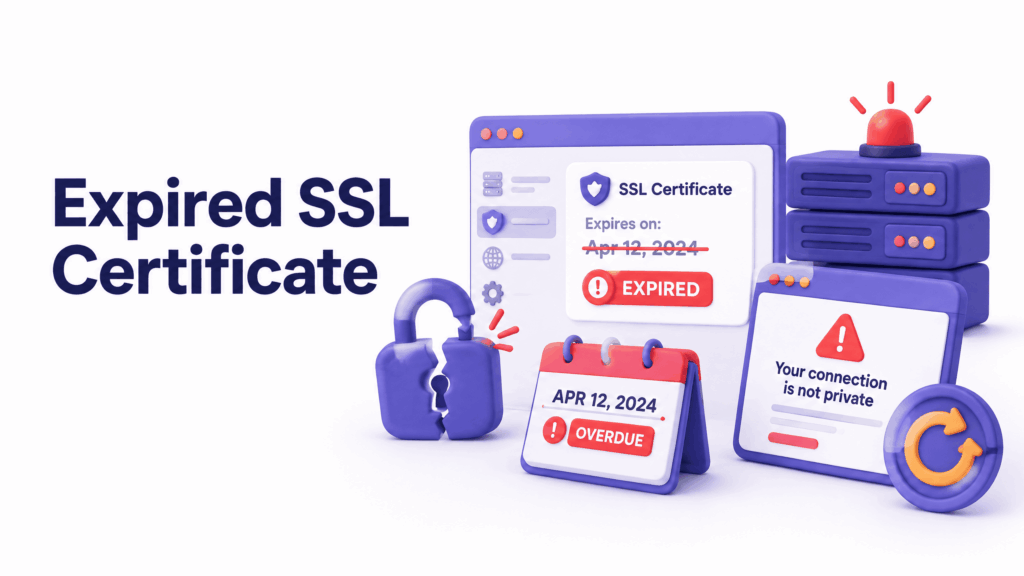
SSL certificates have an expiry date, typically one year from when they were issued. When that date passes without renewal, the certificate becomes invalid. Every visitor who tries to reach the site gets the “your connection is not private” warning until the certificate is renewed and reactivated.
This happens to businesses more often than you’d think. Auto-renewal fails because a payment card expired. Someone changed the email address associated with the hosting account and missed the renewal reminder. The certificate renews but doesn’t reinstall properly on the server.
The error code for this is NET::ERR_CERT_DATE_INVALID. If you see that, an expired certificate is almost certainly the cause.
For visitors: Nothing you can do. The site owner needs to renew their certificate. You can check if the certificate is expired by clicking the “Not Secure” or warning icon in your address bar, it shows the certificate’s expiry date.
For website owners: Log into your hosting control panel and renew your SSL certificate immediately. If you’re using Let’s Encrypt (free SSL through most quality hosts), check whether auto-renewal failed, this is usually caused by a DNS misconfiguration or a hosting account issue preventing the automated renewal from completing. Fix the underlying issue and force a renewal.
Cause 2: Domain Mismatch
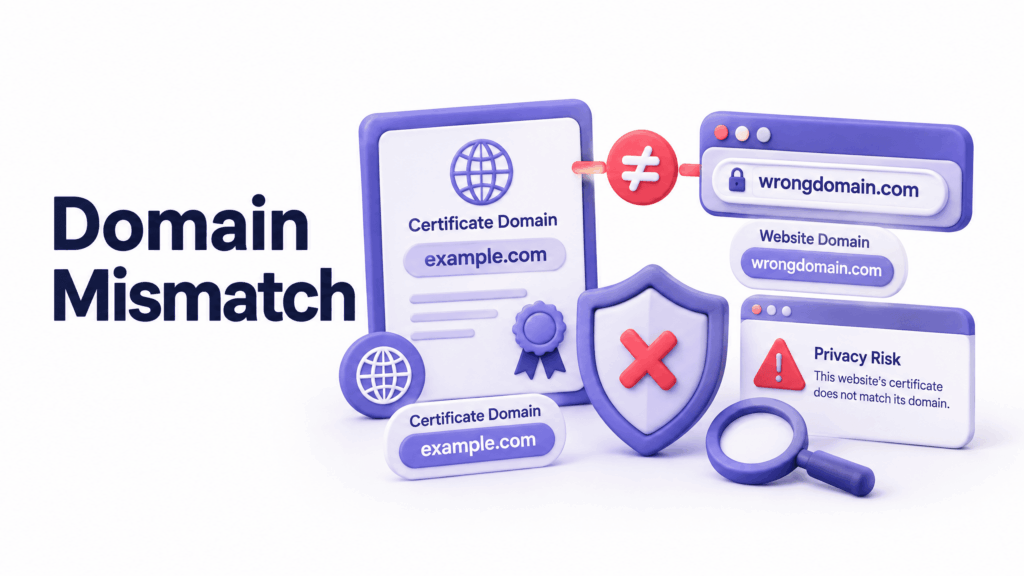
Your SSL certificate is issued for a specific domain name. It only works for that exact domain, and potentially variations it explicitly covers.
A domain mismatch happens when the certificate doesn’t match the address the visitor is using to reach the site. Some common scenarios:
The certificate covers yourbusiness.com but someone visits www.yourbusiness.com, and the certificate wasn’t issued to cover the www version. The certificate covers the old domain but the site recently migrated to a new one and the certificate wasn’t updated. The certificate covers the main domain but not a subdomain like shop.yourbusiness.com.
The error code here is NET::ERR_CERT_COMMON_NAME_INVALID.
For website owners: Check your certificate covers every version of your domain that visitors might use, with and without www, any subdomains, and the new domain if you’ve recently migrated. A wildcard certificate covers all subdomains (*.yourbusiness.com). Most modern SSL setups handle this automatically, but it’s worth verifying if you’ve recently made any domain or hosting changes.
Cause 3: Self-Signed Certificate
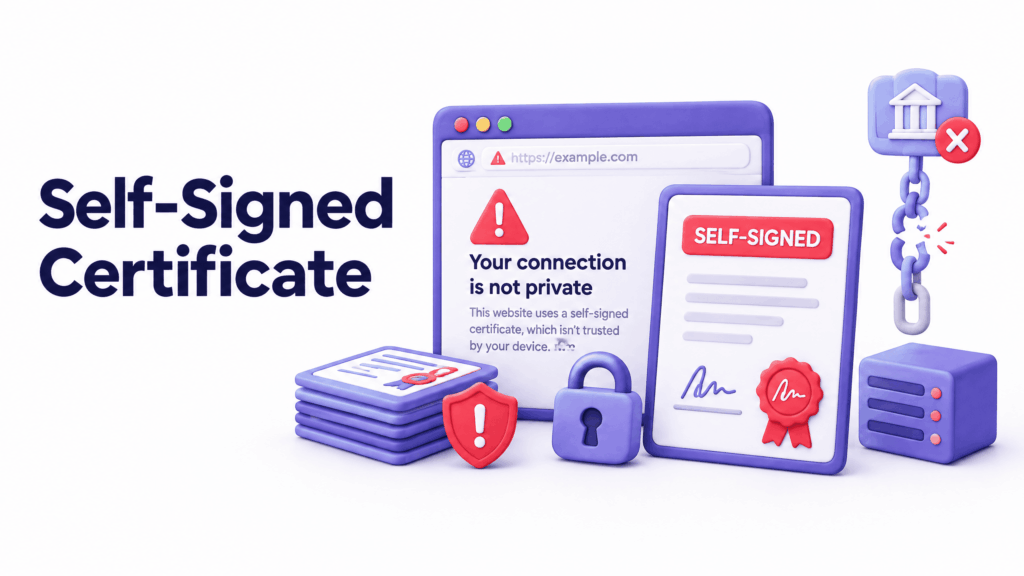
A self-signed certificate is one created by the website itself rather than issued by a recognised Certificate Authority (CA). It provides encryption, but it doesn’t prove the site’s identity, because anyone can create a self-signed certificate for any domain.
Browsers don’t trust self-signed certificates for public websites. They trigger the “your connection is not private” warning every time. Self-signed certs are fine for internal development environments and local testing, not for any website accessible to real visitors.
The error code is NET::ERR_CERT_AUTHORITY_INVALID.
For website owners: Replace the self-signed certificate with one issued by a trusted Certificate Authority. Free options through Let’s Encrypt are available through virtually every quality hosting provider. There’s no reason to use a self-signed certificate on a live public website.
Cause 4: HTTP Instead of HTTPS Problems
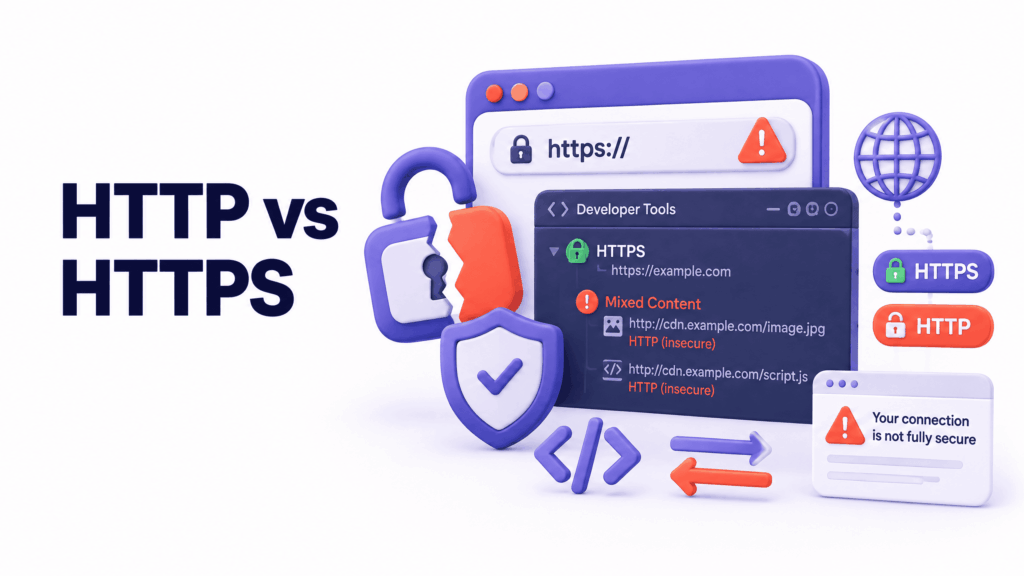
Even when a valid SSL certificate is installed, “your connection is not private” can appear due to configuration problems around how HTTP redirects to HTTPS.
Mixed content: the page loads over HTTPS but some elements (images, scripts, stylesheets) are being loaded over plain HTTP. The browser flags this as a security problem even though the certificate is valid.
Missing HTTPS redirect: the site is accessible at both http://yourbusiness.com and https://yourbusiness.com, and some links or old bookmarks point to the HTTP version, which doesn’t have the certificate applied correctly.
Redirect loops: misconfigured redirects between HTTP and HTTPS that cause the browser to spin in circles trying to establish the connection.
For website owners: Ensure every page on your site redirects from HTTP to HTTPS automatically. Check your site for mixed content using a browser’s developer tools (the Console tab shows mixed content warnings in red). Every internal link, every image source, every script should be loading from an HTTPS URL.
Cause 5: Wrong Date and Time on Your Device
This one catches people off guard. Your browser validates SSL certificates partly by checking the certificate’s validity period against your device’s current date and time. If your computer’s clock is wrong, significantly off from the actual date, the browser might conclude a perfectly valid certificate has either expired or isn’t yet valid.
It’s a surprisingly common cause, especially on older devices that haven’t synced their clocks automatically for a while.
Fix: Check your computer’s date and time settings. On Windows, right-click the clock in your taskbar → Adjust date/time → enable “Set time automatically.” On Mac, System Preferences → Date & Time → enable “Set date and time automatically.” Sync the clock, reload the page.
Cause 6: Browser Cache or Cookies
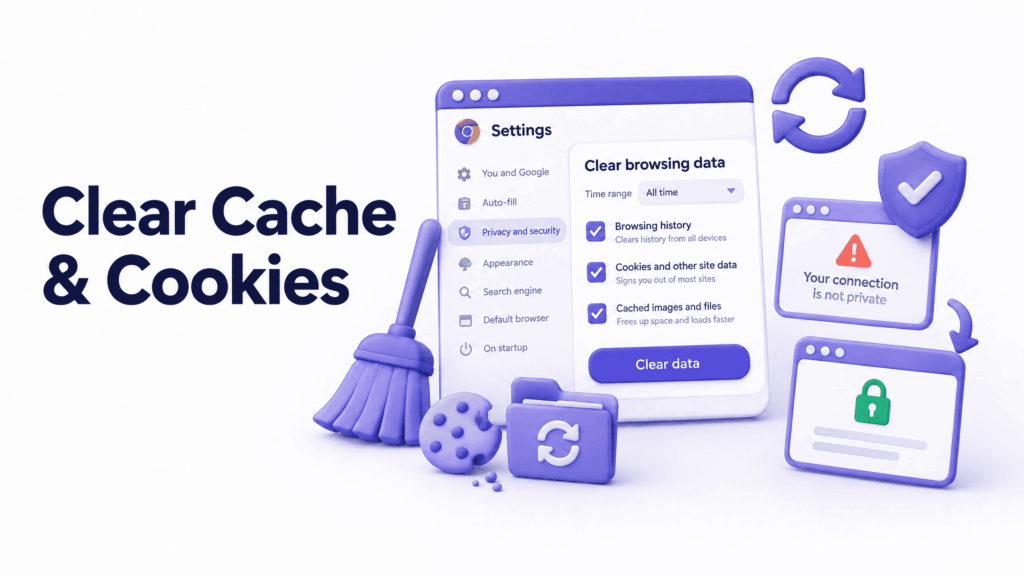
Your browser caches SSL connection data alongside regular page data. Sometimes that cached data becomes corrupted or outdated, particularly after a website has renewed or changed its certificate.
When that happens, the browser tries to use the old cached certificate information, which no longer matches what the server is presenting, and the “your connection is not private” error appears even though the website’s certificate is perfectly valid.
Fix for visitors:
Clear your browser cache and cookies: in Chrome, go to Settings → Privacy and security → Clear browsing data, select All time, check Cached images and files and Cookies and other site data, click Clear data. Restart Chrome and try again.
You can also specifically clear the SSL state in Chrome. Type chrome://settings/privacy in your address bar, find Security settings, and look for the option to clear SSL cache. On Windows, this is also accessible through Internet Options in the Control Panel under Content → Clear SSL state.
Cause 7: Public Wi-Fi Interference
This one is less about the website and more about the network you’re on.
Public Wi-Fi networks: airports, coffee shops, hotels, sometimes intercept HTTPS connections to redirect users to a login or terms-of-service page before granting internet access. This is called a captive portal. When your browser tries to connect to an HTTPS site through a captive portal that it hasn’t cleared yet, it sees an unexpected certificate (the portal’s) instead of the website’s, and shows “your connection is not private.”
Fix: Before visiting any HTTPS site on public Wi-Fi, try navigating to a plain HTTP site first (not HTTPS). This usually triggers the captive portal login page. Complete the login or terms acceptance, then try your original destination. The warning should disappear once you’re through the portal.
Also consider using a VPN on public Wi-Fi, this encrypts your connection before it even reaches the public network, bypassing most captive portal interference.
Cause 8: Antivirus or Firewall Blocking SSL
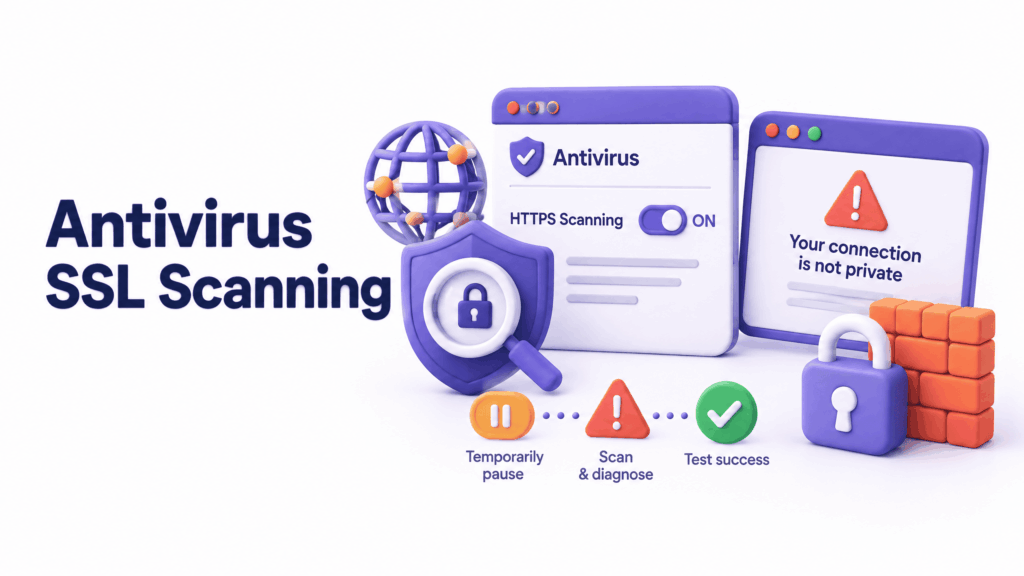
Modern security software sometimes intercepts HTTPS connections to scan them for malware. They do this by inserting their own certificate into the connection, essentially performing a man-in-the-middle scan that the browser wasn’t told to expect.
When this goes wrong, the antivirus certificate isn’t trusted by the browser, or the interception isn’t configured properly, you get the “your connection is not private” warning even on sites with perfectly valid certificates.
Fix: Temporarily disable the web protection or HTTPS scanning feature of your antivirus (not the whole program), and test the site. If it loads, your antivirus is the cause. Look for settings related to “SSL scanning,” “HTTPS scanning,” or “web shield” and either configure it to trust your browser’s certificate validation or add the affected website as an exception.
Fixes for Visitors: Quick Reference
If you’re a visitor and want to get past this error:
- Try incognito mode: if it loads there, a browser extension or cache is the issue
- Clear browser cache and cookies: removes corrupted cached certificate data
- Check your date and time: sync your clock and reload
- Try a different network: rules out public Wi-Fi or local network issues
- Disable antivirus web protection temporarily: test and re-enable
- Try a different browser: if it loads in Firefox but not Chrome, the issue is Chrome-specific
- Flush DNS cache: on Windows run ipconfig /flushdns, on Mac use Terminal with sudo dscacheutil -flushcache; sudo killall -HUP mDNSResponder
Work through these in order. Most cases resolve by step three.
Fixes for Website Owners: Quick Reference
If it’s your own site and visitors are seeing “your connection is not private”:
- Check certificate expiry: log into your hosting control panel and verify the SSL certificate is active and not expired
- Force SSL renewal: if you’re on Let’s Encrypt, trigger a manual renewal through your hosting panel
- Verify domain coverage: confirm the certificate covers www and non-www versions of your domain, plus any subdomains visitors use
- Check HTTPS redirects: every HTTP URL should automatically redirect to HTTPS. Test by typing http://yourdomain.com in a browser, it should automatically redirect to the HTTPS version
- Fix mixed content: open your browser’s developer tools (F12), go to the Console tab, and look for mixed content warnings. Update any HTTP resource URLs to HTTPS
- Replace self-signed certificates: install a certificate from a trusted CA through your hosting provider. This should be free with any quality host
- Contact your hosting provider: if you’ve checked all of the above and the warning persists, your hosting provider can check server-side SSL configuration issues that aren’t visible from the control panel
According to Google’s HTTPS transparency report, the vast majority of web traffic is now encrypted over HTTPS, which means SSL problems are increasingly visible and increasingly damaging to visitor trust when they occur.
Should You Ever Click “Proceed Anyway”?
Most browsers give you the option to bypass the “your connection is not private” warning by clicking Advanced → Proceed to [site] anyway.
The honest answer: sometimes yes, usually no.
When it’s acceptable: You own the site and you’re testing something. Or you’re accessing an internal network resource on a known, trusted private server. Or you’re a developer working in a local environment.
When it’s not: Any public website handling personal information, login credentials, or payments. Even if you trust the site’s intentions, proceeding without a valid certificate means your data travels unencrypted, interceptable by anyone on the same network, particularly on public Wi-Fi.
If a website you normally trust is suddenly showing “your connection is not private,” don’t dismiss it immediately. Contact the site owner through a different channel and tell them, their certificate has likely expired or been misconfigured, and they may not know yet.
How to Prevent This on Your Business Website
If you run a website, these habits prevent SSL problems from ever reaching your visitors:
Enable auto-renewal and verify it’s working. Let’s Encrypt certificates renew every 90 days automatically, but only if the renewal process can run without errors. Check periodically that renewal is completing successfully, not just scheduled.
Set up uptime and certificate expiry monitoring. Tools like UptimeRobot monitor your site every few minutes and alert you when it goes down. SSL monitoring tools specifically alert you when your certificate is approaching expiry, before visitors see the warning.
Keep your domain registration email current. Certificate renewal reminders and alerts go to the email on file with your hosting account. If that email is old or abandoned, you’ll miss critical notices.
Test your SSL configuration periodically. A free tool called SSL Labs Server Test (available at ssllabs.com/ssltest) gives your site’s SSL configuration a letter grade and flags any issues; expired certificates, weak protocols, incomplete certificate chains, domain coverage gaps. Running this test every few months catches problems before visitors encounter them.
Use a quality hosting provider that includes SSL management. The best hosts handle certificate installation, renewal, and HTTPS configuration automatically, you never have to think about it. At ElySpace, SSL is included and managed as part of every hosting plan we set up for clients. No manual renewal, no expired certificates surprising you on a Tuesday morning.
FAQs (Frequently Asked Questions)
What does “your connection is not private” actually mean?
It means your browser couldn’t verify the SSL certificate on the website you’re visiting. Without a verified certificate, the browser can’t establish a secure, encrypted connection, so it blocks access and shows this warning to protect you from potentially transmitting data over an unencrypted connection.
Is “your connection is not private” always dangerous?
Not always. It’s often a configuration problem rather than an actual attack, an expired certificate, a domain mismatch, or a browser cache issue. But it’s a genuine signal that something is wrong with the secure connection, and it should be taken seriously rather than bypassed without understanding why it’s appearing.
How do I fix “your connection is not private” on my own website?
Start by checking your SSL certificate status in your hosting control panel, confirm it’s active, not expired, and cover the exact domain visitors are using. Then verify your HTTPS redirects are working correctly and check for mixed content issues. If everything looks right on the surface, contact your hosting provider. server-side SSL configuration problems require access to the server itself.
Why does “your connection is not private” appear on a site I visit regularly?
The site’s SSL certificate has likely expired or been changed recently. It’s also possible your browser cache is holding outdated certificate information. Try clearing your browser cache first. If the warning persists in an incognito window, the problem is with the site itself and the owner needs to fix it.
Can “your connection is not private” appear because of my antivirus?
Yes. Some antivirus products scan HTTPS traffic by inserting their own certificate into the connection. When this isn’t configured correctly, the browser sees an unexpected certificate and shows the warning. Temporarily disabling the HTTPS scanning feature of your antivirus and testing the site confirms whether this is the cause.
How long does it take to fix an expired SSL certificate?
Usually under an hour for a website owner who knows what they’re doing. Renewing a Let’s Encrypt certificate through a hosting control panel is typically a few clicks. The certificate activates almost immediately after renewal. If the renewal fails due to a configuration error, resolving that underlying issue may take longer.
What is a domain mismatch SSL error?
It means the SSL certificate installed on the server was issued for a different domain than the one you’re visiting. For example, the certificate covers yourbusiness.com but you’re accessing www.yourbusiness.com, or the site recently moved to a new domain and the certificate hasn’t been updated. The browser flags this because it can’t verify the site’s identity when the certificate doesn’t match the address.