 Live Chat
 Contact
 Shopping Cart
 Eshan Riyaz
You click a link. Or type an address. And instead of the website you expected, Chrome throws back a grey screen and tells you: this site can’t be reached.
No page. No content. Just an error code, a vague message, and a reload button that does absolutely nothing.
Here’s the first thing worth knowing: this error sounds more serious than it usually is. Most of the time, it’s something simple; a DNS glitch, a cached browser file, a VPN blocking the connection, and it resolves in under five minutes once you know what to try and in what order.
The other thing worth knowing: the fixes are different depending on whether the problem is on your end or the website’s end. Trying fixes for a dead website when your internet connection is the issue just wastes time. So let’s start there.
First: Is It Your Problem or the Website’s?
This is the fastest diagnostic step and most people skip it.
Open your phone, switch to mobile data (not Wi-Fi), and try loading the same website. Two possible outcomes:
It loads on your phone. The website is fine. The problem is with your computer, browser, or network. Work through the fixes below in order.
It doesn’t load there either. The website itself is likely down or there’s a widespread DNS issue. Try a site like downforeveryoneorjustme.com to confirm. If the site is down for everyone, there’s nothing you can do on your end, you wait for the website owner to fix it.
Also try loading a completely different website; Google, YouTube, any major site. If those don’t load either, your internet connection is the problem, not this specific website.
This two-step test saves enormous amounts of time. Do it before anything else.
What “This Site Can’t Be Reached” Actually Means
The error itself is Chrome’s generic way of saying: I tried to connect to that website and something blocked the connection before I could get there.
The “something” could be a dozen different things. That’s why the error feels so unhelpful, it’s a catch-all message for several different underlying problems. The error code that appears underneath the main message is where the real information lives.
The most common ones:
DNS_PROBE_FINISHED_NXDOMAIN: Chrome couldn’t find the website’s address at all. Either the domain doesn’t exist, it’s expired, or your DNS server can’t resolve it. This is the most common cause.
ERR_CONNECTION_REFUSED: Chrome found the server but the server actively rejected the connection. Could be a firewall, a server that’s temporarily down, or the site has blocked your IP.
ERR_CONNECTION_TIMED_OUT: Chrome found the server but it stopped responding before completing the connection. Server overloaded, network congestion, or a firewall silently dropping packets.
ERR_NAME_NOT_RESOLVED: Very similar to the DNS one. Chrome can’t match the domain name to an IP address. Usually a DNS issue on your side.
ERR_INTERNET_DISCONNECTED: Straightforward. No internet connection detected at all.
Write down the specific error code you’re seeing, it’ll tell you which fix to prioritise.
Fix 1: Check Your Internet Connection First
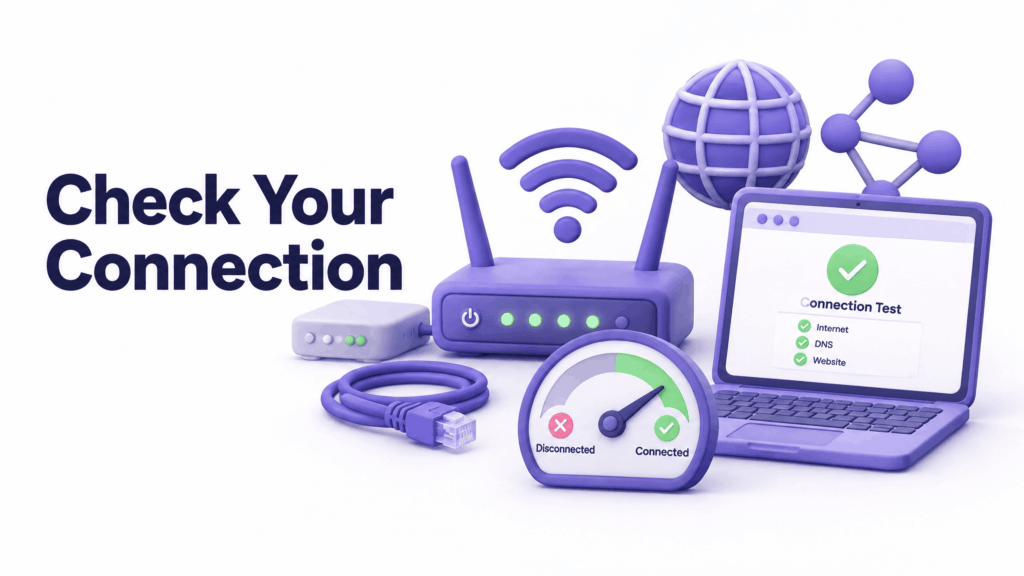
Obvious. Also where it actually is in about 20% of cases.
Is the router on? Are other websites loading? Can you load Google? If everything is down, restart your router; unplug it, wait 30 seconds, plug it back in, wait for it to fully reconnect. Restart your computer too while you’re at it.
If some sites load but not this specific one, your connection is fine and the problem is something more specific. Move to Fix #2.
Fix 2: Flush Your DNS Cache
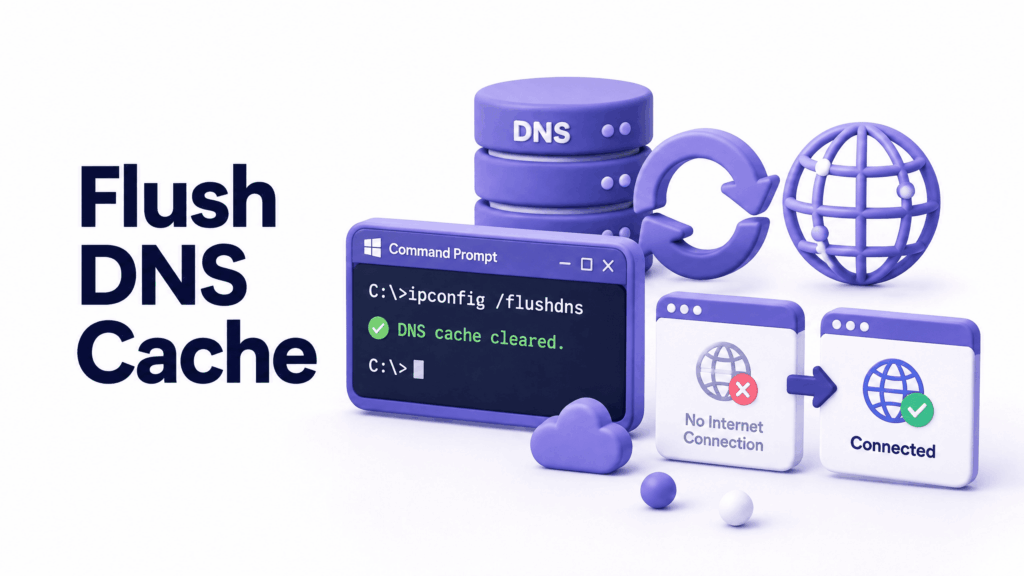
This is the fix that solves the “this site can’t be reached” error most often when the internet is otherwise working fine.
Your computer keeps a local record of domain-to-IP address translations to load websites faster. When that record becomes outdated or corrupted, because the website moved to a new server, or a DNS change happened that your computer hasn’t registered yet, you get this error.
Flushing the DNS cache forces your computer to fetch fresh records.
On Windows:
Press the Windows key, search for Command Prompt, right-click it and select Run as administrator. Type this command and press Enter:
ipconfig /flushdns
You’ll see a confirmation that the DNS cache was cleared. Close the window and try the website again.
On Mac:
Open Terminal (search for it in Spotlight). Type this and press Enter:
sudo dscacheutil -flushcache; sudo killall -HUP mDNSResponder
You’ll be asked for your password. Enter it, press Enter, then try the website again.
On Chrome specifically:
Type chrome://net-internals/#dns into your address bar. Click “Clear host cache.” Then go to the Sockets tab and click “Flush socket pools.”
Try the website after each of these. DNS flush resolves the error more often than any other single fix.
Fix 3: Clear Browser Cache and Cookies

Your browser stores copies of websites you’ve visited to load them faster on repeat visits. Sometimes these cached files become outdated or corrupted, causing connection errors when the browser tries to use an old version that no longer matches the live server.
In Chrome:
Click the three dots in the top right → Settings → Privacy and security → Clear browsing data. Select “Cached images and files” and “Cookies and other site data.” Change the time range to “All time.” Click Clear data.
Then close Chrome completely, reopen it, and try again.
If clearing cache fixes it, that’s great, and worth knowing for next time. Browsers accumulate a lot of stored data over months of use, and periodic clearing is good practice regardless of errors.
Fix 4: Disable VPN or Antivirus Temporarily
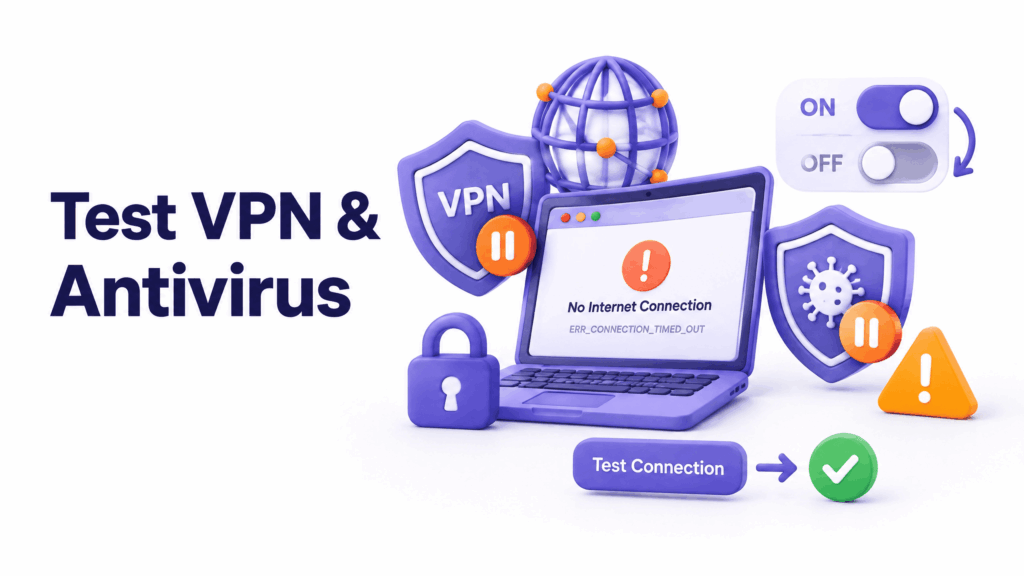
VPNs reroute your internet traffic through different servers. Sometimes they drop connections to specific websites, either because the VPN server is having issues or because the VPN provider has blocked the site’s IP range for some reason.
Turn your VPN off and try the website again. If it loads, the VPN is the issue. Switch to a different VPN server, or add the website as an exception in your VPN settings.
The same logic applies to antivirus software with “web protection” or “web shield” features. Modern security tools sometimes flag legitimate websites incorrectly, especially newer sites or sites that recently changed their SSL configuration. Temporarily disable the web protection module (not the whole antivirus), test the website, then re-enable it.
If that fixes it, add the website as a trusted exception rather than leaving protection off permanently.
Fix 5: Try a Different Browser or Incognito Mode
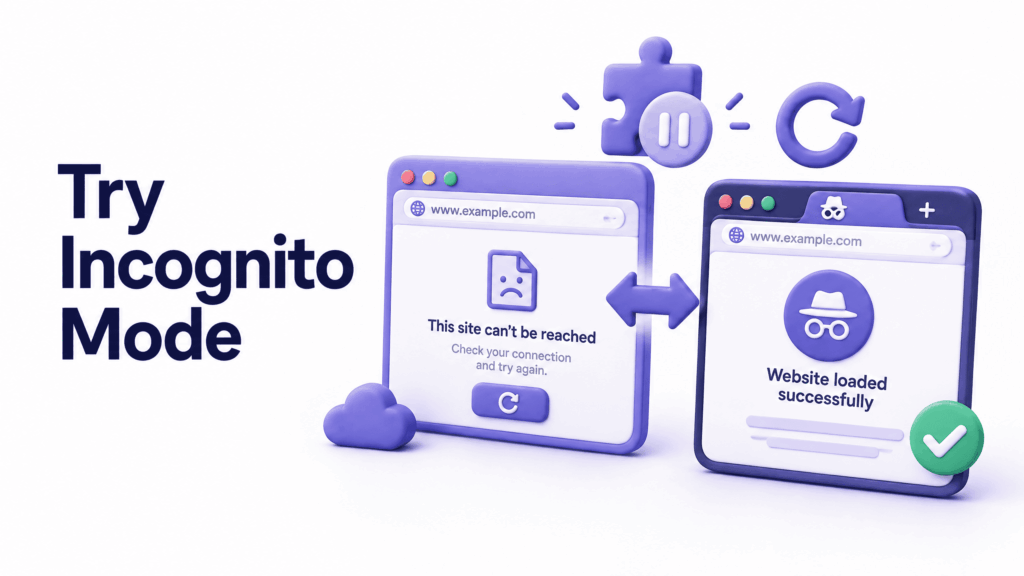
Open the same website in an incognito/private window. Extensions and plugins don’t run in incognito mode by default, and cached data is bypassed.
If the site loads in incognito but not in a normal window, a browser extension is causing the problem. Open your extensions (chrome://extensions), disable them one at a time, and test after each until you find the culprit. Ad blockers, privacy tools, and security extensions are the most common causes.
If incognito doesn’t fix it, try a completely different browser; Firefox, Edge, or Safari if you’re on a Mac. If the site loads there but not in Chrome, the issue is specific to Chrome, try reinstalling or updating it.
Fix 6: Change Your DNS Server
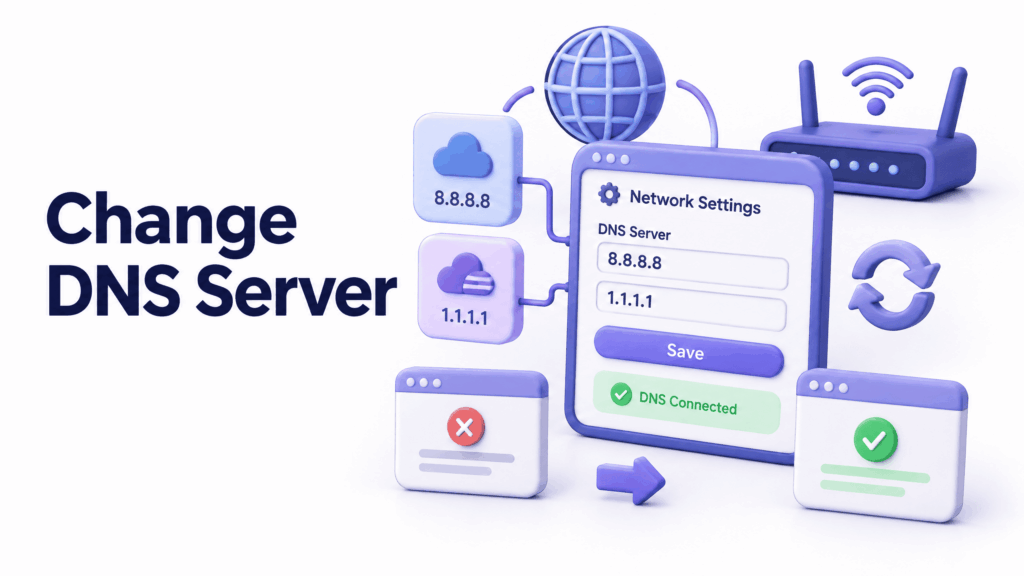
Your DNS server is what translates domain names into IP addresses. Your internet provider assigns you a default DNS server automatically, and sometimes that server is slow, unreliable, or having problems.
Switching to a public DNS server is free, takes about five minutes, and often resolves persistent “this site can’t be reached” errors that nothing else fixes.
On Windows:
Control Panel → Network and Internet → Network and Sharing Centre → Change adapter settings. Right-click your active connection → Properties → Internet Protocol Version 4 (TCP/IPv4) → Properties. Select “Use the following DNS server addresses” and enter:
- Preferred: 8.8.8.8
- Alternate: 8.8.4.4
These are Google’s public DNS servers. Cloudflare’s (1.1.1.1 and 1.0.0.1) are another reliable option.
Click OK, close the windows, and test the website again.
On Mac:
System Preferences → Network → Advanced → DNS tab. Click the + button and add 8.8.8.8 and 8.8.4.4. Click OK, then Apply.
Fix 7: Reset Your Network Settings
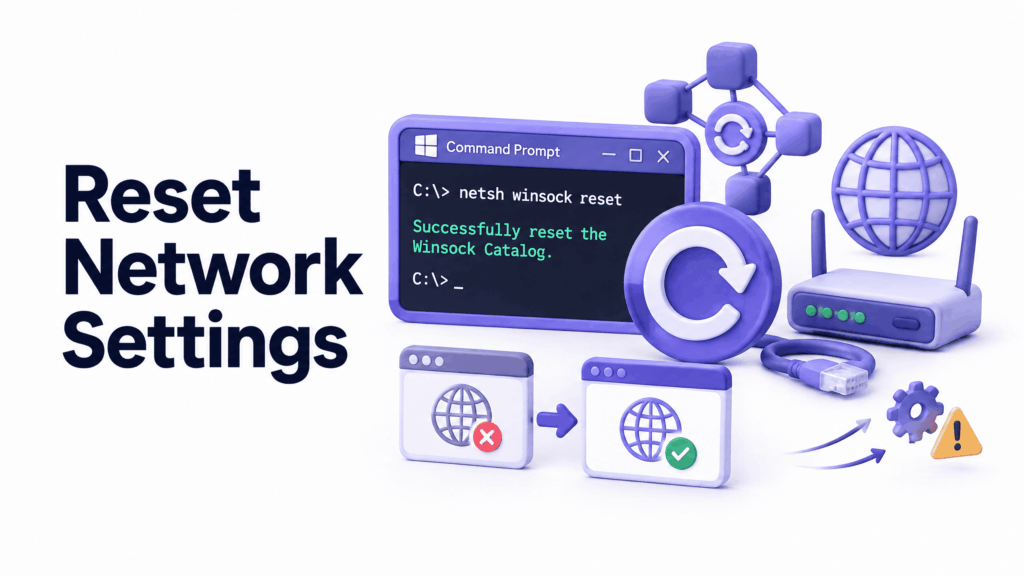
If nothing above has worked, your computer’s network stack itself may be misconfigured or corrupted. A full network reset brings all network settings back to their defaults.
On Windows:
Open Command Prompt as administrator and run these commands one at a time, pressing Enter after each:
netsh winsock reset
netsh int ip reset
ipconfig /release
ipconfig /flushdns
ipconfig /renew
Restart your computer after running all of these. This is a more complete network reset than a simple DNS flush and resolves persistent connection issues that other fixes miss.
On Mac:
System Preferences → Network → select your connection → Advanced → Renew DHCP Lease. You can also delete the current network location and create a new one by clicking the Locations dropdown at the top of the Network panel.
If You’re the Website Owner: What to Check
Different problem entirely if it’s your own site showing “this site can’t be reached” to visitors. Now it’s a hosting and domain issue, not a browser issue.
Check if your domain has expired. Log into your domain registrar account and confirm your domain is active and not in an expired or suspended state. A lapsed domain registration is one of the most common reasons websites suddenly go offline, the site itself is fine, but nobody can reach it because the address no longer works.
Check your hosting account status. Log into your hosting provider’s control panel and confirm your hosting plan is active. Overdue invoices, payment failures, or exceeded resource limits can suspend a hosting account automatically.
Check your DNS settings. If you recently migrated to a new host, changed servers, or made DNS changes, those changes can take 24 to 72 hours to propagate fully. During that window, some visitors may not be able to reach your site depending on their DNS provider.
Check for server downtime. Contact your hosting provider or check their status page to confirm the server your site runs on is operational. Server-side problems; hardware failures, overloaded servers, maintenance windows, are the hosting provider’s responsibility to fix.
Check your SSL certificate. An expired or misconfigured SSL certificate can cause connection errors that look similar to this one. Check whether your certificate is current and properly installed.
According to Google’s Search Console help documentation, persistent server availability issues are tracked by Google and can affect your search rankings over time, so getting your site back online quickly matters beyond just the immediate customer impact.
When to Call Your Hosting Provider
If you’ve checked everything above and your site is still down, call your hosting provider. That’s what they’re there for.
When you call, have this information ready:
- Your domain name
- What error visitors see (the exact message and error code)
- When the problem started
- Whether anything changed recently; new DNS settings, a plugin update, a hosting plan change
A good hosting provider responds quickly and can identify server-side issues you have no visibility into. If their response is slow or unhelpful, that’s useful information about whether they’re the right host for a site where uptime matters.
How to Prevent This From Happening to Your Business Website
Most unexpected website downtime is preventable.
Enable auto-renewal on your domain. An expired domain is the most embarrassing and avoidable cause of “this site can’t be reached.” Auto-renewal with a valid payment method on file costs nothing and eliminates the risk entirely.
Choose reliable hosting. Cheap shared hosting has higher downtime rates. Quality managed hosting, with real uptime guarantees backed by compensation clauses, reduces the frequency and duration of server-side outages dramatically.
Set up uptime monitoring. Free tools like UptimeRobot check your website every few minutes and alert you by email or SMS the moment it goes down. Most business owners find out their site is down from a customer, a monitoring tool means you know before they do.
Keep your SSL certificate renewed. Most hosts handle this automatically if you’re using Let’s Encrypt. Confirm auto-renewal is active so a lapsed certificate doesn’t bring the site down unexpectedly.
Maintain regular backups. If your site goes down due to a server or file problem, a clean recent backup gets it back up in hours rather than days.
At ElySpace, every website we manage for clients includes uptime monitoring, automated backups, SSL management, and proactive maintenance, so downtime is caught and addressed before it becomes a customer-facing problem. If your site’s reliability is something you’re not currently confident about, we’re worth talking to.
FAQs (Frequently Asked Questions)
What does “this site can’t be reached” mean exactly?
It’s Chrome’s generic error message for any situation where the browser couldn’t establish a connection to the website’s server. The specific cause depends on the error code shown underneath; DNS failure, connection refused, timeout, or no internet connection are the most common.
Is “this site can’t be reached” always my fault?
Not at all. The problem can be on your side (your internet, your browser, your DNS) or on the website’s side (server down, domain expired, hosting issues). The quickest way to tell: try the same site on mobile data. If it loads there, the problem is on your end. If it doesn’t, the website itself is likely down.
What’s the fastest fix for “this site can’t be reached”?
Flush your DNS cache first, it solves this error more often than any other single fix. On Windows: open Command Prompt as administrator and run ipconfig /flushdns. On Mac: open Terminal and run sudo dscacheutil -flushcache; sudo killall -HUP mDNSResponder. Try the site again immediately after.
Why does “this site can’t be reached” happen only on my computer but not my phone?
The problem is specific to your computer’s network configuration, browser cache, DNS cache, or a browser extension. Start by flushing the DNS cache and clearing your browser cache. If that doesn’t work, try the site in an incognito window; if it loads there, a browser extension is blocking it.
My own website is showing this error to visitors, what do I do first?
Check three things in order: Is your domain registration active and not expired? Is your hosting account in good standing with no overdue payments? Has your SSL certificate expired? Any one of these can take a site offline immediately. Contact your hosting provider if all three check out, the problem is likely on their server.
How long does “this site can’t be reached” usually last?
If it’s a temporary server issue on the website’s end, it often resolves within minutes to a few hours. If it’s a DNS propagation issue after a hosting migration, it can take 24 to 72 hours to fully resolve worldwide. If it’s on your end: DNS cache, browser cache, VPN; the fixes above typically resolve it in under ten minutes.
Can antivirus software cause “this site can’t be reached”?
Yes. Modern antivirus tools with web protection features can incorrectly flag legitimate websites and block access. Temporarily disable the web protection module (not the full antivirus), test the website, and if it loads, add the site as a trusted exception in your antivirus settings.