 Live Chat
 Contact
 Shopping Cart

 Eshan Riyaz
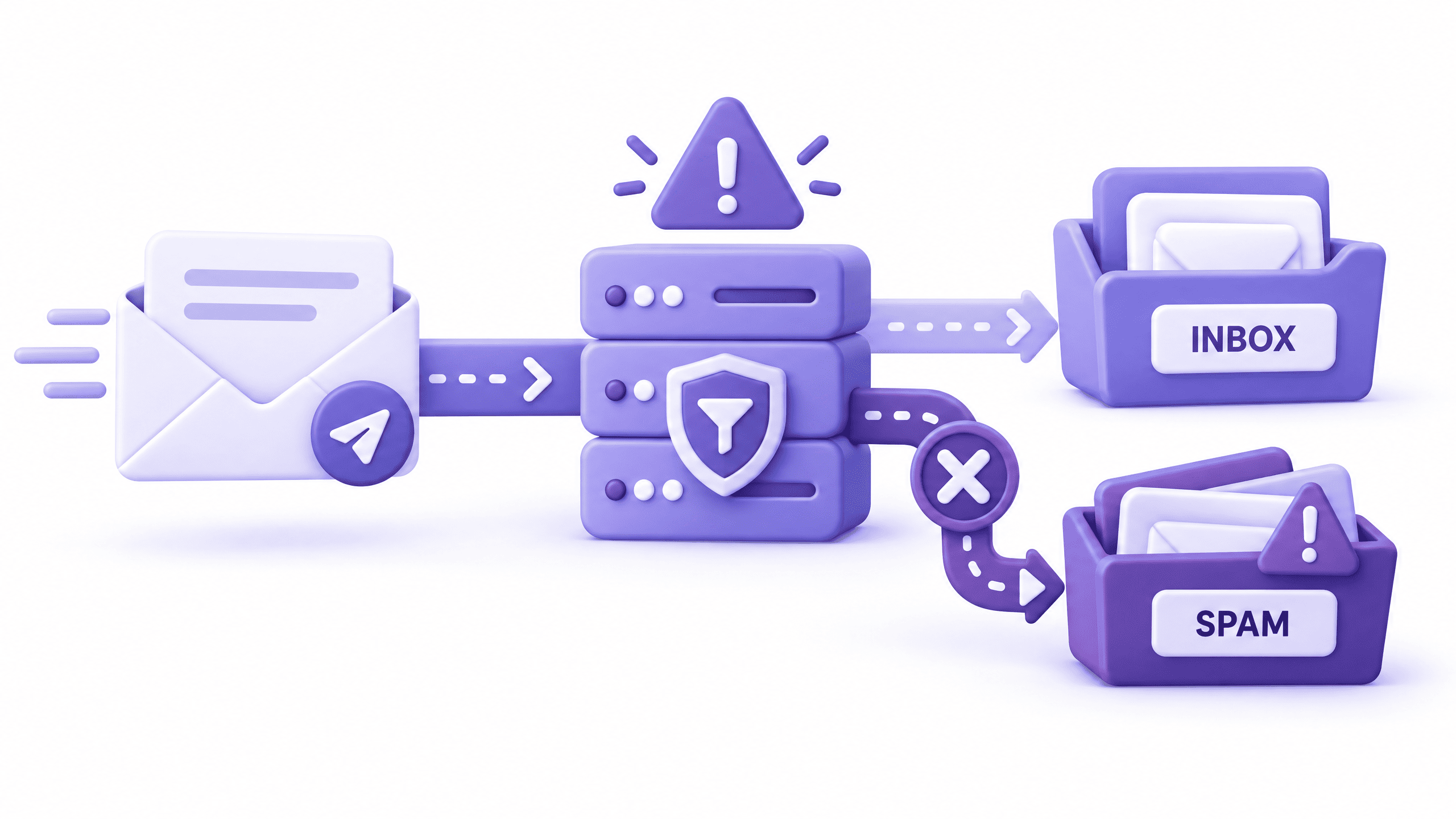
You send a quote to a client. Two days pass. No reply. You call, and hear the line nobody wants to hear: “I think it ended up in my spam folder.” That’s business email going to spam, and it feels personal.
You wrote a clear message. You sent it from a proper address. And a filter you’ve never met decided you looked suspicious.
The good news: it’s rarely about what you wrote. Most cases trace back to missing technical records and a reputation nobody told you about. Both are fixable, and you don’t need to be technical to fix them.
Below you’ll find each cause in plain English, then seven fixes in the order I’d try them.
Why Is Your Business Email Going to Spam?
Business email going to spam isn’t random. Mailbox providers like Gmail and Outlook decide what to do with every incoming message in a fraction of a second. They don’t read it the way a person would. They ask three questions.
The three questions every inbox asks
- Are you really who you say you are? That’s authentication: SPF, DKIM and DMARC.
- Do people trust you? That’s reputation: how your sending server and your domain have behaved so far.
- Does this message look safe? That’s content: the words, the links and the format.
Fail the first question and the other two barely matter. That’s why so many cases of business email going to spam come down to missing records that take ten minutes to add.
The rules have tightened too. Google and Yahoo began enforcing stricter requirements for bulk senders in February 2024. Microsoft followed on Outlook.com in May 2025. Those rules formally target large senders. But filters use the same signals on everyone, so a small business with no authentication looks worse than it used to.
Google spells out what it expects in its email sender guidelines.
Start Here: A 5-Minute Check Before You Change Anything
Don’t touch your settings yet. Spend five minutes finding out what’s actually failing. Every fix for business email going to spam starts with the same evidence.
- Send a test to yourself. Email a personal Gmail address from your business address.
- Open the original message. In Gmail, click the three dots and choose “Show original”. Look for SPF, DKIM and DMARC. Each should say PASS.
- Send from a different address. If your personal address reaches the same inbox but your business address doesn’t, the problem sits with your business domain.
- Note who is affected. One client or everyone? One mail provider or all of them?
- Note when it started. Did you change your email host, launch a new website or start sending newsletters around then?
If any of the three says FAIL, go straight to Fixes 1 to 3. If everything says PASS and you’re still seeing business email going to spam, jump to Fixes 4 to 6.
Fix 1: Add or Repair Your SPF Record
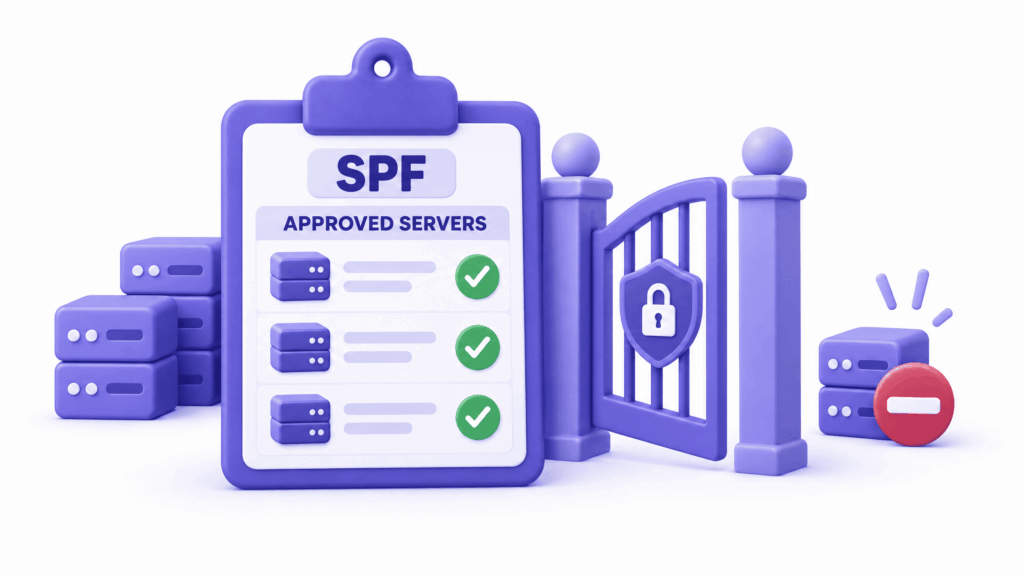
SPF is a guest list. It’s a short line of text in your domain’s DNS settings that names every server allowed to send email as your domain. When a message arrives, the receiving server checks whether the sender is on the list.
No list, or the wrong list, and your message looks like a stranger pretending to be you. A missing SPF record is one of the most common reasons for business email going to spam.
An SPF record looks like this:
v=spf1 include:mail.yourhost.com ~all
You don’t write it from scratch. Your email host publishes the exact line to copy. What you do need to watch for:
- No SPF record at all. More common on small business domains than you’d expect.
- Two SPF records. You can only have one. Two records confuse the check, and both fail.
- A missing sender. If your website form, invoicing tool or newsletter service sends mail as your domain, it has to be on the list too.
- Too many lookups. SPF allows ten. Pile on too many tools and the whole record breaks.
To fix it, open your domain’s DNS settings. That’s usually where you bought the domain or inside your hosting panel. Find the TXT record that starts with v=spf1. Make sure there’s exactly one, and that it covers every service that sends mail for you.
Fix 2: Turn On DKIM Signing
DKIM is a tamper-proof seal. Your mail server stamps every outgoing message with a digital signature. The receiving server checks that signature against a public key published in your DNS. If the seal is intact, the message wasn’t altered on the way.
Without it, filters have one less reason to trust you. Plenty of business email going to spam is missing nothing but this.
Most email hosts don’t switch DKIM on by default. You have to ask for it. In your email admin panel, look for a DKIM or “domain authentication” setting. It will give you a record to add to your DNS, and a button to check that it worked.
Two things people miss:
- Every sending service needs its own DKIM. Your mailbox host signs its own mail. Your newsletter tool and your website form don’t, unless you set them up separately.
- Check the status after adding it. DNS changes can take a few hours. Don’t assume it worked. Send another test and look for DKIM: PASS in the original message.
Fix 3: Publish a DMARC Record
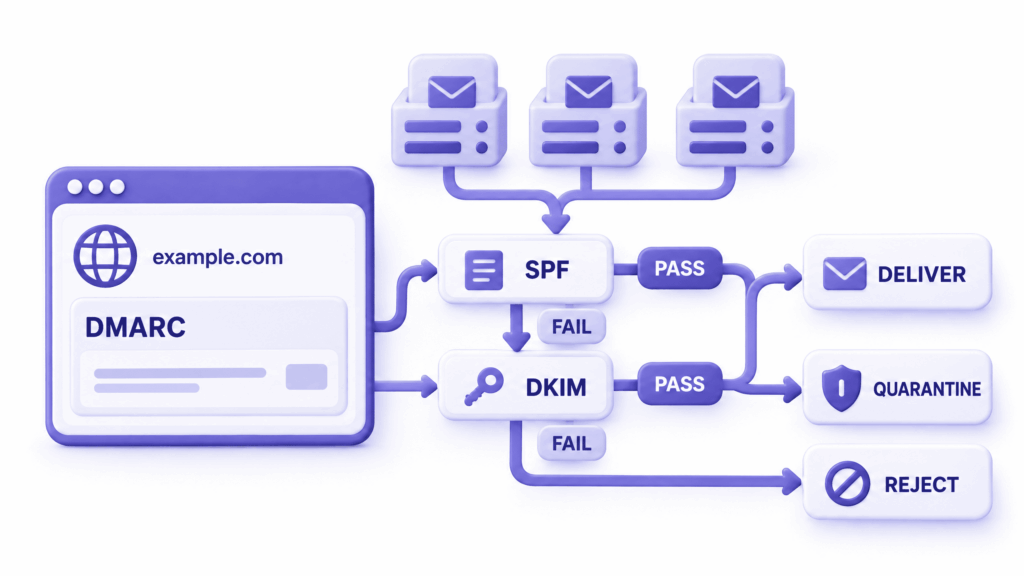
DMARC is the instruction sheet. It tells receiving servers what to do when SPF and DKIM fail, and it asks them to send you reports about what they see.
It also checks one more thing: that the domain in your visible From address matches the domain that passed SPF or DKIM. Experts call that alignment. In plain terms, the name on the envelope has to match the name on the letter.
Start gently. A first record can simply watch and report:
v=DMARC1; p=none; rua=mailto:[email protected]
The p=none part means “don’t block anything yet, just tell me what’s happening.” After a few weeks of clean reports, you can tighten it to quarantine, and later to reject, which tells servers to block anything pretending to be you.
Don’t skip this step because it sounds advanced. A DMARC record is now a baseline expectation, and its absence is a quiet reason for business email going to spam. The DMARC overview explains the idea in more depth if you want it.
Fix 4: Check Your Sender Reputation
Sender reputation belongs to the server your mail leaves from, identified by its IP address. If that server has sent spam before, filters remember.
This hits small businesses in a sneaky way. On shared hosting, your website and a few hundred strangers’ websites may send mail from the same IP address. If one of them behaves badly, the whole address gets a poor name, and yours inherits it. It’s one more way a cheap hosting plan costs you money.
To check, find the IP address your mail comes from. It’s in the original message headers, or your host can tell you. Then paste it into a free blacklist checker such as MXToolbox. If it shows up on a list, you’ve found a likely cause of your business email going to spam.
What to do about it:
- Ask your host to move you to a cleaner IP, or to request removal from the list.
- Use an authenticated mail service with a good name for sending important mail, instead of your website server.
- Don’t send bulk mail from the same server that handles your daily business email.
Reputation problems are the stubborn kind of business email going to spam, because the fix isn’t a setting you can flip.
Fix 5: Protect Your Domain Reputation
Domain reputation follows your domain name, not your server. Move to a new host and the reputation comes with you. It’s a quiet driver of business email going to spam, since you can’t see it until filters act on it.
A few things damage it quickly:
- A brand-new domain that suddenly sends a lot. Filters have no history on you, so they’re careful. Build up volume gradually over a couple of weeks.
- People clicking “Report spam”. Google and Yahoo ask bulk senders to keep complaints under 0.3%. Even small senders feel the effect of repeated complaints.
- High bounce rates. Mailing old or mistyped addresses tells filters you don’t maintain your list.
- Bought or scraped lists. Don’t. Nothing wrecks a domain faster.
Google Postmaster Tools shows how Gmail sees your domain. A heads-up: if you send low volumes, it may show no data at all. That’s normal, not a problem.
The fix here is habit, not a setting. Send to people who expect your mail. Remove addresses that bounce. Keep your marketing and your everyday business email on sensible footing. Domain reputation recovers, but slowly, so treat it like a credit score.
Fix 6: Clean Up Your Email Content
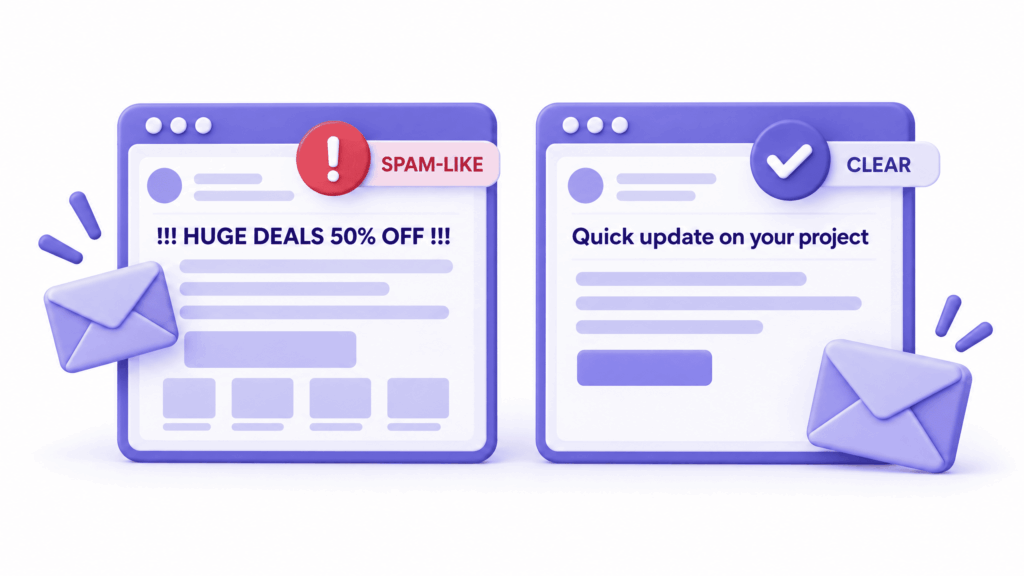
Content matters least of the three, but it still tips borderline cases of business email going to spam over the edge. Think of it as the tie-breaker.
Things that raise suspicion:
- ALL CAPS and stacked exclamation marks. “URGENT!!! Act now!!!” belongs in a scam.
- Misleading subject lines. “Re: your payment” on a first email is a classic trick, and filters know it.
- Link shorteners. They hide the real destination, so filters distrust them.
- Mismatched links. Text that says one website but links to another.
- One big image and almost no text. Filters can’t read it, so they assume the worst.
- Too many links and attachments in a first email to a stranger.
- No unsubscribe option on anything resembling marketing.
Compare these two subject lines.
Weak: “FREE QUOTE!!! Limited time offer!!!”
Better: “Your website quote for Kashmir Treks, as discussed Tuesday”
The second sounds like a person who knows the recipient. Add a proper signature with your name, business and phone number. It signals a real business behind the message, and it helps readers trust you too.
Fix 7: Fix Emails Sent by Your Website and Other Tools
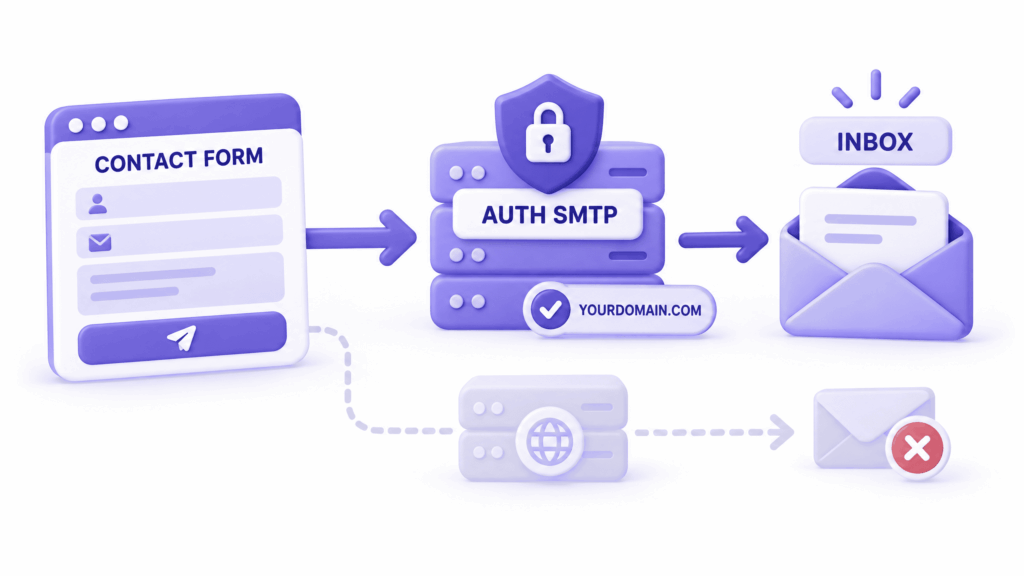
This one gets missed more than any other, and it’s the one web-based businesses should check first. It’s a hidden source of business email going to spam for any site with forms.
Your contact form, order confirmations and booking notifications often send email on behalf of your domain, but through a different route than your normal mailbox. By default, many WordPress sites send those messages through the web server itself. The email claims to be from [email protected], but it comes from a server your SPF record never mentioned. Receiving servers see a mismatch and send it to spam.
That’s why form submissions sometimes never show up in your inbox, even though the form says “Message sent”.
The fix:
- Use authenticated SMTP. Connect your website to a real mailbox on your own domain, using an SMTP plugin or your host’s mail settings.
- Add the sending service to SPF and switch on its DKIM, as in Fixes 1 and 2.
- Send from an address on your domain, not a free personal address. A From line that says gmail.com but is sent by your server fails DMARC.
- Test the form after the change and read the original message headers.
Do this and you’ll fix the pattern of website emails and business email going to spam in one go.
Recovering After Business Email Going to Spam for Weeks
Fixing the records stops new damage. It doesn’t erase the history, and what you do in the weeks after business email going to spam begins matters almost as much as the fix itself.
While your reputation rebuilds:
- Ask key clients to mark your messages “Not spam” and add you to their contacts. Replies help too, because they show real conversation.
- Keep your volume steady. Don’t suddenly blast a long list to make up for lost time.
- Re-test every few days with the “Show original” check from earlier.
- Be patient. Reputation moves in weeks, not hours.
If something important is stuck, a quick phone call or WhatsApp message asking the client to look in spam is a perfectly good short-term workaround. Not elegant. It works.
Your 10-Minute Checklist
If business email going to spam is happening to you right now, work through this list in order.
- Send a test and read the original message for SPF, DKIM and DMARC results.
- Confirm one SPF record exists and includes every sender.
- Switch on DKIM and confirm it passes.
- Publish a DMARC record starting at p=none.
- Check your sending IP against a blacklist.
- Review your website form and make it send through authenticated SMTP.
- Read your last five outgoing emails with a stranger’s eyes.
- Retest after a few hours, then again after a few days.
When It’s Worth Getting Help
Some owners fix business emails that go to spam in an afternoon. Others hit a wall at DNS. DNS records are a small place to make a big mistake. One wrong character in an SPF or DMARC record can send more mail to spam than before.
If you’d rather not risk it, ElySpace can check your DNS records, set up SPF, DKIM and DMARC correctly, and make sure your website forms send through authenticated mail. Tell us what’s going wrong and we’ll start with the original message headers, which usually reveal the cause fast.
Conclusion
Business email going to spam is almost never a mystery. It’s usually one of three things: your domain hasn’t proven who it is, your server or domain has a poor reputation, or your message looks risky. Work through authentication first, then reputation, then content.
Most small businesses can stop business email going to spam within a day by fixing SPF, DKIM and DMARC. The reputation side takes a few weeks of steady, careful sending. The earlier you start, the less ground you have to win back.
FAQs (Frequently Asked Questions)
Why is my business email going to spam even when SPF passes?
SPF is only one of three checks. If DKIM or DMARC fails, or your sending IP or domain has a poor reputation, messages can still land in spam. Open the original message and check all three results, then look at blacklists and your recent sending habits.
How long does it take to stop business email going to spam after fixing my records?
DNS changes usually take effect within a few hours. Reputation takes longer. Expect improvement over several days to a few weeks as filters see consistent, authenticated mail from you.
Is business email going to spam a sign my account was hacked?
Not usually. Authentication and reputation problems are far more common. But if your messages suddenly start going to spam and you haven’t changed anything, check for unusual sent items and reset your password to be safe.
Do I need DMARC if I only send a few emails?
Yes. Filters check authentication whether you send ten messages or ten thousand, and a missing DMARC record is a common contributor to business email going to spam. A simple record set to monitor costs nothing and protects your domain from being impersonated.
Can my website contact form cause emails to go to spam?
Yes. Many forms send mail through the web server rather than your mailbox host, which fails SPF or DKIM. It’s a classic route into business email going to spam. Connect the form to authenticated SMTP using a mailbox on your own domain.
Should I ask clients to mark my emails as not spam?
It helps, as a short-term fix. When recipients mark your messages “Not spam” or reply to them, filters learn to trust you. It doesn’t replace fixing your records, though.