 Live Chat
 Contact
 Shopping Cart
 Irfan Bhat
I once watched a business owner lose four years of blog posts in about eleven seconds. One bad plugin update, no recent website backup, and it was all gone. Not “hard to find.” Just gone. That’s why I care so much about this topic, and it’s why you’re reading this now.
A website backup is simply a copy of your website. It saves your files and your data somewhere safe, so if something breaks, you can bring your site back. It’s a simple idea. But most people still don’t do it. It’s a bit like flossing. Everyone knows they should. Most people just don’t, until there’s a problem staring them in the face.
At Ely Space, we’ve talked to enough people who wish they’d backed up their site a day earlier. So let’s go through this in plain, easy words.
What Is a Website Backup?
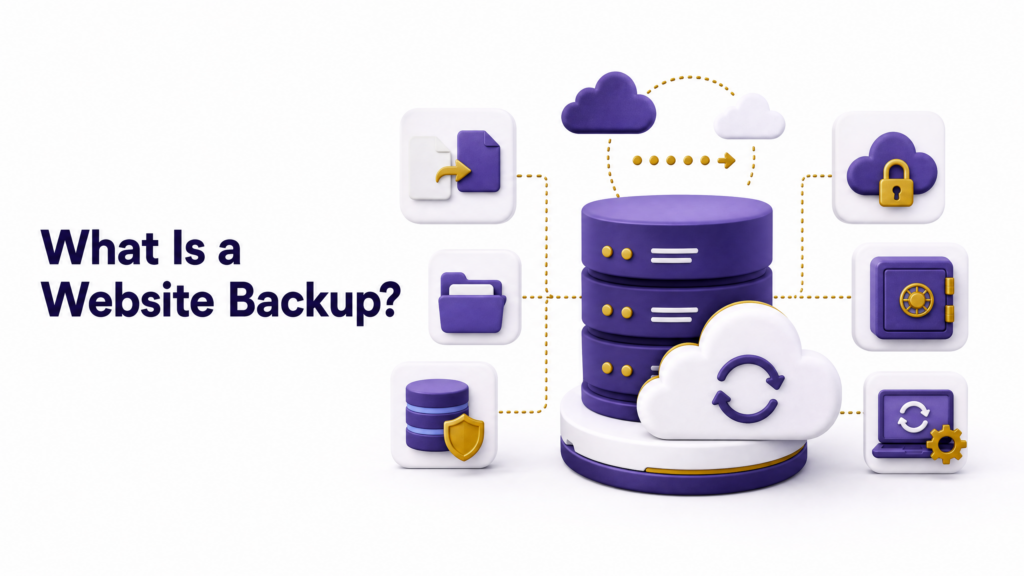
A website backup saves two main things: your files (like images, themes, and plugins) and your data (like blog posts, pages, and settings). Together, they make up your whole website. If you lose either one, you’re not just facing a small hiccup. You’re starting over from zero.
Some people think their hosting company already does this for them. Sometimes that’s true. Often it isn’t, or it only covers a short window of time, or it’s stored on the same server as your live site. And if that server has a problem, your backup goes down with it.
A good website backup should save everything, not just part of it. That means your data, your pictures, your plugin settings, and any custom code running behind the scenes. Miss even one piece, and your “backup” might not actually bring your site back the way you need it to.
Why Website Backups Matter So Much
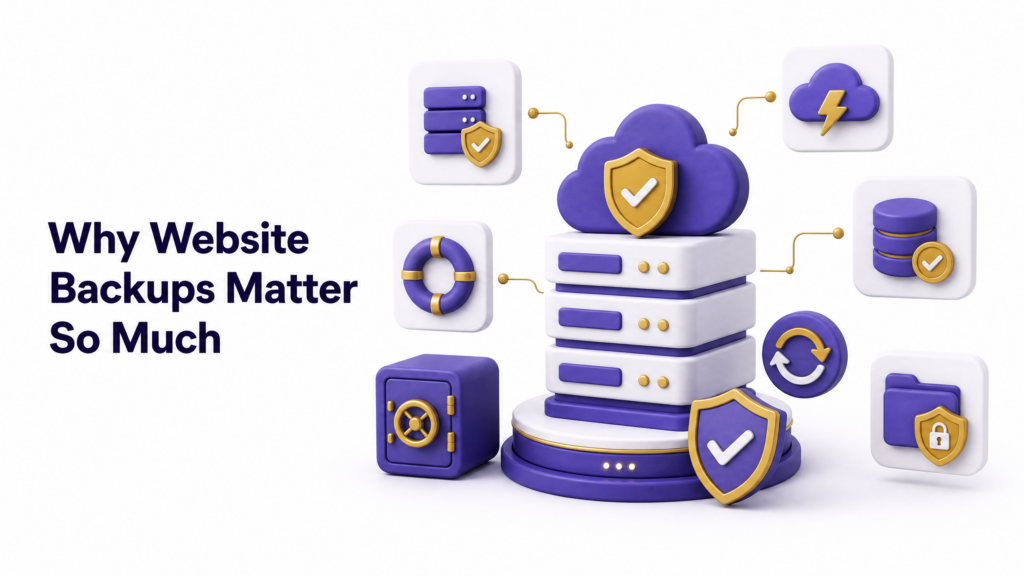
Here’s something no one tells you when you first build a website: it’s not a question of if something goes wrong. It’s when. Servers crash. Hackers try their luck. You might even delete the wrong thing by accident, late at night, without meaning to.
A website backup is like insurance for your site. It’s not exciting to think about. But it’s the difference between “we’re back up in twenty minutes” and “we’re rebuilding for three weeks while apologizing to everyone who asks where the site went.”
Let’s be honest. If your business makes money through your website, and you don’t back it up, you’re taking a real risk with your own income. That’s not scare talk. That’s just how it works.
There’s another side to this too. A site that stays down for days looks bad, even if it wasn’t your fault. People visiting your site don’t know your server had a problem. They just see a broken page. And a lot of them won’t come back to check again later.
What Happens If You Don’t Have One
Picture this. Your site gets hit by a virus. Your host shuts it down until it’s cleaned up. You go to bring it back and find out your last backup is eight months old. Or worse, there isn’t one at all.
Now you’re rebuilding pages by hand, trying to remember what you wrote, hunting for old pictures, and recreating posts you no longer have copies of. Your search rankings drop because search engines notice the downtime. People who tried to visit during the outage leave and don’t come back. All of this can happen in a single afternoon.
Now picture a business that backs up properly. Their site gets hit the same way. But they simply bring back yesterday’s clean copy, and they’re live again before lunch. Same problem, completely different result. The backup made all the difference.
There’s also a quieter cost that people miss. It’s the hours your team spends fixing the mess instead of doing real work. A good backup routine turns what could be a week-long crisis into a twenty-minute fix.
Different Kinds of Website Backups
Not every backup works the same way. It helps to know the basic types before you choose one.
Full backups save everything at once: your files, your data, your pictures, and your settings. These are the safest choices, but they take up more space and more time to run.
Incremental backups only save what’s changed since your last backup. They’re faster and smaller, but bringing your site back means using your last full backup plus every small change after it, in the right order.
Differential backups sit in the middle. They save everything that’s changed since your last full backup, which makes bringing your site back a bit easier than with incremental backups.
For most small and medium websites, a mix works best. A full backup on a set schedule, with smaller backups filling the gaps in between.
How Often Should You Back Up Your Site?
This depends on how often your site changes. A blog that posts every day needs a backup every day too. Otherwise, you risk losing a full day’s work or more every time something goes wrong. A store that takes orders around the clock needs backups happening even more often, sometimes right away, because losing even an hour of orders is a real problem.
A simple business site that only changes once a month can likely get by with a backup once a week. Still, once a week should be your lowest limit. Not once a month. Not “whenever I remember.”
Google Search Central has noted that how reliable and stable your site is can affect how search engines see its overall quality. That’s one more reason a solid website backup routine isn’t just an IT job. It also matters for how easily people find you.
Where Should You Keep Your Backups?
This is where a lot of people go wrong. Keeping your backup on the same server as your live site doesn’t really protect you. If that server fails or gets attacked, your backup fails right along with it.
A better way to do it is the 3-2-1 rule. Keep three copies of your data on two different types of storage, with one copy kept somewhere else entirely. That could mean a cloud storage service, a separate server, or even a hard drive that isn’t connected to your website at all.
The Cybersecurity and Infrastructure Security Agency suggests this same layered approach to protect important data from attacks and system failures. It works just as well for a small business website as it does for a large company’s network.
If you’re not sure where to start, Ely Space’s backup tools are built around this same idea, keeping your backups safe and separate, so a single failure can’t wipe everything out.
Doing It Yourself vs Letting a Tool Do It
You can back up your site by hand if you want to. Save your data, download your files, zip them up, and store them somewhere safe. It works. But it’s also very easy to forget, especially once life gets busy and “I’ll do it this weekend” turns into three months of nothing.
An automatic backup tool takes the guesswork out of it completely. You set it up once, and it quietly does the work in the background, without you needing to remember a thing. If your site matters to your business, automatic backups aren’t a nice extra. They’re the bare minimum.
Common Mistakes People Make
Here are a few things I see all the time, even from people who think they have backups covered:
- Never test if the backup actually works. A backup you’ve never tried to restore is one you can’t fully trust yet. Test it before you need it.
- Saving your files but forgetting your data, or the other way around. You need both every time.
- Only keeping a single backup with no older versions. If your newest backup already has a problem in it, you’ve just saved the problem too.
- Forgetting plugins and outside tools that also need to be part of the backup.
- Keeping backups in only one place. One hard drive failure, and it’s all gone again.
None of these mistakes are unusual or complicated. They’re common, everyday slip-ups. And that’s exactly why they catch so many people off guard.
How to Set Up Backups the Right Way
Start by looking at how often your site changes, then pick a backup schedule that fits. Next, choose a tool that backs your site up automatically instead of relying on memory. Make sure your backups are stored somewhere away from your live site, not on the same server. Then, and this step gets skipped a lot, actually test bringing your site back from a backup before you’re forced to rely on it during a real problem.
If your current hosting setup doesn’t already include solid backup tools, it’s worth fixing that soon. Ely Space includes automatic, safely stored backups as part of its hosting plans, so you don’t have to think about it at all.
A Simple Backup Checklist
- Automatic backups set up (daily or more, depending on how active your site is)
- Backups stored somewhere away from your live site
- At least one test restore done successfully
- Backup includes both your files and your data
- A written note of where your backups are and how to reach them
- A plan for how many old backups to keep, and for how long
Print this out. Stick it near your desk. Whatever it takes to actually get it done, instead of leaving it for “someday.”
Frequently Asked Questions
How long should I keep old website backups? Most sites are fine keeping 30 days of daily backups, along with a few older monthly copies. Online stores or busy sites may want to keep backups for longer, since so much happens on them every day.
Can I bring back just part of my website instead of the whole thing? Yes, if your backup tool allows it. This is handy when only one page or one piece of data has a problem, and you don’t want to lose other recent changes by restoring everything.
Does a website backup stop hackers? No, it doesn’t stop an attack from happening. But it lets you recover quickly after one. Pair your backups with basic security steps, like updating plugins and using strong passwords, for full protection.
Is cloud storage safe for backups? Trusted cloud storage with proper protection is generally seen as safe, and it fits well with the 3-2-1 backup approach that security experts recommend. Just make sure the provider takes access and safety seriously.
What’s the difference between a backup and moving my site to a new host? A backup is a safety copy you keep in case something goes wrong. Moving your site means shifting it to a new host or server completely. Backups are often used during a move, but the two aren’t the same thing.
Final Thought
You won’t think about a website backup until the day you really need one, and by then, it’s too late to start caring. Set it up now, while everything’s still working fine. Future you will be genuinely thankful for the few minutes this takes today. And if you’d rather not manage it all by yourself, Ely Space can take care of it for you.