 Live Chat
 Contact
 Shopping Cart
 Eshan Riyaz
You open your website. Or maybe a customer calls to tell you it’s down. Either way, instead of your homepage, there’s a blank white screen or a grey page that says:
500 Internal Server Error
No menu. No content. Sometimes not even your WordPress dashboard. Just that message, staring back at you.
The 500 internal server error is one of the most common website problems in the world, and also one of the most alarming-looking ones. It sounds serious. Like something catastrophic happened. Like your site is broken beyond repair.
It almost never is.
In the vast majority of cases, the 500 internal server error has a specific, fixable cause that you can find and resolve yourself, without any coding knowledge and without calling your hosting provider first. This guide walks through every common cause in plain language, and tells you exactly what to check in what order.
What the 500 Internal Server Error Actually Means
Every time someone visits a webpage, the server processes a request and sends back a response. Those responses have codes; 200 means everything worked, 404 means the page wasn’t found, and 500 means something went wrong on the server’s side while trying to process the request.
That’s it. “Something went wrong on our end.”
The problem is that 500 is a catch-all. It doesn’t tell you what went wrong, just that it happened on the server before the page could be delivered. A plugin crash, a corrupted file, a configuration mistake, a server running out of memory, any of these can produce the exact same 500 error message.
Which is why diagnosing it properly matters. The fix depends entirely on the cause.
Before You Do Anything: Check These Two Things First
Check whether it’s affecting your whole site or just one page.
Try your homepage, a blog post, and your WordPress admin (yourdomain.com/wp-admin). If only one page shows the error and everything else works, the problem is isolated to that specific page, likely a plugin conflict or a PHP error in that page’s template. If everything is down including the dashboard, it’s a broader issue.
Check whether it just started.
Did you recently install or update a plugin? Update your theme? Change a setting in your hosting control panel? Most 500 internal server errors happen right after a change. If you know what changed, you know where to look first.
Got both answers? Good. Now go through the causes below in order.
Cause 1: A Plugin Broke Something
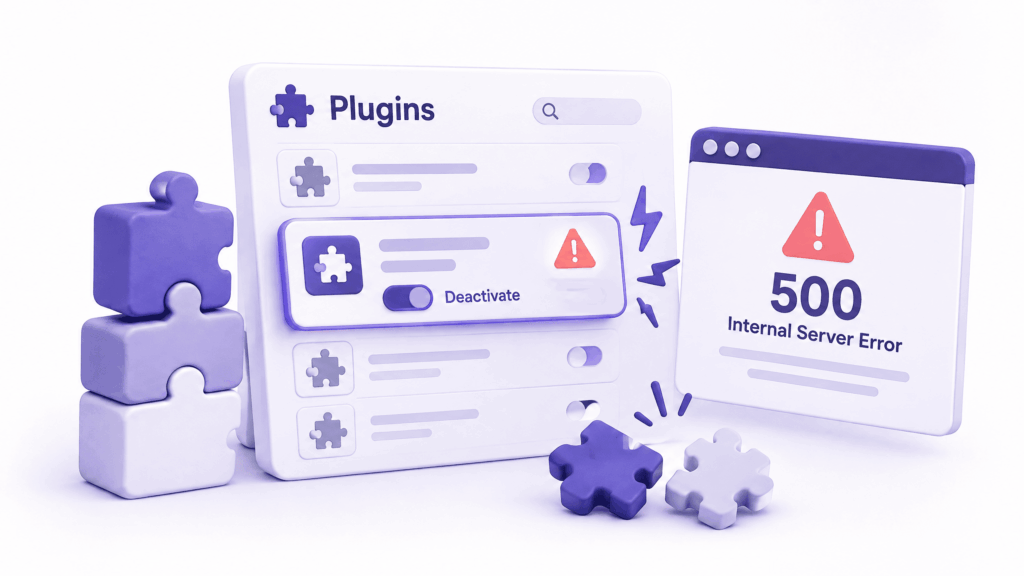
This is the most common cause. Hands down.
WordPress plugins are written by different developers, and they don’t always play nicely together. A plugin update, a newly installed plugin, or a conflict between two existing plugins can crash the server process trying to load your site and produce a 500 error.
How to fix it:
If you can access your WordPress dashboard; go to Plugins → All Plugins → select all → Bulk Actions → Deactivate. Test your site. If it loads, a plugin was the cause. Reactivate them one at a time, testing after each one. The plugin that brings the 500 error back is the culprit.
If you can’t access your dashboard because the 500 error is blocking it too, open your hosting control panel’s file manager. Navigate to wp-content/ and rename the plugins folder to plugins_disabled. WordPress automatically deactivates all plugins when it can’t find the folder. Test your site. If it loads, rename the folder back to plugins, log into your dashboard, and reactivate plugins one by one.
After finding the problematic plugin, check if an update is available. Sometimes a newer version fixes the exact bug causing the crash. If not, deactivate it and look for an alternative.
Cause 2: Your .htaccess File Got Corrupted
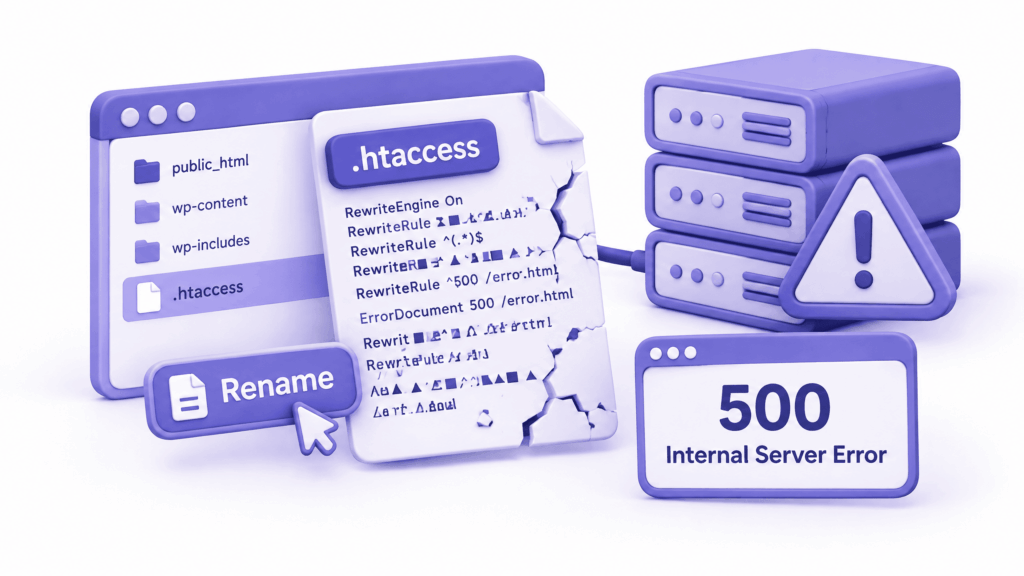
The .htaccess file is a hidden configuration file that controls how your server handles requests. It manages things like how WordPress URLs work, HTTPS redirects, and access rules.
When this file gets corrupted or contains invalid rules, from a failed plugin update, a manual edit gone wrong, or a server migration, the server throws a 500 error before WordPress even loads.
How to fix it:
Open your hosting file manager. Find the .htaccess file in your site’s root folder (you may need to enable “show hidden files” to see it, it starts with a dot). Rename it to .htaccess_old. This disables it without deleting it.
Test your site. If the 500 error disappears, the .htaccess file was the problem.
Now create a new, clean one. Log into your WordPress dashboard, go to Settings → Permalinks, and click Save Changes without changing anything. WordPress automatically generates a fresh, correct .htaccess file when you do this.
If your site still shows a 500 error after disabling .htaccess, the cause is something else, move to the next cause.
Cause 3: PHP Memory Limit Reached
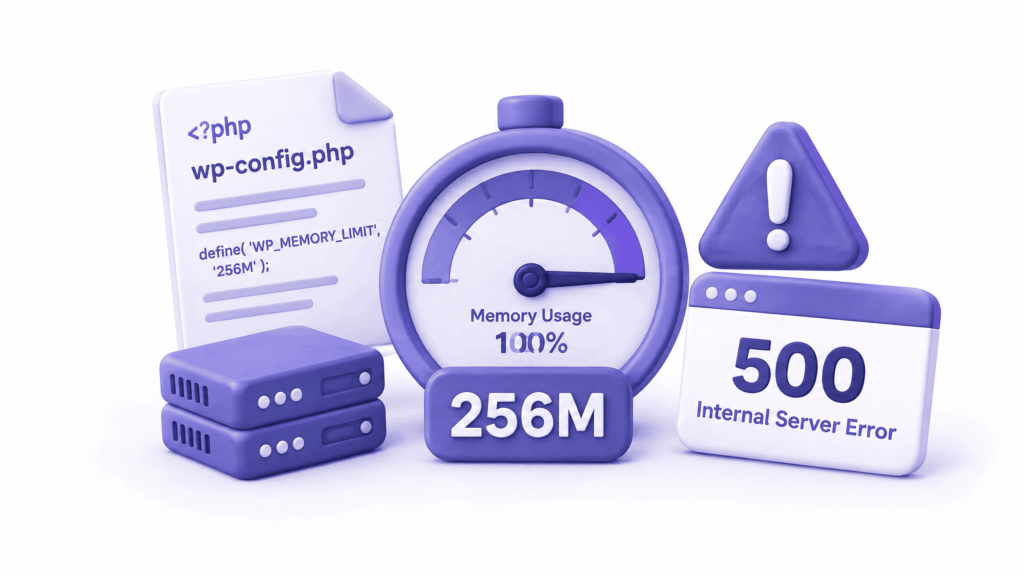
WordPress runs on PHP, a programming language that the server uses to build each page before sending it to the visitor. PHP has a memory limit: a maximum amount of server memory it can use while doing this.
On many shared hosting plans, this limit is set quite low, sometimes as low as 32MB or 64MB. When a page requires more memory than the limit allows, because of a memory-heavy plugin, a large image processing operation, or a complex page, PHP runs out of memory and the server returns a 500 error.
Think of it like trying to run too many apps on a phone with barely any RAM left. Everything just crashes.
How to fix it:
Add this line to your wp-config.php file (open it via your hosting file manager and add it just before the line that says /* That’s all, stop editing! */):
define(‘WP_MEMORY_LIMIT’, ‘256M’);
This tells WordPress to request up to 256MB of PHP memory. If your hosting plan supports it, this resolves memory-related 500 errors immediately.
If that doesn’t work, you can also set the memory limit directly in your php.ini file or .htaccess file, your hosting provider’s documentation usually covers how to do this for their specific setup.
Cause 4: A PHP Error in Your Theme or Plugin Code
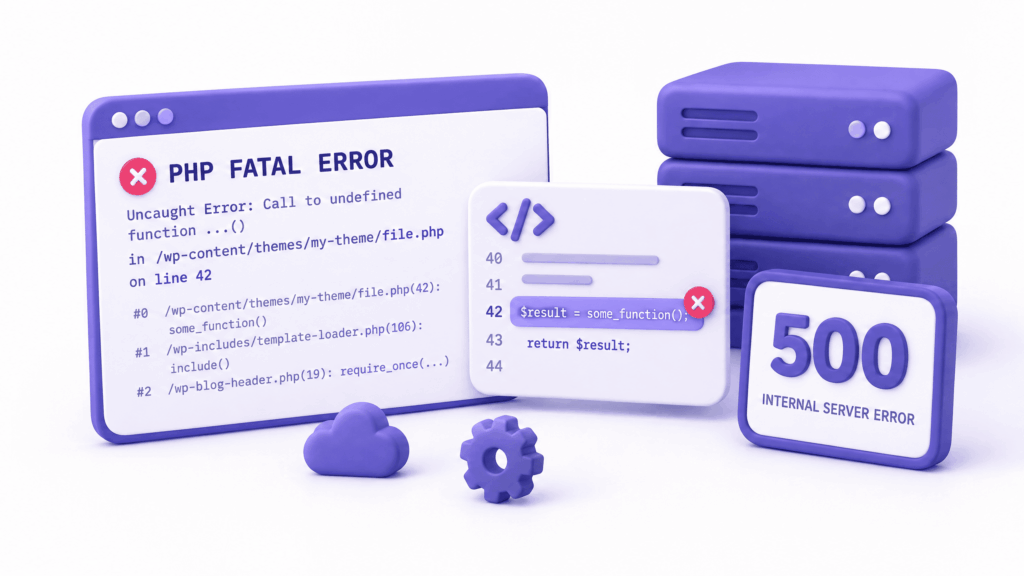
Sometimes a specific piece of code inside a plugin or your theme contains an error, a function that’s called but doesn’t exist, a syntax mistake from a manual edit, a function that worked on an older PHP version but breaks on the current one.
These PHP errors crash the server process for the affected page and produce a 500 error. The tricky part is that they’re invisible unless you know where to look.
How to fix it:
First, enable WordPress debug mode so the actual error message gets written to a log file. Add these lines to your wp-config.php file:
define(‘WP_DEBUG’, true);
define(‘WP_DEBUG_LOG’, true);
define(‘WP_DEBUG_DISPLAY’, false);
After adding these, reload the page that’s showing the 500 error. Then check /wp-content/debug.log in your hosting file manager. This file will now contain the actual PHP error; the specific file, the line number, and what went wrong.
A log entry looks something like:
[07-Sep-2026 10:15:22 UTC] PHP Fatal error: Uncaught Error: Call to undefined function get_field() in /home/site/public_html/wp-content/themes/yourtheme/header.php:24
That tells you exactly where the problem is. In this example, a function called get_field() is being called but doesn’t exist, probably because a required plugin is deactivated.
Once you’ve found the cause, remove debug mode by changing WP_DEBUG back to false. Debug mode is for diagnosis only, never leave it permanently on a live site.
Cause 5: File or Folder Permission Problems
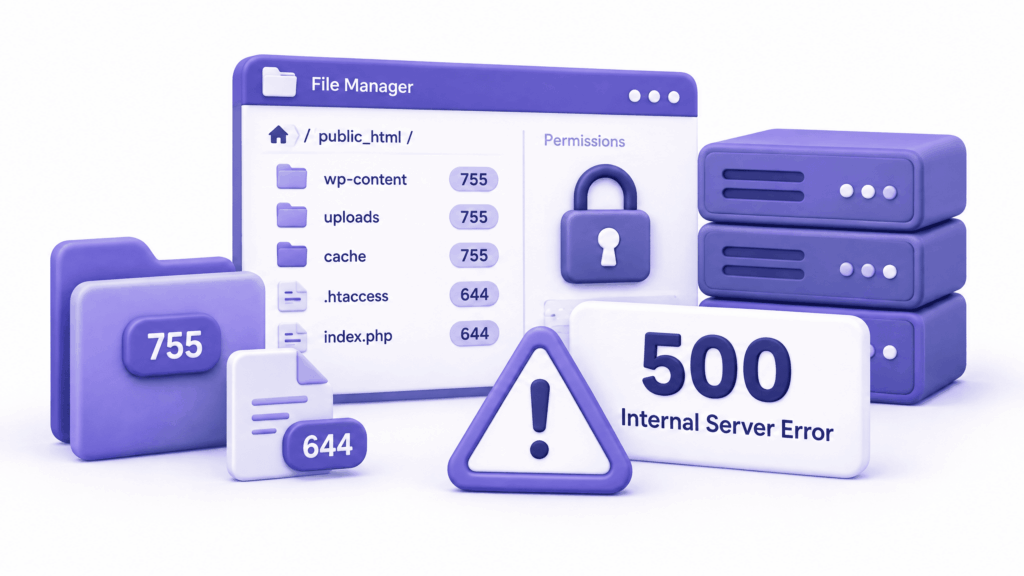
Every file and folder on your server has permission settings that control who can read, write, or execute it. When these permissions are set incorrectly, usually after a server migration, a manual file upload, or a botched plugin install, the server can’t access the files it needs and returns a 500 error.
The correct permissions for WordPress:
- Folders: 755
- Files: 644
- wp-config.php specifically: 600 (more restricted for security)
How to fix it:
In your hosting file manager, right-click on the root folder of your WordPress site and look for a “Change permissions” or “Chmod” option. Set folders to 755 and files to 644. Most file managers let you apply this recursively to all files and subfolders at once.
If you have SSH access, you can do this faster with two commands:
find /path/to/your/site -type d -exec chmod 755 {} \;
find /path/to/your/site -type f -exec chmod 644 {} \;
Incorrect permissions are a common result of uploading files via FTP from a Windows computer, Windows doesn’t have the same permission system as Linux servers, and files often arrive with wrong settings.
Cause 6: Database Issues
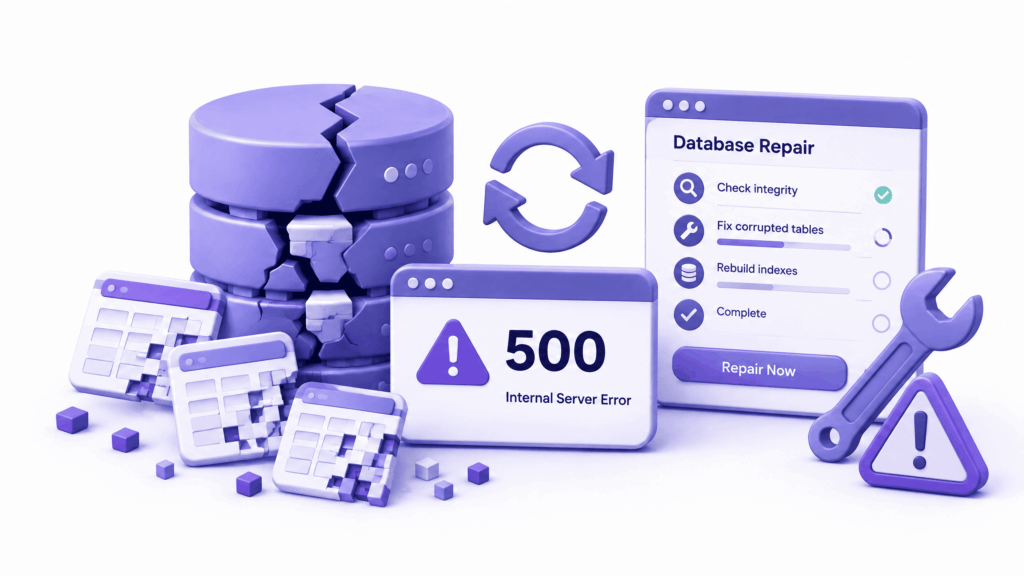
WordPress stores all your content; posts, pages, settings, user accounts, in a database. When the database or specific tables within it get corrupted, WordPress can’t retrieve the information it needs to build pages, and a 500 error can result.
This is less common than the causes above, but it does happen, particularly after a server crash, an interrupted update, or a plugin that modifies database tables and encounters an error halfway through.
How to fix it:
WordPress has a built-in database repair tool. Add this line to your wp-config.php:
define(‘WP_ALLOW_REPAIR’, true);
Then visit yourdomain.com/wp-admin/maint/repair.php in your browser. You’ll see options to repair and optimise your database tables. Run the repair.
Important: Remove that line from wp-config.php immediately after you’re done. This page is accessible without a password, and leaving it active is a security risk.
If the built-in tool doesn’t resolve it, open phpMyAdmin through your hosting control panel. Select your WordPress database, click on the affected tables (or select all), and use the Repair Table option from the dropdown.
Cause 7: The Server Itself Is Overloaded
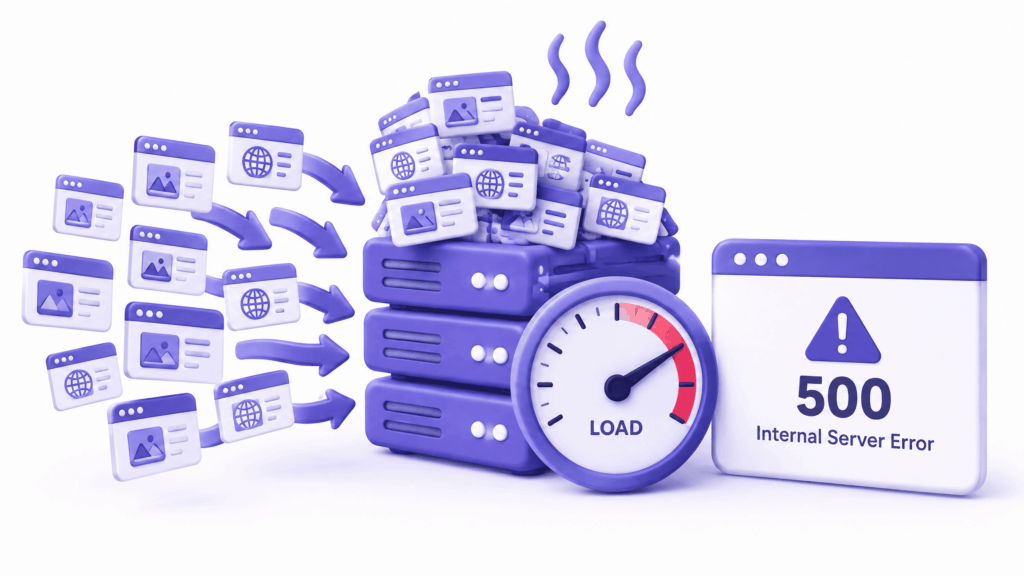
Sometimes the problem isn’t in your WordPress files at all. If your website is on shared hosting, where your site shares server resources with potentially hundreds of others, a spike in traffic on a neighbouring site can eat up the server’s available memory or CPU, causing yours to fail with a 500 error.
This kind of 500 error is usually temporary. It resolves on its own within minutes when the traffic spike passes. If you refresh the page 10 minutes later and it loads fine, this is probably the cause.
If it keeps happening regularly, during specific times of day, or whenever your own site gets a traffic spike, your site has outgrown shared hosting. Upgrading to VPS or cloud hosting gives your site its own dedicated resources that neighbouring sites can’t affect.
How to Enable WordPress Debug Mode
Worth covering separately since debug mode is your most powerful tool for diagnosing a 500 internal server error you can’t identify from the causes above.
Add all three lines to wp-config.php:
define(‘WP_DEBUG’, true);
define(‘WP_DEBUG_LOG’, true);
define(‘WP_DEBUG_DISPLAY’, false);
WP_DEBUG turns on error tracking. WP_DEBUG_LOG writes errors to a file instead of displaying them on screen (which would create a security risk on a live site). WP_DEBUG_DISPLAY set to false keeps error messages off the front end.
After reloading the affected page, check /wp-content/debug.log. The error message there will point you directly to the file and line causing the problem.
Always remove or disable debug mode after you’ve diagnosed the issue:
define(‘WP_DEBUG’, false);
What to Check Before Calling Your Hosting Provider
Before you contact support, work through this checklist. It’ll either solve the problem or give you specific information that makes the support call faster and more productive.
Step 1: Check if the issue is site-wide or page-specific. Try multiple pages including /wp-admin.
Step 2: Rename your .htaccess file to .htaccess_old and test. Regenerate it through Settings → Permalinks if this fixes it.
Step 3: Deactivate all plugins via the file manager and test.
Step 4: Increase PHP memory limit to 256M in wp-config.php and test.
Step 5: Enable debug mode and check the debug log for a specific PHP error.
Step 6: Check file permissions; folders 755, files 644.
Step 7: Run the WordPress database repair tool if the error affects specific pages or admin areas.
Step 8: Wait 10 minutes and test again. If it resolves on its own, it was likely a temporary server overload.
If you’ve gone through all of these and the 500 internal server error persists, it’s a server-side issue your hosting provider needs to investigate; an error log on the server level, a configuration problem, or a resource limit that needs increasing from their end.
According to Google’s Search Console help documentation, server errors including 500 errors are tracked by Google and affect how your site gets crawled and indexed, prolonged downtime can hurt your rankings, so fixing this quickly matters beyond just the immediate visitor impact.
When to Actually Call Your Host
Contact your hosting provider when:
- You’ve worked through every step above and the error persists
- The error appears on a completely fresh WordPress installation with no plugins
- Your debug log shows a server-level error rather than a PHP or plugin error
- The error started spontaneously with no changes on your end, this suggests a server configuration change on their side
- You’re seeing errors like “Resource temporarily unavailable” or “Service unavailable” alongside the 500, these point to server-level resource exhaustion
When you call, tell them: what the exact error is, when it started, what the debug log shows (if anything), and what you’ve already tried. This information cuts the support time down significantly.
How ElySpace Handles This for Clients
At ElySpace, the 500 internal server error is one of the most common emergency requests we get, usually appearing right after a plugin update, a theme change, or a hosting migration.
Our process is the same as what’s outlined above, but faster because we’ve done it dozens of times. Most cases are resolved within 30 to 60 minutes once we have hosting panel access. The debug log tells us the cause in almost every case, and from there it’s a clean, specific fix rather than guesswork.
More importantly, the websites we build and maintain are set up to minimise the risk of these errors in the first place; quality hosting with appropriate PHP memory limits, plugin vetting before installation, and regular backups so that if something does go wrong, restoring to a clean working state takes minutes.
If your site is down right now and you need help, reach out at elyspace.com.
FAQs (Frequently Asked Questions)
What causes a 500 internal server error?
The most common causes in WordPress are plugin conflicts, a corrupted .htaccess file, PHP memory limit being reached, a PHP error in plugin or theme code, incorrect file permissions, and database table corruption. The cause varies by situation, working through each one in order is the fastest way to find it.
How do I fix a 500 internal server error in WordPress?
Start by renaming your .htaccess file and deactivating all plugins, these two steps resolve the majority of cases. If those don’t fix it, increase your PHP memory limit, enable WordPress debug mode to find specific PHP errors, and check file permissions. The debug.log file at /wp-content/debug.log usually points directly to the cause.
Can a plugin cause a 500 internal server error?
Yes, it’s the most common cause. A poorly coded plugin, a plugin that conflicts with another plugin, or a plugin update that introduces a bug can all crash the PHP process and produce a 500 error. Deactivating all plugins and reactivating them one by one identifies the culprit quickly.
Why is my whole WordPress site showing a 500 error including the admin?
When the dashboard is also inaccessible, the problem is usually in the .htaccess file, a plugin, or PHP memory limits, all of which the server processes before WordPress can load the admin interface. Use your hosting file manager to rename the plugins folder and the .htaccess file, then test. This bypasses WordPress entirely and lets you identify whether the issue is in these files.
How do I fix a 500 error if I can’t access my WordPress dashboard?
Use your hosting control panel’s file manager. From there you can rename the .htaccess file, rename the plugins folder to deactivate all plugins, edit wp-config.php to increase memory limits or enable debug mode, and check the debug.log file, all without needing dashboard access.
Will a 500 internal server error affect my Google rankings?
Yes, if it lasts for more than a few hours. Google tracks server availability when crawling sites, and prolonged 500 errors signal to Google that the site is unreliable. Fixing it quickly limits the impact. Once the site is back up, submit your sitemap through Google Search Console to prompt re-crawling.
What does the 500 internal server error debug log show?
The debug log at /wp-content/debug.log shows the specific PHP error that caused the crash; including the file name, the line number, and a description of what went wrong. For example, it might show a fatal error caused by a function that doesn’t exist in the current plugin version. This information makes the fix specific and fast rather than requiring trial and error.