 Live Chat
 Contact
 Shopping Cart

 Eshan Riyaz
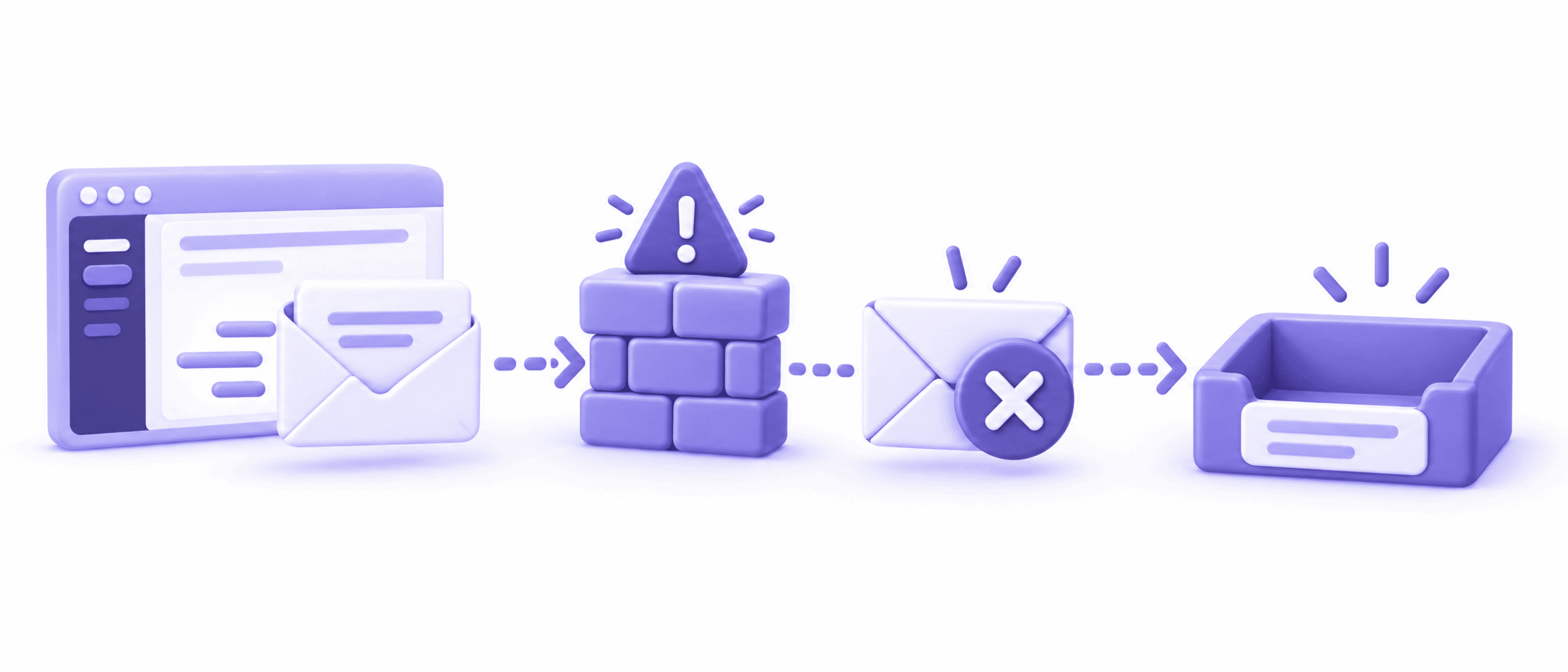
You send an invoice on Monday. By Thursday the customer says they never got it. Your Sent folder shows it clearly. Nothing bounced. That’s business email not being delivered, and it’s maddening because nothing tells you where it stopped.
Here’s what makes it confusing. “Sent”, “delivered”, “received” and “in the inbox” are four different things. An email can pass the first one and fail at any of the other three.
Once you know which stage failed, the fix is usually short. This guide follows one email on its journey, shows where each stage can break, and then gives you seven fixes. No technical background needed.
Why Is Your Business Email Not Being Delivered?
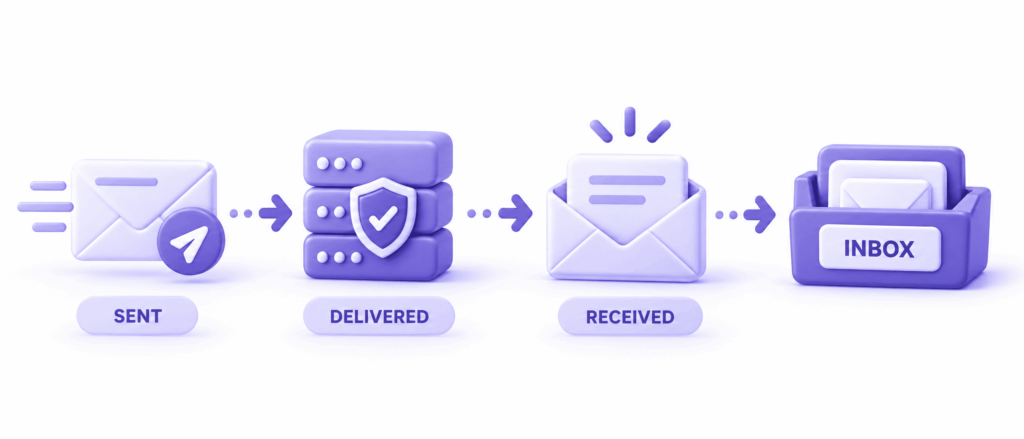
Think of an email as a parcel with four checkpoints. Your email app reports the first one. The other three happen out of sight, which is why business email not being delivered feels like a mystery.
The four stages of an email
Stage 1: Sent. Your email app handed the message to your outgoing mail server. That’s all “Sent” means. It doesn’t mean the message left the building, and it says nothing about whether anyone accepted it.
Where it breaks: a mistyped address, wrong outgoing settings, an expired password, an attachment that’s too big, or sending limits on your hosting plan.
Stage 2: Delivered. The customer’s mail server accepted the message. Most tracking tools use “delivered” to mean exactly this. It does not mean a person can see it.
Where it breaks: the address doesn’t exist, the server is blocking you, your domain fails authentication checks, or the server asks you to try again later. Most bounce messages come from this stage.
Stage 3: Received. The message got past the customer’s own security checks and reached their mailbox system. Company filters can accept a message and then quarantine or drop it without telling either side.
Where it breaks: corporate security gateways, quarantine folders, a full mailbox, or forwarding rules.
Stage 4: Inbox. The message landed somewhere the person will actually look. Not Spam, Junk, a Promotions tab, or a folder created by a rule.
Where it breaks: spam filtering, tab sorting and personal rules.
Most cases of business email not being delivered stop at stage 2 or stage 3. Stage 4 is the one customers describe as “I never got it”.
Why “Delivered” Doesn’t Mean Your Customer Saw It
Say your tracking tool shows a green “Delivered” tick, and the customer insists nothing arrived. Both statements can be true at once.
Delivered means the customer’s server said “okay, we’ll take it”. What happens next is up to their system. A security gateway might hold it for review. A rule might file it away. A spam filter might bury it.
So treat “delivered” as “accepted at the door”. It’s good news, because it proves your side of the journey worked. But it also means a business email not being delivered can be solved by staring at your Sent folder. You need to find the stage where the trail goes cold. That’s the first thing to explain when a customer reports a business email not being delivered: your proof of sending isn’t proof of arrival.
How to Find Where Your Email Stopped
Don’t change any settings yet. Spend ten minutes collecting evidence. Every fix for business email not being delivered depends on knowing the stage.
- Check your Sent folder and Outbox. Is the message there? Is anything stuck in the Outbox? Stuck messages point to stage 1.
- Look for a bounce message. It usually arrives in your inbox within minutes, often from “Mail Delivery Subsystem” or “Postmaster”. Read the line with a code that starts with 4 or 5. That points to stage 2.
- Check your email logs. Many hosts and email admin panels offer a “message trace” or mail log. It shows whether the customer’s server accepted the message and what it said.
- Ask the customer to search. Have them look in Spam, Junk, Promotions and any quarantine for your address or subject line. Ask whether their company uses an email filter.
- Send a test to a personal Gmail address. If it arrives, the problem is probably specific to the customer’s server or filter, not your whole setup.
Now read the result. A bounce means stage 2. A log that says “accepted” with nothing in the inbox means stage 3 or 4. No Sent record, an error, or a stuck message means stage 1.
Fix 1: Correct the Address and Your Outgoing Settings
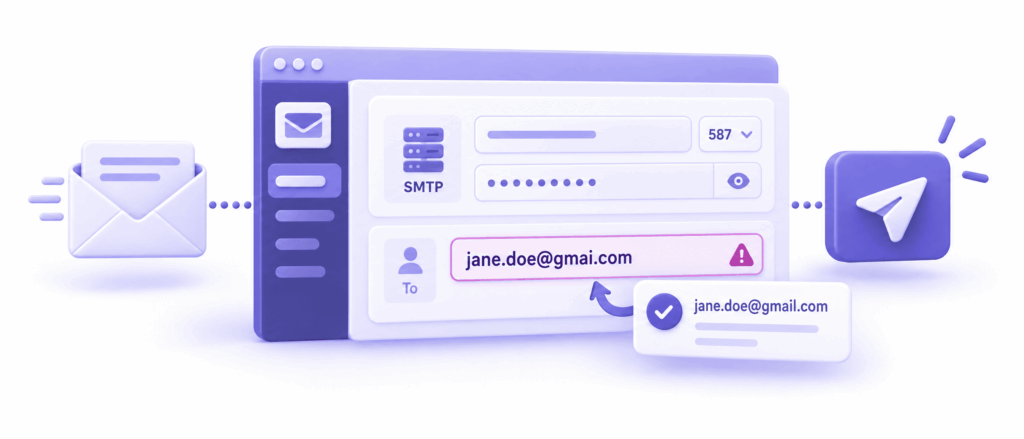
Start at the beginning. A surprising amount of business email not being delivered is a typo.
Check these first:
- The address itself. One wrong letter, or a trailing space copied from a document, sends the message nowhere.
- Your password. If you changed it recently, your phone or email app may still be trying the old one. Messages then sit in the Outbox or fail quietly.
- Outgoing server settings. Your host publishes the right server name, port and login details. Compare them with what your email app uses.
- Attachment size. Many servers reject messages above a size limit. A big PDF or a few photos can be enough. Share a download link instead.
- Sending limits. Many hosting plans cap how many emails you can send per hour. Cross the line and the server delays or rejects the rest.
If nothing looks wrong, move on. If your outgoing settings were off, fix them, send a fresh test and check that the message appears in your logs. Fix the basics first. They’re cheap to check and they explain a lot of business emails not being delivered.
Fix 2: Read the Bounce Message
Bounce messages look scary, but they’re the most useful clue in any case of business email not being delivered. They tell you exactly what the customer’s server said.
Ignore the long wall of text. Find the code. The first digit tells the story: a 4 means “try again later”, a 5 means “stop, this is a refusal”. These codes follow a standard called enhanced status codes.
The ones you’ll meet most:
- 5.1.1: the address doesn’t exist. Check for typos, or ask the customer for a working address.
- 5.2.2 or “mailbox full”: the customer’s mailbox has no space left. Nothing you can fix. Tell them.
- 5.7.1: the server refused the message by policy. Often a block, a blacklist or a failed check.
- 5.7.26: Gmail couldn’t verify who you are. That’s an authentication problem, covered in Fix 3.
- 421, 450 or 451: temporary. The server wants you to try later. Your mail system will usually retry on its own, sometimes for days.
Copy the exact wording and search for it. The details tell you whether the cause sits on your side or theirs.
Fix 3: Authenticate Your Domain
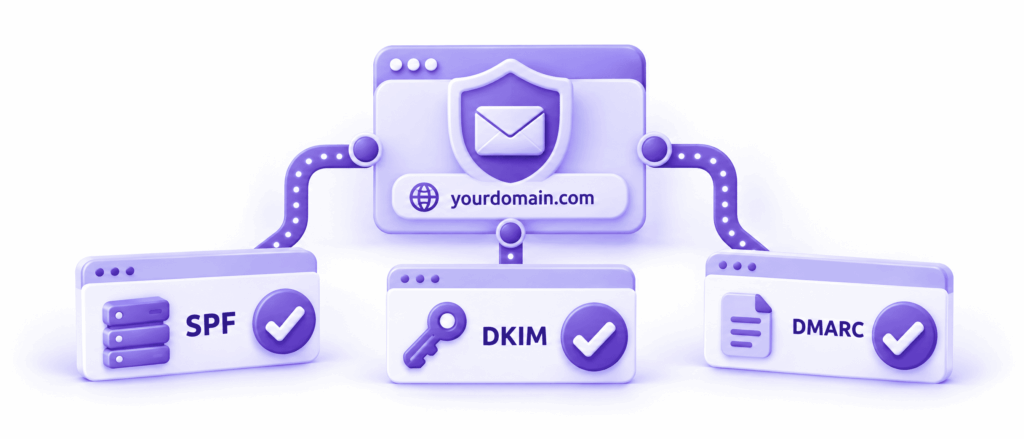
Many servers now refuse unverified mail outright instead of just sending it to spam. That turns an authentication gap into business email not being delivered at all.
Three records prove you’re who you say you are:
- SPF: a guest list of servers allowed to send mail for your domain.
- DKIM: a tamper-proof seal added to every message.
- DMARC: instructions telling servers what to do when the first two fail.
If any of them is missing, set them up. We walk through each one step by step in our guide to business email going to spam. Google also explains what it expects from senders in its email sender guidelines.
Fixing authentication is the quickest way to stop business email not being delivered at the server level. The DMARC overview is a good short read on how the last record works.
After making changes, send a test to a personal Gmail address, open the original message, and look for PASS next to SPF, DKIM and DMARC.
Fix 4: Get Off Blacklists and Repair Your Reputation
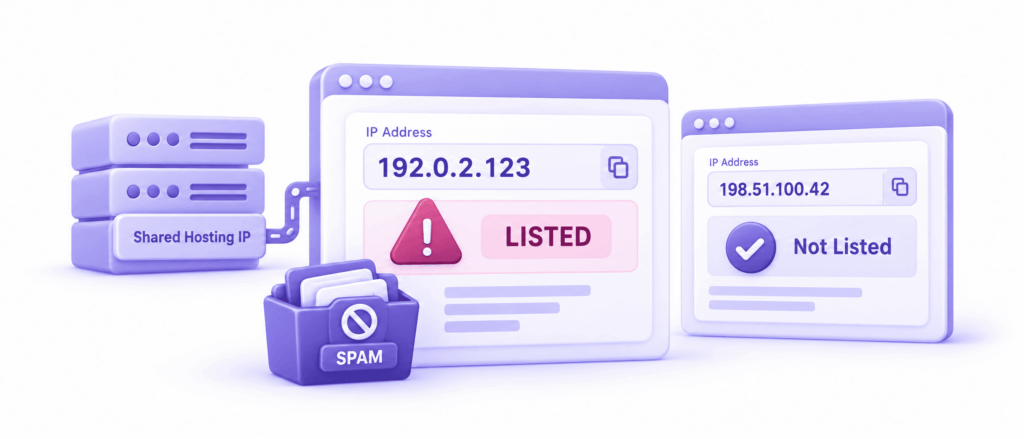
Sometimes business email not being delivered comes down to a bad name: the customer’s server refuses you because your sending address is listed. Blocklists track servers that have sent spam. If yours is listed, many providers will refuse your mail outright.
This often has nothing to do with you. On shared hosting, your website and many others may send mail from the same IP address. One bad neighbour can get the whole address listed.
To check:
- Find the sending IP. It’s in the headers of a message you sent, or your host can tell you.
- Run it through a free blacklist checker such as MXToolbox.
- If it’s listed, ask your host to move you to a cleaner address or to request removal.
A reputation problem is the stubborn kind of business email not being delivered, because the fix isn’t a setting you can flip. It means waiting for the listing to clear and sending carefully afterwards. If you rely on email to run your business, move important mail off a crowded shared server.
Fix 5: Check Your Sending Limits and Volume
If your mail works fine for a while and then suddenly stops, look at the volume. Sudden business email not being delivered after months of normal sending is often a volume problem.
Servers watch for sudden bursts. Send a newsletter from an ordinary mailbox to hundreds of people and you’ll hit a hosting cap, trip a rate limit at the receiving end, or both. The result is deferrals, delays and rejected messages. Some of those get retried. Some quietly give up.
Here’s how to avoid it:
- Don’t send bulk mail from your everyday mailbox. Use a proper mailing service built for it.
- Spread out large sends instead of firing everything at once.
- Keep your list clean. Remove addresses that keep bouncing.
- Ramp up slowly if your domain is new or you’ve never sent in volume before.
A single customer email won’t trigger any of this. But if you send invoices, quotes and updates to many people in one go, it’s worth a look.
Fix 6: Ask the Recipient to Check Filters and Quarantine
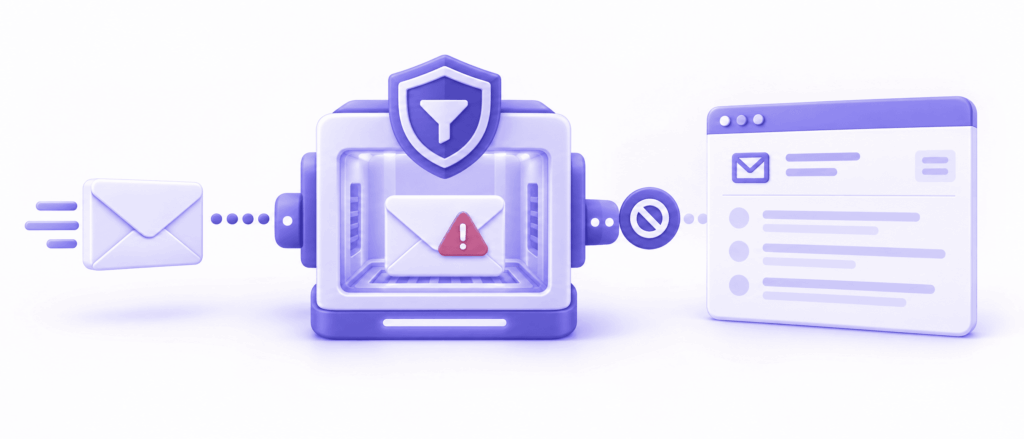
Now for stage 3. If your logs say the customer’s server accepted the message and nothing bounced, the message is probably sitting somewhere on their side.
Larger companies often run a security gateway that sits in front of their mailboxes. It scans every incoming message, and it can hold ones it doesn’t like in a quarantine area that the employee never sees. From your end, this looks like a successful delivery. From theirs, it looks like business email is not being delivered.
What helps:
- Ask the customer to check quarantine or spam digests. Some tools send a daily summary of held messages.
- Ask their IT contact to allow your domain. Give them your domain name and the time you sent the message.
- Ask the customer to add you to their contacts. It improves how personal filters treat you.
- Check their mailbox isn’t full. That’s worth asking about when nothing else adds up.
A short message to their IT team works well: “We sent an email from [email protected] on [date, time] to [recipient]. Our logs show it was accepted by your server, but it hasn’t reached the inbox. Could you check quarantine?” Short, specific, easy to act on. At this stage, business email not being delivered is a conversation to have, not something resending will fix.
Fix 7: Fix Website Form and Tool Emails
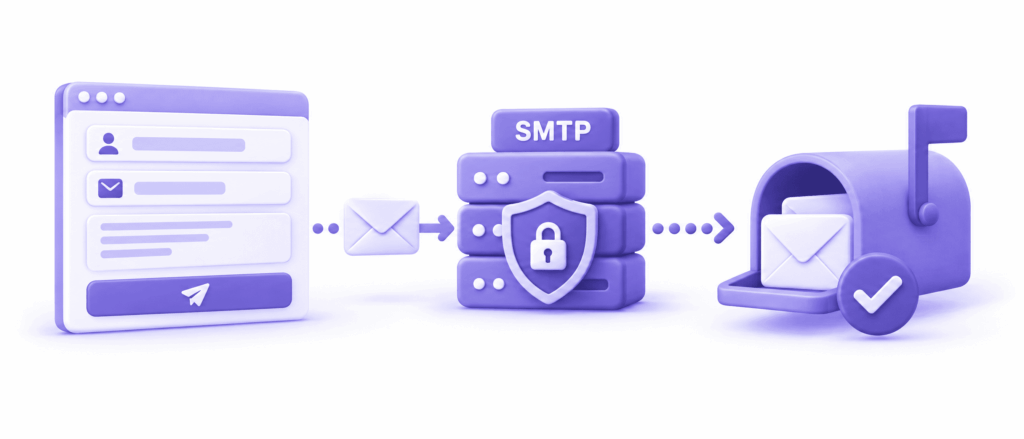
Not every email starts in your mailbox. Contact forms, order confirmations and booking notifications often send mail automatically, and they’re the most common place for silent failures.
By default, many WordPress sites send those messages through the web server itself. The email claims to be from [email protected], but it comes from a server your SPF record never mentioned. Receiving servers see a mismatch. They bounce it, filter it or accept it and drop it. Either way, a website email not being delivered can go unnoticed for weeks, because the website still says “Message sent”. Website emails are a hidden source of business email not being delivered, because nobody sees the failure.
The fix:
- Connect your site to a real mailbox using authenticated SMTP, either through a plugin or your host’s mail settings.
- Add the sending service to your SPF record and switch on its DKIM.
- Send from an address on your own domain, not a free personal address.
- Test the form and check that the message shows up in your logs and in a real inbox.
If your website is built by an agency, ask them to confirm how form emails are sent. It’s a quick question with a useful answer.
What to Tell the Customer While You Fix It
While you investigate business email not being delivered, don’t leave the customer waiting. A little communication keeps trust intact.
- Send the important content another way. A WhatsApp message, a shared link, or a phone call gets the job done today.
- Ask them to confirm receipt once you’ve sent it, so you know the path works.
- Don’t resend the same message ten times. Repeated sends can make filters more suspicious, and they clutter the customer’s inbox.
- Tell them what you’re doing. “We’re checking our email setup” is honest and takes ten seconds to write.
Customers tend to forgive technical hiccups. They don’t forgive silence.
Your 10-Minute Checklist
If you have business email not being delivered right now, work through this in order.
- Find the message in your Sent folder, and check the Outbox for anything stuck.
- Look for a bounce and read the code.
- Check your logs to see whether the customer’s server accepted it.
- Confirm SPF, DKIM and DMARC all pass on a test message.
- Check your sending IP against a blacklist.
- Review your sending volume and attachment sizes.
- Ask the customer to check spam, junk and quarantine, and contact their IT team if needed.
- Test your website form and confirm it is sent through authenticated mail.
When It’s Worth Getting Help
Some owners fix business emails not being delivered in an afternoon. Others reach a point where the logs and error codes stop making sense. That’s the moment to ask for help, not after the third lost invoice.
ElySpace can read your bounce messages and headers, check your DNS records and authentication, and make sure your website forms send through proper mail. Tell us what’s happening and we’ll work out which stage the trail goes cold. Business email not being delivered looks complicated, but it’s usually one stage, one cause and one fix.
Conclusion
Business email not being delivered is a problem with a location. Somewhere between Sent and Inbox, one stage fails. Find the stage and the fix gets clear: stage 1 is usually settings or typos, stage 2 is bounces, blocks and authentication, stage 3 is the customer’s filters, and stage 4 is spam sorting.
Start with the bounce message and your logs. They answer more questions than any guess will. Then fix the cause, and let the customer know while you do. You can stop business email not being delivered from recurring by fixing authentication, watching your volume and testing your forms.
FAQs (Frequently Asked Questions)
Why is my business email not being delivered but there’s no bounce?
No bounce usually means the customer’s server accepted the message, so the trouble starts at stage 3 or 4. It may be quarantined by a company filter, dropped by a rule, or filed in spam. Ask the customer to check those places and ask their IT team to look at quarantine.
What’s the difference between sent and delivered?
Sent means your email app handed the message to your own outgoing server. Delivered means the customer’s server accepted it. Neither guarantees the person can see it in their inbox, which is why business email not being delivered can happen even when your email shows as sent.
How long does it take to fix business email not being delivered?
Settings, typos and authentication records can often be fixed in under an hour, though DNS changes may take a few hours to take effect. Reputation problems and blacklist removals take longer, from days to a few weeks.
Can a full mailbox cause business email not being delivered?
Yes. If the customer’s mailbox is full, their server may reject your message and send you a bounce with a “mailbox full” code. You can’t fix that yourself. Contact the customer another way and let them know.
Why do my emails reach Gmail addresses but not company addresses?
Company servers often run stricter filters than personal mail services. They may quarantine messages from senders without proper authentication or reputation. Ask the customer’s IT team to check their quarantine and to allow your domain.
How do I know if business email not being delivered is my fault or theirs?
Read the bounce message. A code starting with 5.1.1 or “mailbox full” points to the recipient. Codes about blocking, policy or authentication usually point to your sending setup. If there’s no bounce, check your logs to see whether their server accepted the message.