 Live Chat
 Contact
 Shopping Cart

 Eshan Riyaz
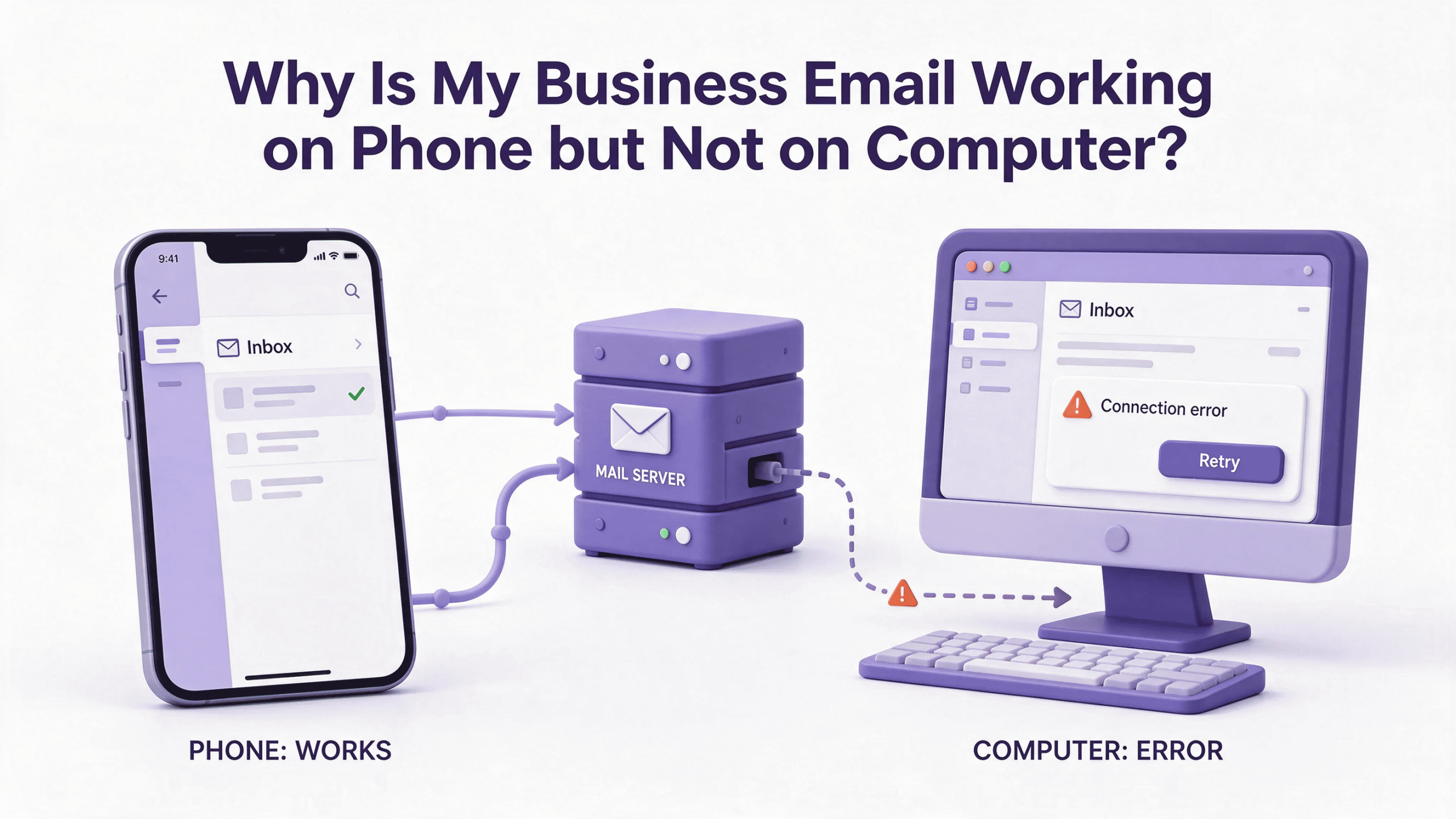
Your business email works on your phone, but when you open it on your computer, you cannot send messages, receive emails or sign in. This can be frustrating, especially when you need to reply to customers, send quotations or manage important business communication.
If your email works on phone but not computer, the problem is usually related to incorrect email settings, outdated passwords, SMTP or IMAP configuration, SSL certificates, saved credentials or a connection issue on your computer.
Fortunately, you do not usually need to create a new email account to fix this problem. In most cases, a few checks can help identify and resolve the issue.
In this guide, we will explain why business email may work on your phone but not your computer and show you how to fix it step by step.
Why Does Email Work on Phone but Not Computer?
Your phone and computer connect to the same email account, but they do not necessarily use the same configuration.
When you set up an email account on your phone, the email application stores the server details, password, connection ports and security settings. Your computer stores its own configuration separately.
This means your phone may be using the correct settings while your computer is using outdated or incorrect ones.
Some of the most common reasons include:
- Incorrect or outdated email passwords.
- Incorrect IMAP or SMTP server settings.
- Wrong email ports.
- SSL/TLS configuration problems.
- Cached credentials on your computer.
- Firewall or antivirus interference.
- Incorrect email account configuration.
Before making any changes, try logging into your email through webmail. If you can access your inbox and send emails through a browser, your email account may be working properly, and the problem could be limited to your computer or email application.
1. Check Whether Your Email Password Is Incorrect
One of the most common reasons email works on phone but not computer is an incorrect saved password.
If you recently changed your email password, your phone may already be using the new password while your computer continues trying to connect using the old one.
This often causes repeated password prompts, authentication errors or a message saying that the email application cannot connect to the server.
How to fix an incorrect email password
- Open your email application on your computer.
- Open the account settings or account management section.
- Select the email account that is experiencing the problem.
- Check the saved password or authentication settings.
- Enter your current email password if prompted.
- Save the changes.
- Restart your email application and test your email.
If you are unsure whether your password is correct, try logging into your email through webmail first.
If webmail accepts your password but your computer does not, updating the saved credentials in your desktop email application may resolve the issue.
Do not repeatedly enter passwords if you are unsure of them. Some email servers temporarily block login attempts after repeated authentication failures.
2. Check Your IMAP and SMTP Settings
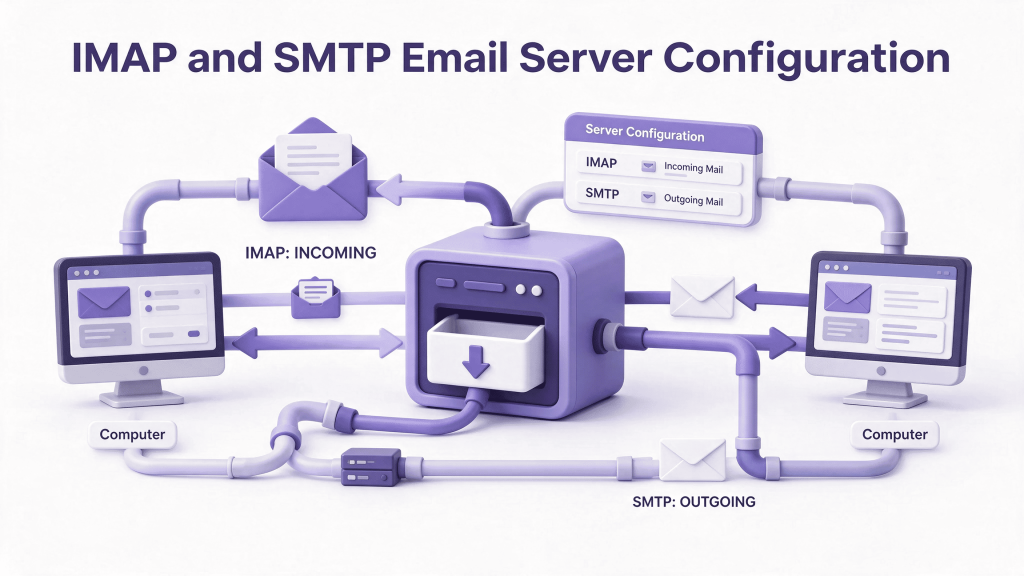
Your email application uses different services to receive and send emails. If either service is configured incorrectly, your email may not function properly.
What is IMAP?
IMAP stands for Internet Message Access Protocol. It allows your email application to access and synchronise emails stored on your mail server.
When you open your inbox on your phone or computer, IMAP helps synchronise your messages so that the same emails can appear on multiple devices.
What is SMTP?
SMTP stands for Simple Mail Transfer Protocol. It is used to send emails from your email application to an email server for delivery.
If your SMTP settings are incorrect, you may be able to receive emails but unable to send them.
Common IMAP and SMTP settings
For many business email accounts hosted on cPanel servers, these settings are commonly used:
| Setting | Incoming (IMAP) | Outgoing (SMTP) |
|---|---|---|
| Server hostname | mail.yourdomain.com | mail.yourdomain.com |
| Port | 993 | 465 |
| Connection security | SSL/TLS | SSL/TLS |
| Authentication | Required | Required |
| Username | Full email address | Full email address |
These are common settings, not universal settings. Your hosting provider may use different server names, ports or security configurations.
How to check IMAP and SMTP settings
- Open your email application.
- Go to Account Settings or Email Settings.
- Select the email account experiencing the problem.
- Open the Incoming Mail Server settings.
- Verify the IMAP hostname, port and security settings.
- Open the Outgoing Mail Server settings.
- Verify the SMTP hostname, port and security settings.
- Save the changes and test your email.
If your business email is hosted on cPanel, you can usually find the correct settings by logging into cPanel and navigating to Email Accounts, selecting the relevant account and opening Connect Devices or Set Up Mail Client. You can also follow our detailed guide to email server settings and ports (IMAP, POP3 and SMTP) to find the correct configuration for your email account.
Your hosting provider may also supply these settings directly.
For a better understanding of how email protocols and account settings work, you can also refer to Microsoft’s official guide to IMAP account settings, which explains incoming and outgoing mail server configuration.
3. Check Whether Your Email Ports Are Correct
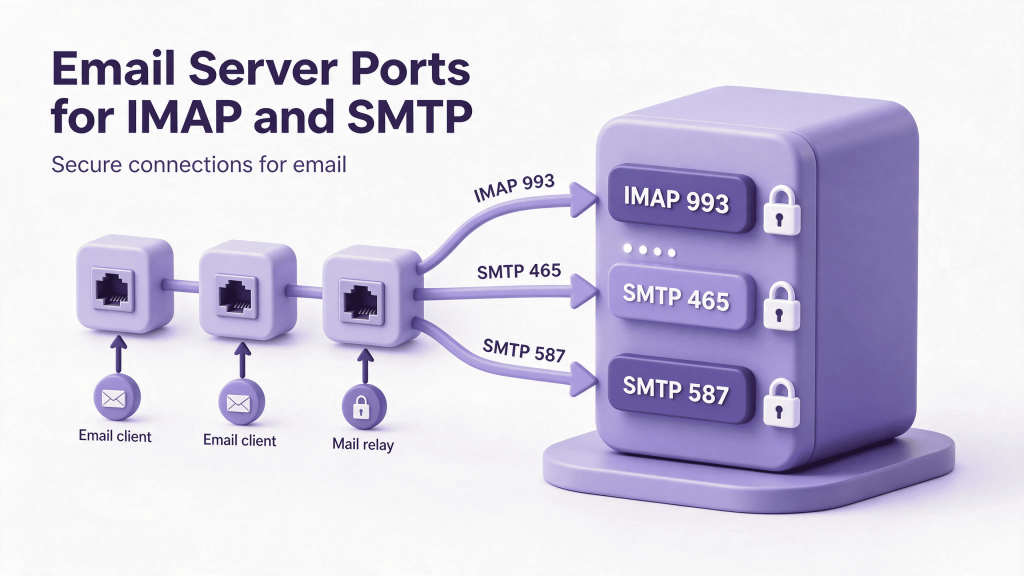
Email ports determine how your email application communicates with your email server.
Using an incorrect port can prevent your computer from receiving or sending messages even when your email address and password are correct.
The most commonly used ports for standard business email are:
| Service | Port | Security |
|---|---|---|
| IMAP | 993 | SSL/TLS |
| IMAP | 143 | STARTTLS |
| SMTP | 465 | SSL/TLS |
| SMTP | 587 | STARTTLS |
For many standard cPanel business email accounts, IMAP port 993 and SMTP port 465 are commonly recommended when using SSL/TLS.
Some servers support or require SMTP port 587 with STARTTLS instead.
How to change your email ports
- Open your email application on your computer.
- Go to account settings.
- Open the incoming mail configuration.
- Set the IMAP port to 993 if your server supports SSL/TLS on this port.
- Select SSL/TLS as the incoming connection security.
- Open the outgoing SMTP settings.
- Set the SMTP port to 465 if your server supports SSL/TLS on this port.
- Select SSL/TLS as the outgoing connection security.
- Save the changes and test your email.
If port 465 does not work and your email provider supports port 587, try port 587 with STARTTLS instead.
Do not randomly change ports without checking your hosting provider’s recommended configuration.
4. Make Sure SSL/TLS Security Settings Are Correct
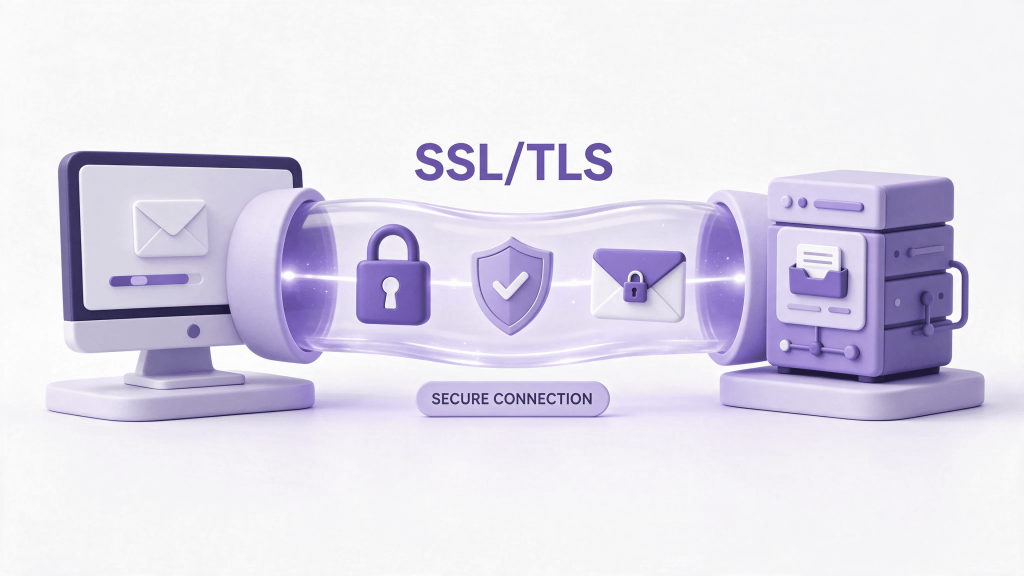
SSL/TLS helps encrypt the connection between your email application and your email server.
If your computer is using the wrong security setting, it may fail to connect to the server even if your hostname, username and password are correct.
For example, your email application might be configured to use:
- No encryption when the server requires SSL/TLS.
- SSL/TLS when the server expects STARTTLS.
- An incorrect combination of security settings and ports.
These mismatches can result in connection errors, certificate warnings or repeated login prompts.
How to check SSL/TLS settings
- Open your email application.
- Go to your email account settings.
- Open the incoming mail configuration.
- Check the connection security setting.
- Select SSL/TLS if your server requires it.
- Check the outgoing mail configuration.
- Ensure the SMTP security setting matches your server’s requirements.
- Save your settings and restart the application.
If your email application displays a certificate warning, do not simply ignore it. Check whether the server hostname matches the certificate and whether your hosting provider has a valid SSL certificate for the email service.
An incorrectly configured certificate or hostname can cause email connection problems.
5. Clear Cached Email Credentials on Your Computer
Sometimes your email application continues using an old password even after you have updated your email account.
This can happen because your computer stores email credentials in a password manager or system credential storage.
For example, Windows may store email credentials in Credential Manager, while macOS stores account credentials in Keychain.
If these stored credentials are outdated or corrupted, your email application may repeatedly fail to authenticate.
How to clear saved email credentials on Windows
- Close your email application.
- Open the Windows Start menu.
- Search for Credential Manager.
- Open Credential Manager.
- Select Windows Credentials or the relevant credential category.
- Look for saved credentials associated with your email account or mail server.
- Remove only the credentials you have identified as outdated and relevant to your email account.
- Open your email application again.
- Enter your current email password when prompted.
How to check saved credentials on macOS
- Open Finder.
- Go to Applications and open Utilities.
- Open Keychain Access.
- Search for your email address or mail server hostname.
- Identify the relevant saved email credentials.
- If you are certain the credentials are outdated, remove the relevant entry.
- Open your email application again.
- Enter your current email password if prompted.
Removing saved credentials may cause your email application to ask for your password again. Make sure you know your current password before removing them.
6. Reconfigure Your Email Account on the Computer
If your email still does not work after checking your password, server settings, ports and security configuration, your email account may have an incorrect or corrupted configuration.
This can happen when:
- Your email application was updated.
- Your hosting provider changed email server settings.
- Your password was changed.
- Your account was configured incorrectly from the beginning.
- Your email application has an outdated configuration.
In such cases, removing and adding the account again may resolve the problem.
How to reconfigure your email account
- Open your email application.
- Go to account settings.
- Select the email account experiencing the problem.
- Before removing the account, confirm that your emails are synchronised with the server or backed up.
- Remove the existing account configuration.
- Restart your email application.
- Add your email account again.
- Enter your full email address and password.
- Configure the incoming and outgoing servers using the settings supplied by your email provider.
- Save the configuration and test sending and receiving emails.
For business email accounts, IMAP is generally preferable when you want the same inbox, sent messages and folders synchronised across multiple devices.
If you use POP3, removing the account can potentially affect locally stored messages, so be careful before proceeding.
7. Check Whether Your Firewall or Internet Connection Is Blocking Email
Sometimes the email account is configured correctly, but your computer cannot establish a connection to the mail server.
This may happen because of:
- A firewall blocking the connection.
- Antivirus software interfering with email connections.
- VPN-related connection problems.
- Network restrictions.
- Internet connection issues.
Your phone may be connected through mobile data or a different network, while your computer is connected to a network that blocks certain email connections.
How to check whether your network is causing the problem
- Open your email application and note the connection error.
- Disconnect your computer from your current network if possible.
- Connect it to a different network, such as a mobile hotspot.
- Try sending and receiving emails again.
- If email works on the alternative network, investigate your original network’s firewall, VPN or network restrictions.
If you suspect antivirus software, check its email protection or network filtering settings. Avoid permanently disabling security software just to make email work.
8. Test Your Email Through Webmail
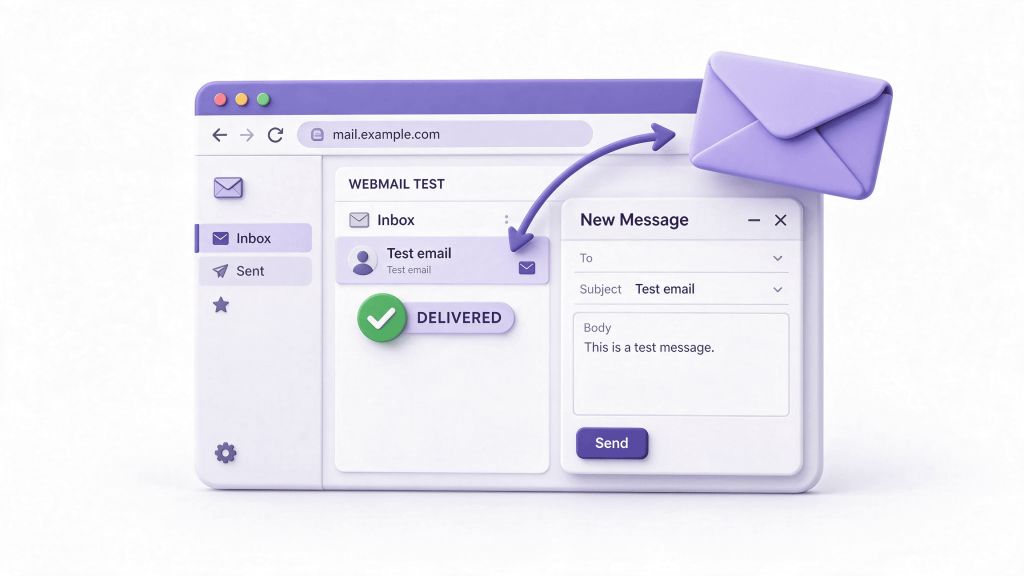
Webmail is one of the quickest ways to determine whether the problem is related to your computer or your email server.
Instead of using an email application such as Outlook, Thunderbird or Apple Mail, you access your email directly through a web browser.
For cPanel-hosted email accounts, webmail is commonly accessible through:
https://yourdomain.com/webmail
You may also have a webmail URL provided directly by your hosting company.
How to test your email using webmail
- Open your browser.
- Visit your webmail login page.
- Enter your full email address and password.
- Log in to your account.
- Send a test email to another email address you can access.
- Ask the recipient to reply.
- Check whether the reply arrives in your webmail inbox.
If webmail works properly but your computer’s email application does not, the issue is more likely related to your desktop configuration, saved credentials, network or email application.
If webmail also fails, the issue may be related to your email account, server, password, service availability or other server-side problems.
What to Do If Your Email Still Does Not Work on Your Computer
If none of the above solutions works, the problem may require further investigation.
Your hosting provider or email administrator may need to check:
- Email server availability.
- IMAP and SMTP service status.
- Server logs and authentication failures.
- SSL certificate validity.
- Firewall restrictions.
- DNS records, including mail-related records.
- Account suspension or storage limits.
- Server hostname and configuration changes.
Before contacting support, collect the following information:
- Your email address.
- The email application you are using.
- Whether webmail works.
- Whether you can receive emails but cannot send them, or vice versa.
- Any error message displayed.
- Whether the email works on another device or network.
Providing this information makes it easier to identify the actual cause instead of trying random fixes.
Frequently Asked Questions
Why does email work on phone but not computer?
Your phone and computer may have different email configurations, saved passwords, IMAP and SMTP settings, security settings or network connections. Your phone may be using the correct configuration while your computer has outdated or incorrect settings.
Why can I receive emails on my computer but cannot send them?
This usually points to an outgoing mail configuration issue. Check your SMTP server hostname, port, SSL/TLS settings and authentication. Your SMTP server may require authentication using your full email address and password.
Why does my computer keep asking for my email password?
Your email application may have an outdated saved password, incorrect authentication settings or a connection problem. Check your current password through webmail and update the credentials saved in your desktop application.
What are the correct IMAP and SMTP settings for business email?
Many cPanel-hosted business email accounts use mail.yourdomain.com as the incoming and outgoing server hostname, IMAP port 993 with SSL/TLS and SMTP port 465 with SSL/TLS. However, these settings vary between providers, so always verify the correct configuration.
Should I use POP3 or IMAP for business email?
IMAP is generally recommended when accessing business email from multiple devices because it synchronises messages and folders with the mail server. POP3 may download messages locally and can result in inconsistent email access across devices, depending on how it is configured.
Will removing my email account from my computer delete my emails?
Not necessarily. If your account uses IMAP and your messages are synchronised with the server, removing the account configuration generally does not delete server-stored emails. However, POP3 accounts or locally stored messages may be affected. Always verify that your emails are backed up before removing an account.
Can my hosting provider fix email problems on my computer?
Your hosting provider can help verify server settings, authentication, SSL certificates, email service availability and server-side problems. If the issue is caused by your computer’s email application, saved credentials or network, you may also need to reconfigure the application or investigate your computer.
Final Thoughts
When your email works on phone but not computer, it does not necessarily mean your email account is broken. In many cases, the problem is caused by outdated credentials, incorrect SMTP or IMAP settings, mismatched ports, SSL/TLS configuration or a corrupted email application setup.
Start with the simplest checks: test webmail, verify your password and check your server settings. Work through the solutions in order rather than changing multiple settings at once.
A properly configured business email should work reliably across your phone, computer and other devices, allowing you to communicate with customers without unnecessary interruptions.
At ElySpace, we help businesses set up, configure and troubleshoot professional email accounts, ensuring their business communication systems work reliably across devices. If you’re facing persistent email problems and cannot identify the cause, our team can help you investigate and resolve the issue.
At ElySpace, we help businesses set up, configure and troubleshoot professional email accounts, ensuring their business communication systems work reliably across devices. If you’re facing persistent email problems and cannot identify the cause, you can contact our support team for assistance with email configuration, hosting-related problems and server settings.