 Live Chat
 Contact
 Shopping Cart
 Rashid Malla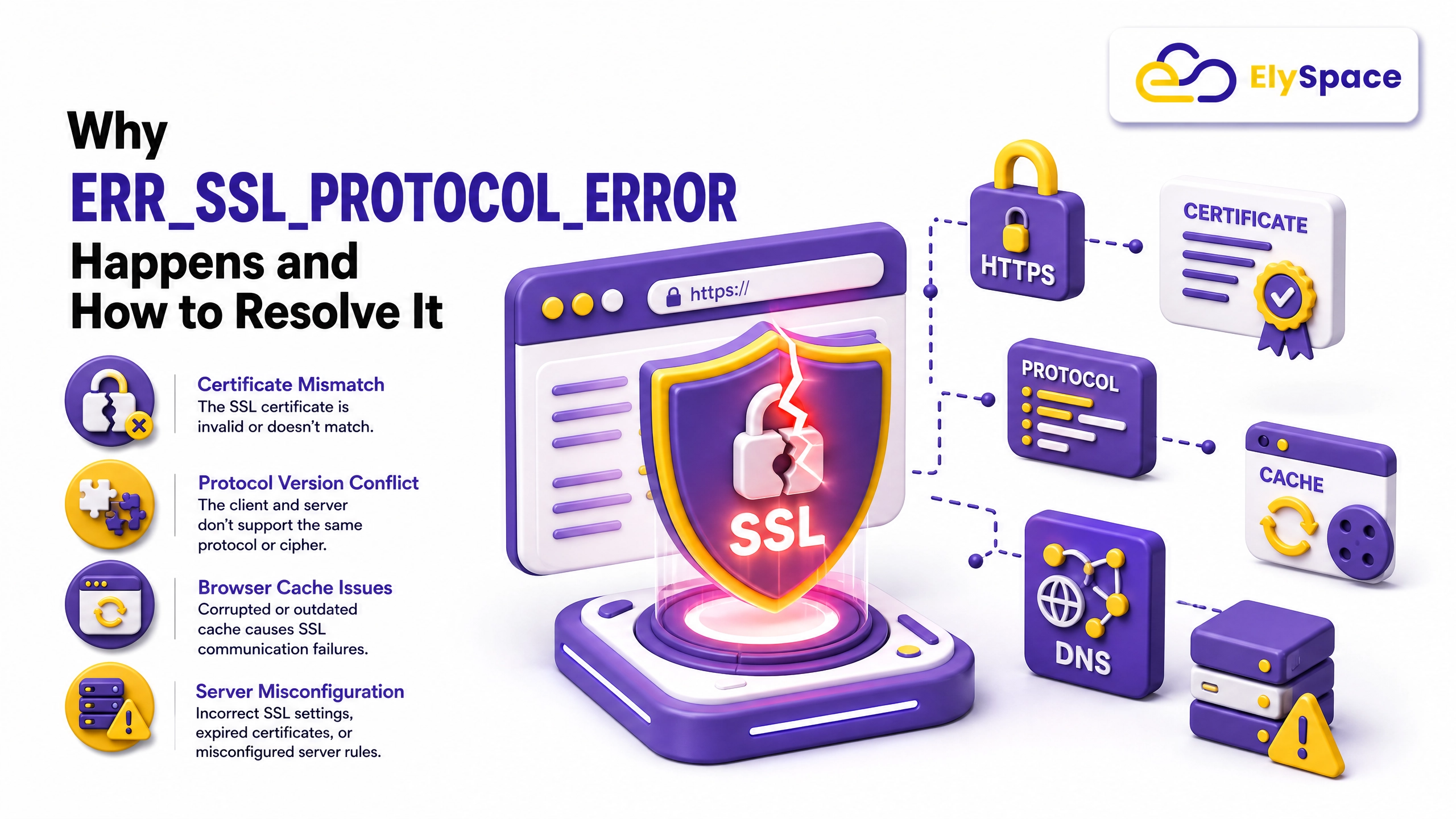
You click a link, and instead of the page you wanted, your browser throws up a wall of red text: ERR_SSL_PROTOCOL_ERROR. No content, no explanation you can actually use — just a warning that the connection isn’t safe. It’s one of the most common SSL errors we deal with at Ely Space when auditing client websites, and it trips up regular visitors and site owners alike.
The good news is that this error is almost always fixable, and in most cases you don’t need to be technical to fix it. This guide walks through exactly what ERR_SSL_PROTOCOL_ERROR means, why it shows up, and how to resolve it — whether you’re a visitor trying to open a page or a site owner trying to stop it from scaring away traffic. If you’re troubleshooting on behalf of a website, it pairs well with our website security checklist, which covers the broader steps for keeping a site trusted by browsers.
What Is ERR_SSL_PROTOCOL_ERROR?
ERR_SSL_PROTOCOL_ERROR is a browser-level message that shows up when your browser and a website’s server fail to agree on a secure connection. This agreement is called an SSL/TLS handshake. During this handshake, your browser and the server exchange certificates and agree on an encryption method before any actual page content loads.
When that handshake breaks down partway through, the browser refuses to load the site and shows ERR_SSL_PROTOCOL_ERROR instead. This is different from a simple “site not found” error. The server exists and responded, but the secure connection itself couldn’t be completed. Chrome displays this message most often, though Edge and other Chromium-based browsers show a nearly identical warning under the same name.
It’s worth being clear about one thing early on: this error is a safety feature, not a bug. Your browser is refusing to send data over a connection it can’t verify. That’s frustrating in the moment, but it’s protecting you from a potentially insecure or misconfigured connection.
Why Does ERR_SSL_PROTOCOL_ERROR Happen?
There isn’t one single cause behind ERR_SSL_PROTOCOL_ERROR, which is part of why it’s so confusing to troubleshoot. In our experience fixing this for client sites, the cause usually falls into one of six categories.
1. Your System Clock Is Wrong
SSL certificates carry a start date and an expiry date. If your computer’s date or time is off, even by a few hours, your browser may think a valid certificate is expired or not yet active. This single issue accounts for a surprising share of ERR_SSL_PROTOCOL_ERROR reports, especially on devices where automatic time sync has been turned off. It’s closely related to the ERR_CERT_DATE_INVALID error, which comes from the same root cause.
2. Outdated Browser Cache or Cookies
Browsers store cached SSL data to speed up future visits. Occasionally that cached data becomes corrupted or outdated, and the browser tries to reuse a broken handshake instead of starting fresh. This is one of the easiest causes to rule out, since clearing the cache takes less than a minute.
3. Antivirus or VPN Interference
Many antivirus tools and VPN clients include HTTPS scanning, which inspects encrypted traffic before it reaches your browser. This is meant to catch malware, but it can also interrupt the SSL handshake and trigger ERR_SSL_PROTOCOL_ERROR. Corporate firewalls and school networks cause the same problem for the same reason.
4. QUIC Protocol Conflicts
Chrome defaults to a faster connection protocol called QUIC. Some networks, routers, or older servers don’t support it properly, and the mismatch produces a protocol error instead of a clean fallback. This is a well-documented cause specifically on Chrome and Chromium-based browsers.
5. An Actual Problem With the Website’s SSL Certificate
Sometimes the fault sits with the website, not your device. A certificate that has expired, was issued incorrectly, is missing intermediate certificates, or simply doesn’t match the domain will break the handshake for every visitor, not just you. If ERR_SSL_PROTOCOL_ERROR shows up on one specific site across multiple devices and networks, this is usually the reason.
6. Outdated Server Protocols
Modern browsers require TLS 1.2 or newer and will reject older, insecure protocols like SSL 3.0. A server still running outdated protocols or an unsupported cipher suite will fail the handshake for anyone visiting with an up-to-date browser.
How to Fix ERR_SSL_PROTOCOL_ERROR as a Visitor
If you’re the one seeing this error while trying to browse, work through these steps in order. Most people find their fix within the first three or four attempts. These are the same steps we point people to for the related ERR_SSL_VERSION_OR_CIPHER_MISMATCH error, since both come from a broken handshake.
Reload the page first. Press Ctrl + R (or Cmd + R on a Mac). SSL handshakes occasionally fail once and succeed on the next attempt, so this costs nothing and solves the problem more often than you’d expect.
Check your system date and time. Go into your device settings and confirm the clock is set to update automatically. On Windows, this is under Settings > Time & Language. On a Mac, it’s under System Settings > General > Date & Time. An incorrect clock is one of the most common root causes of ERR_SSL_PROTOCOL_ERROR.
Clear your browser’s cache and cookies. In Chrome, go to Settings > Privacy and Security > Clear Browsing Data, and select cached images, files, and cookies. This removes any corrupted SSL data the browser may be reusing.
Disable HTTPS scanning in your antivirus. Open your antivirus software and look for a setting labeled “HTTPS scanning” or “SSL scanning,” usually found under web protection or core shields. Turn it off temporarily and reload the page to see if that resolves the error.
Pause your VPN or proxy. If you’re connected to a VPN, disconnect it and try the site again. If the page loads without the VPN, the issue is with how that specific VPN handles secure connections.
Turn off the QUIC protocol in Chrome. Type chrome://flags/#enable-quic into the address bar, set the option to Disabled, and relaunch the browser. This resolves ERR_SSL_PROTOCOL_ERROR for a meaningful number of users on Chromium browsers.
Try a different browser or network. If the error only appears in one browser or only on one network, that narrows down whether the problem is local to your device or something wider.
How to Fix ERR_SSL_PROTOCOL_ERROR as a Website Owner
If visitors are reporting ERR_SSL_PROTOCOL_ERROR on your site, the fix needs to happen on the server side. Here’s where to look, based on what we typically find during our SSL certificate installation service audits.
Check your SSL certificate status. Confirm the certificate hasn’t expired and that it was issued for the exact domain and subdomains you’re using. A certificate mismatch between www.yoursite.com and yoursite.com is a common, easy-to-miss cause.
Verify your certificate chain is complete. Missing intermediate certificates are one of the most frequent server-side causes of this error. Most hosting control panels and SSL certificate providers offer a chain-checking tool that will flag this instantly.
Update outdated TLS protocols. Make sure your server supports TLS 1.2 or 1.3 and has disabled older, insecure protocols like SSL 3.0 and TLS 1.0. Most reputable hosting providers handle this automatically, but it’s worth confirming if your server is self-managed.
Review your cipher suite configuration. An unsupported or overly restrictive cipher suite can block modern browsers from completing the handshake. Your hosting provider or SSL certificate issuer can usually confirm the correct configuration for your setup.
Test from multiple browsers and devices. If the error only shows up for a subset of visitors, the cause is more likely local to those users. If it shows up consistently across devices and networks, the problem is almost certainly server-side.
How to Prevent ERR_SSL_PROTOCOL_ERROR in the Future
Fixing the error once is useful, but preventing it from coming back matters more, especially if you run a website. A few habits go a long way:
- Renew SSL certificates well before their expiry dates, and set a calendar reminder so they never sneak up on you.
- Keep your browser and operating system updated, since both regularly patch how they handle SSL/TLS handshakes.
- Enable automatic time sync on all your devices so that certificate validation never fails due to a clock error.
- Choose a hosting provider that keeps its TLS configuration current without manual intervention.
- Periodically clear browser cache on shared or public computers, where corrupted SSL data tends to build up unnoticed.
Small, consistent maintenance like this is far less disruptive than troubleshooting the error after it has already driven visitors away. If you want a hand keeping this on track, our managed SSL monitoring service handles certificate renewals and TLS configuration checks automatically.