 Live Chat
 Contact
 Shopping Cart
 Eshan Riyaz
You type your website address into a browser. It starts to load. Then it redirects. Then it redirects again. And again. After about ten of these, the browser gives up entirely and throws back:
ERR_TOO_MANY_REDIRECTS
The page never opens. The site is completely unreachable. And if this is your own website, it means every visitor right now is seeing the exact same thing, a blank error screen.
Here’s the thing though: ERR_TOO_MANY_REDIRECTS is almost never random. It doesn’t happen because something corrupted mysteriously or because the server had a bad day. It happens because two or more rules are telling the browser to redirect to different places, and neither one ever wins. The browser keeps bouncing between them until it hits its limit and quits.
The fix is always the same in principle: find the conflicting rule and remove it. The challenge is that the conflict can come from several different places; WordPress settings, an SSL configuration, a plugin, a CDN, your .htaccess file. This guide walks through each one clearly so you find the right fix without guessing.
Before You Do Anything: Try This First
Two quick tests tell you a lot about where the problem is coming from.
Open an incognito window and try your website. Incognito bypasses your browser cache and cookies. If your site loads there but not in a regular window, the fix is entirely on your browser side, no server changes needed. Clear your cookies and cache for the site domain, restart your browser, and you’re done.
Try your website from a different device or network. If it loads fine there, same conclusion; browser or local cache issue, not a server problem.
If the site shows ERR_TOO_MANY_REDIRECTS everywhere; incognito, different browser, different device, the redirect loop is happening on the server side. That’s where the rest of this guide focuses.
Cause 1: Your WordPress URLs Don’t Match
This is the most common cause and the fastest fix. Worth checking first before anything else.
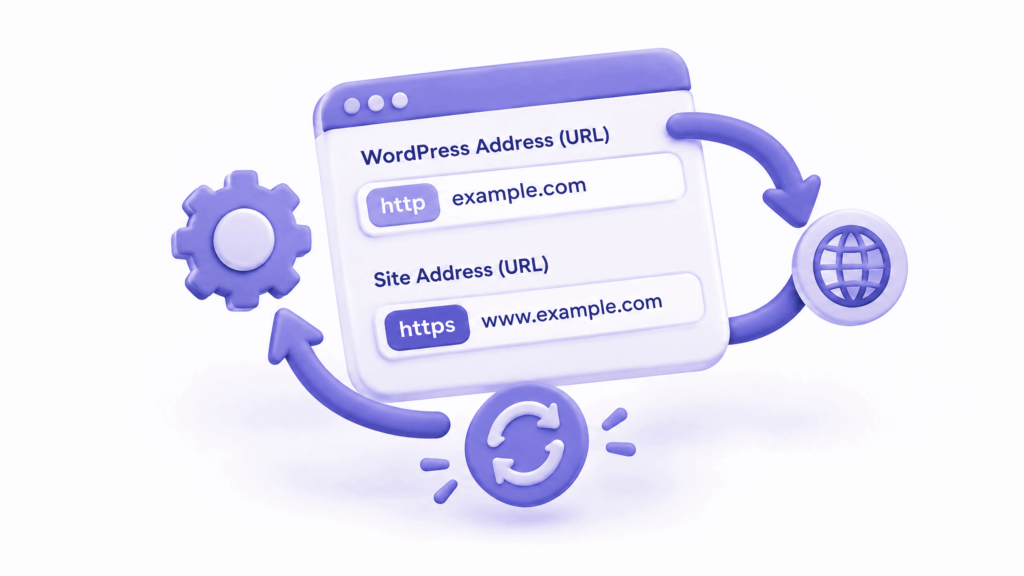
WordPress stores two URL settings: the WordPress Address and the Site Address. They live in Settings → General in your dashboard, or in the wp_options table in your database if you can’t access the dashboard.
When these two URLs disagree with each other, or when they don’t match the actual address of your site (http vs https, www vs non-www), WordPress creates a redirect loop trying to reconcile them.
How to fix it if you can access your dashboard:
Go to Settings → General. Check both the WordPress Address (URL) and Site Address (URL). They should both be identical and match exactly how your site should be accessed, including whether it’s https:// or http://, and whether it has www or not.
If your site has SSL installed, both should start with https://. If you recently switched to HTTPS and forgot to update these, that mismatch alone creates the loop.
How to fix it if you’re locked out:
Add these two lines to your wp-config.php file, replacing the URLs with your actual site address:
define(‘WP_HOME’, ‘https://yourdomain.com’);
define(‘WP_SITEURL’, ‘https://yourdomain.com’);
This overrides whatever is stored in the database. Once you can access your dashboard again, update the settings there and remove these lines from wp-config.php.
Cause 2: SSL Configuration Conflict
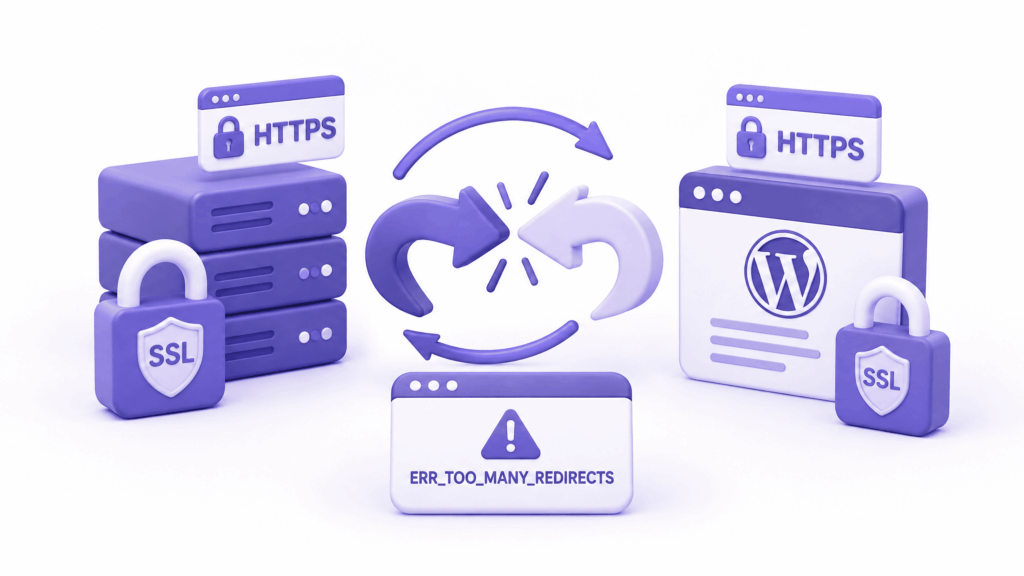
This one is everywhere. It’s the cause behind most ERR_TOO_MANY_REDIRECTS errors that appear right after someone installs an SSL certificate or switches a site from HTTP to HTTPS.
The scenario: SSL is installed. A plugin or .htaccess rule is set to force all traffic to HTTPS. But the server itself isn’t recognising that the connection is already HTTPS, so it tries to redirect to HTTPS again. The browser is already on HTTPS. Gets redirected to HTTPS. Still on HTTPS. Gets redirected again. Loop.
This also happens when SSL is not properly installed or not recognised by the server, but something in WordPress is still trying to force redirects to it. The redirect happens, the HTTPS connection fails the certificate check, and the whole thing collapses into a loop.
How to fix it:
First, confirm your SSL certificate is properly installed. Log into your hosting control panel and verify the certificate is active, valid, and assigned to the correct domain. If it’s expired or misconfigured, fix the certificate before touching redirect rules.
Next, if you’re using a plugin like Really Simple SSL, temporarily deactivate it (via your hosting file manager if needed, rename the plugin folder). Test whether the loop stops. If it does, the plugin was forcing HTTPS in a way that conflicted with another redirect rule.
Then check your .htaccess file for duplicate or conflicting HTTPS redirect rules. Open it via your hosting file manager. You should have one clean rule redirecting HTTP to HTTPS, not two or three from different sources all trying to do the same thing.
Cause 3: Cloudflare Flexible SSL Mode

This one is responsible for a massive number of ERR_TOO_MANY_REDIRECTS errors and it’s completely non-obvious until someone explains it.
Here’s what happens. You enable Cloudflare and set SSL to “Flexible” mode. Cloudflare serves your visitors over HTTPS, so the address bar shows a padlock. But in Flexible mode, Cloudflare communicates with your actual server over plain HTTP. Your server receives an HTTP request.
Meanwhile, WordPress is set to use https:// as its URL. It sees the incoming HTTP request, notices it doesn’t match, and redirects to HTTPS. Cloudflare takes that, forwards it as HTTP to your server. WordPress sees HTTP again, redirects to HTTPS again. Loop. Infinite.
The fix: two options;
Option one (recommended): In your Cloudflare dashboard, go to SSL/TLS and change the mode from Flexible to Full (Strict). This requires a valid SSL certificate on your actual server, not just at Cloudflare’s edge. Install Let’s Encrypt through your hosting panel first, then switch Cloudflare to Full (Strict).
Option two (workaround): If you can’t install a certificate on the origin server yet, add these lines to wp-config.php to make WordPress understand that the connection coming through Cloudflare is actually HTTPS even though the server sees HTTP:
if (isset($_SERVER[‘HTTP_X_FORWARDED_PROTO’]) && $_SERVER[‘HTTP_X_FORWARDED_PROTO’] === ‘https’) {
$_SERVER[‘HTTPS’] = ‘on’;
}
This tells WordPress “trust the Cloudflare header that says this is HTTPS.” The loop stops. But switch to Full (Strict) properly when you can, this workaround doesn’t fix the underlying architecture.
Cause 4: A Plugin Is Causing the Loop
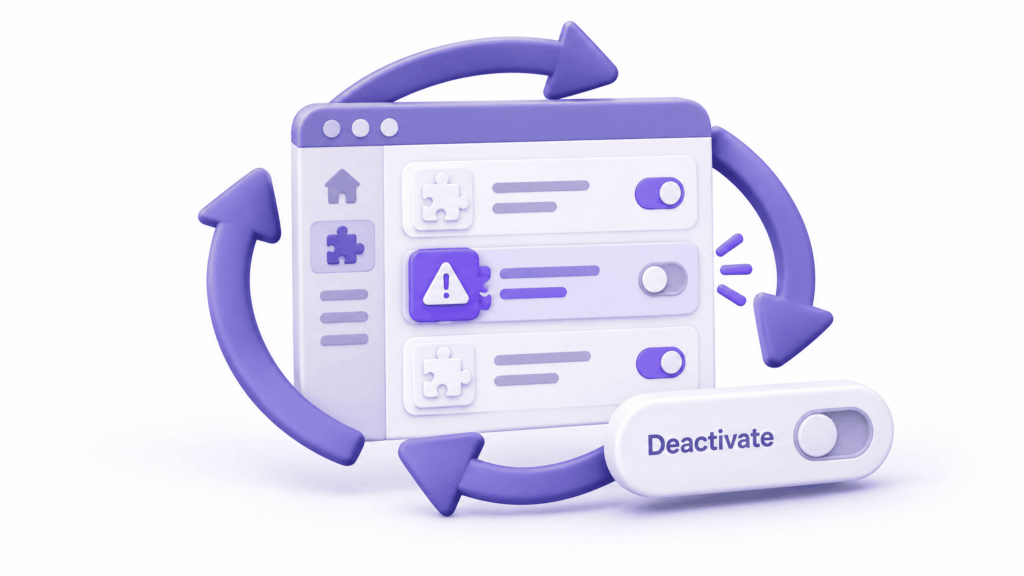
Plugins are the second most common cause. Redirect plugins, SSL plugins, caching plugins, SEO plugins, any plugin that touches URL routing can create a loop when it conflicts with another plugin or with WordPress’s own redirect logic.
The most frequently seen culprits: Really Simple SSL, Redirection, WP Force SSL, certain configurations of caching plugins like W3 Total Cache and WP Super Cache, and occasionally SEO plugins that have redirect management features.
How to find which plugin is responsible:
If you can access your dashboard; Plugins → All Plugins → select all → Bulk Actions → Deactivate. Test your site. If the loop stops, reactivate plugins one at a time, testing after each one. The plugin that brings the loop back is the problem.
If you can’t access your dashboard, open your hosting file manager, navigate to wp-content/, and rename the plugins folder to plugins_disabled. WordPress deactivates everything automatically when it can’t find the folder. Test your site. When the loop stops, rename it back to plugins, access your dashboard, and reactivate plugins one by one.
One important note: sometimes the plugin itself isn’t the issue, it’s a cached redirect the plugin left behind. Even after deactivating a plugin, old 301 redirects can be served from cache. Clear your caching plugin’s cache and your browser cache after deactivating, then test again.
Cause 5: Your .htaccess File Has Conflicting Rules
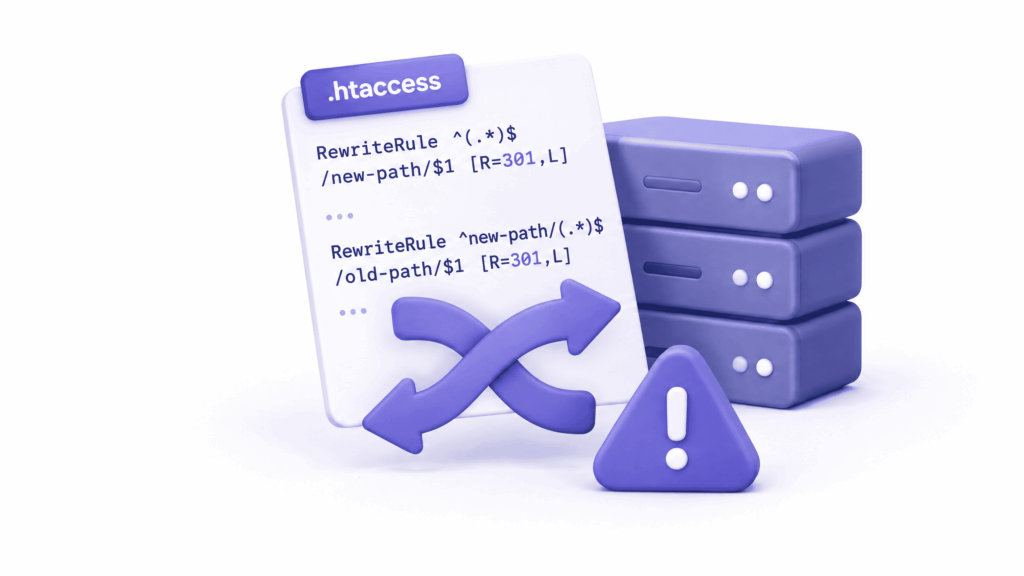
Your .htaccess file controls how the server handles requests before they ever reach WordPress. It’s a powerful file, and when rules inside it conflict with each other or with WordPress’s own redirect logic, ERR_TOO_MANY_REDIRECTS is a common result.
Common .htaccess scenarios that create loops:
- One rule redirects HTTP to HTTPS. Another rule also tries to redirect based on a condition that the first rule just created. Both keep triggering each other.
- www and non-www redirect rules that conflict with each other.
- Rules added manually over time that were never removed, sitting alongside newer rules doing the same job differently.
How to fix it:
Open your .htaccess file through your hosting file manager. Back it up first, copy its contents to a text file before changing anything. Then replace the entire contents with the standard WordPress .htaccess block:
# BEGIN WordPress
<IfModule mod_rewrite.c>
RewriteEngine On
RewriteBase /
RewriteRule ^index\.php$ – [L]
RewriteCond %{REQUEST_FILENAME} !-f
RewriteCond %{REQUEST_FILENAME} !-d
RewriteRule . /index.php [L]
</IfModule>
# END WordPress
If you need HTTPS redirect rules, add them cleanly and only once, above the WordPress block:
RewriteEngine On
RewriteCond %{HTTPS} off
RewriteRule ^ https://%{HTTP_HOST}%{REQUEST_URI} [L,R=301]
Test after saving. If the loop stops, you have conflicting rules in the file. Rebuild from the clean version and only add back what you know you actually need.
Cause 6: Browser Cache Holding a Stale Redirect

301 redirects are permanent redirects. When a browser encounters one, it caches it, meaning the next time you visit that URL, the browser skips the server entirely and goes directly to wherever the redirect points.
This is efficient when everything is working correctly. When it isn’t, it means your browser might be faithfully following a redirect that no longer exists on the server, creating a loop that only you experience, while other visitors on fresh browsers see the site just fine.
It’s also why the incognito test at the start matters so much. If your site loads in incognito but not in your regular browser, this is the cause.
Fix:
In Chrome: Settings → Privacy and security → Clear browsing data. Set the time range to All time. Select Cached images and files and Cookies and other site data. Clear data. Restart Chrome and try again.
You can also clear cookies for a specific domain only. In Chrome, click the padlock or warning icon in the address bar → Cookies → remove the cookies for your domain specifically.
Cause 7: Cookies Set to the Wrong Protocol or Domain

Less common than the others, but worth knowing about, particularly because it shows up as an intermittent issue that only affects certain users or certain pages.
When a session or authentication cookie gets set for http://yourdomain.com and then the site switches to https://yourdomain.com, the cookie may still be valid for the old protocol version. The browser sends the HTTP cookie to the HTTPS site, something in the authentication flow tries to redirect to the appropriate version, and a loop starts.
This is especially common on the WordPress login page, the main site works fine but /wp-admin keeps redirecting for logged-in users.
Fix:
Clear all cookies for your domain in your browser. If the issue is happening for multiple users, check that your COOKIE_DOMAIN and COOKIEPATH constants in wp-config.php aren’t explicitly set to an HTTP URL. Also verify that your WordPress authentication cookies are being set with the Secure flag if your site is HTTPS-only.
If You’re Locked Out of WordPress Admin
ERR_TOO_MANY_REDIRECTS often blocks your own dashboard as well as the front end. Here’s how to work on the site when you can’t log in:
Access via hosting file manager. Every hosting control panel has a file manager. Use it to edit wp-config.php and .htaccess directly, and to rename the plugins folder without needing dashboard access.
Use phpMyAdmin. From your hosting control panel, open phpMyAdmin, find your WordPress database, and open the wp_options table. Look for siteurl and home, these are the same two URL settings from Settings → General. Update them to the correct HTTPS URL directly in the database.
Use WP-CLI if available. If your host gives you SSH access:
wp option update siteurl ‘https://yourdomain.com’
wp option update home ‘https://yourdomain.com’
wp plugin deactivate –all
These three approaches cover most situations where the dashboard is inaccessible.
How to Find Which Plugin Is the Culprit
When plugin deactivation stops the loop but you need to identify the specific plugin:
Reactivate them in this order; caching plugins last, redirect and SSL plugins second-to-last. These categories are the most common causes, so testing them deliberately at the end means you reach the culprit faster.
After reactivating each plugin, hard-refresh the page (Ctrl+Shift+R on Windows, Cmd+Shift+R on Mac) to bypass any local cache. If the loop comes back immediately after activating a specific plugin, that’s your answer.
Once identified: check whether that plugin has a known conflict with your setup, update it if a newer version is available, or replace it with an alternative that doesn’t conflict.
After Fixing the Loop: What to Check Next
Once ERR_TOO_MANY_REDIRECTS is resolved and your site loads again, spend ten minutes on these:
Clear all caches. Browser cache, WordPress caching plugin cache, Cloudflare cache if you’re using it. Old cached redirect responses can still affect some visitors even after the server-side fix.
Test every URL variant. Try http://yourdomain.com, https://yourdomain.com, http://www.yourdomain.com, https://www.yourdomain.com. All four should end up at the same canonical HTTPS address without any unexpected behaviour.
Check your Google Search Console. If the redirect loop was live for any length of time, Google may have crawled error pages during that period. Submit a fresh sitemap and request indexing of your key pages to get them re-crawled with the working URLs.
Run your site through Google PageSpeed Insights to confirm there are no remaining redirect chains slowing the site down. A fixed loop sometimes leaves behind unnecessary redirect hops that don’t break anything but do add load time.
According to Google’s documentation on redirects, redirect chains longer than two or three hops can slow Google’s crawling and reduce the PageRank passed through the redirects, so cleaning these up after fixing a loop matters for SEO as well as speed.
How ElySpace Handles This for Clients
At ElySpace, ERR_TOO_MANY_REDIRECTS is one of the most common emergency issues we get called in on, usually right after a client has installed SSL for the first time or migrated a site to a new server.
The fix is almost always found in the first three causes above; WordPress URL mismatch, SSL configuration conflict, or a plugin creating a loop. Most cases are resolved within 30 to 60 minutes once we have access to the hosting control panel and the WordPress files.
More importantly, the way we set up websites from the start; proper HTTPS configuration, clean .htaccess rules, no duplicate redirect logic, SSL managed through quality hosting with auto-renewal, means this error rarely comes up at all for sites we build and maintain.
If your site is stuck in a redirect loop and you’re not sure where to start, or if you want a setup that doesn’t create these problems in the first place, reach out at elyspace.com.
FAQs (Frequently Asked Questions)
What does ERR_TOO_MANY_REDIRECTS mean?
It means your browser tried to load a page but kept getting redirected, to the same URL or between two URLs, without ever reaching a final destination. After hitting its redirect limit (usually around 10 redirects), the browser gives up and shows this error. It’s always caused by a configuration conflict, not a hack or server crash.
What’s the fastest fix for ERR_TOO_MANY_REDIRECTS?
Test in incognito first. If it loads there, clear your browser cache and cookies, that’s the entire fix. If it doesn’t load in incognito either, go to WordPress Settings → General and check that both your WordPress Address and Site Address are set to the correct HTTPS URL. This single setting mismatch causes more ERR_TOO_MANY_REDIRECTS errors than anything else.
Why did ERR_TOO_MANY_REDIRECTS appear right after I installed SSL?
Because installing SSL changed your site from HTTP to HTTPS, and at least one redirect rule didn’t update to match. The most common scenario: your WordPress URL settings still point to http:// while something else is trying to force https://. Update both URLs in Settings → General to start with https:// and the loop usually stops immediately.
Can a WordPress plugin cause ERR_TOO_MANY_REDIRECTS?
Yes, it’s one of the most common causes. SSL plugins, redirect plugins, caching plugins, and certain SEO plugins can all create redirect loops when they conflict with each other or with WordPress’s own redirect logic. Deactivate all plugins via your hosting file manager, test the site, then reactivate one at a time to find which plugin is responsible.
Why does ERR_TOO_MANY_REDIRECTS only happen in my browser but not others?
Your browser is following a cached 301 redirect that no longer exists on the server. Clearing your browser cache and cookies for the affected domain resolves it completely. The incognito test confirms this, if the site loads in incognito, local cache is the only issue.
What is Cloudflare Flexible SSL and why does it cause redirect loops?
Cloudflare Flexible SSL gives visitors a secure HTTPS connection to Cloudflare’s servers, but Cloudflare then talks to your actual server over plain HTTP. WordPress sees that HTTP request and tries to redirect to HTTPS. Cloudflare forwards it as HTTP again. The loop repeats indefinitely. Fix it by switching Cloudflare’s SSL mode from Flexible to Full (Strict) and installing a proper certificate on your origin server.
How do I fix ERR_TOO_MANY_REDIRECTS if I can’t access my WordPress admin?
Use your hosting file manager to edit wp-config.php directly and add the correct WordPress URL definitions there. You can also open phpMyAdmin from your hosting panel, find the wp_options table, and update the siteurl and home values to the correct URL. To disable plugins without dashboard access, rename the wp-content/plugins folder to anything else, WordPress deactivates all plugins automatically.