 Live Chat
 Contact
 Shopping Cart
 Eshan Riyaz
You clicked “Update All.” The page spun for a few seconds. And now your website is a blank white screen, a jumble of broken layouts, or a PHP error message your visitors can actually read.
A website broken after update is one of the most stressful things that happens to a business owner who didn’t write the code and doesn’t know where to start. One click and suddenly the site that was working perfectly an hour ago is completely unusable.
Here’s the first thing to know: it’s almost never permanent. WordPress updates don’t delete your content. Your pages, your images, your products, your customer data, all of that is still in the database. What happened is that one piece of software conflicted with another, threw an error, and the whole chain collapsed. Finding which piece caused it is the fix.
This guide covers every common cause and walks you through exactly what to do, in the right order.
First: Don’t Panic. Check Your Email.
Before touching anything, check the email address you use for WordPress admin.
When WordPress detects a critical error after an update, it automatically sends a “Recovery Mode” email to the admin email address on file. This email contains a special link that lets you log into WordPress even when the front end is completely broken, bypassing the problematic plugin or theme long enough to deactivate it.
If that email arrived, click the link and use it. It’s the fastest path back into your dashboard without any file manager access.
If the email didn’t arrive, either because the admin email is wrong, or the error happened before WordPress could send it, you’ll need to work through the file manager. That’s covered below.
What Kind of Broken Are You Dealing With?
Not all broken looks the same. What you’re seeing tells you a lot about what went wrong.
Blank white screen (White Screen of Death): A PHP fatal error happened and error display was turned off. The most common post-update outcome. WordPress loaded, hit an error, and died silently.
“There has been a critical error on this website”: Same PHP fatal error, but WordPress’s recovery mode caught it and displayed the message instead of a blank screen. Usually comes with the recovery email.
Broken layout: missing CSS, wrong fonts, garbled design; The site is loading but stylesheets aren’t applying correctly. Usually a caching issue, a CSS conflict after a theme update, or a CDN serving an outdated stylesheet.
Site loads but specific features are broken: A plugin that handled a specific feature (WooCommerce, bookings, contact forms, membership) updated and now that feature fails. The rest of the site works.
Stuck on “Briefly unavailable for scheduled maintenance”: The update process was interrupted. WordPress left behind a .maintenance file that it forgot to delete. Quick fix.
Can’t log into the dashboard but front end works: A plugin or theme conflict is specifically breaking the admin. The public site is fine.
Identify which one applies to you? Good. Now let’s go through the causes.
Cause 1: A Plugin Conflict After Updating
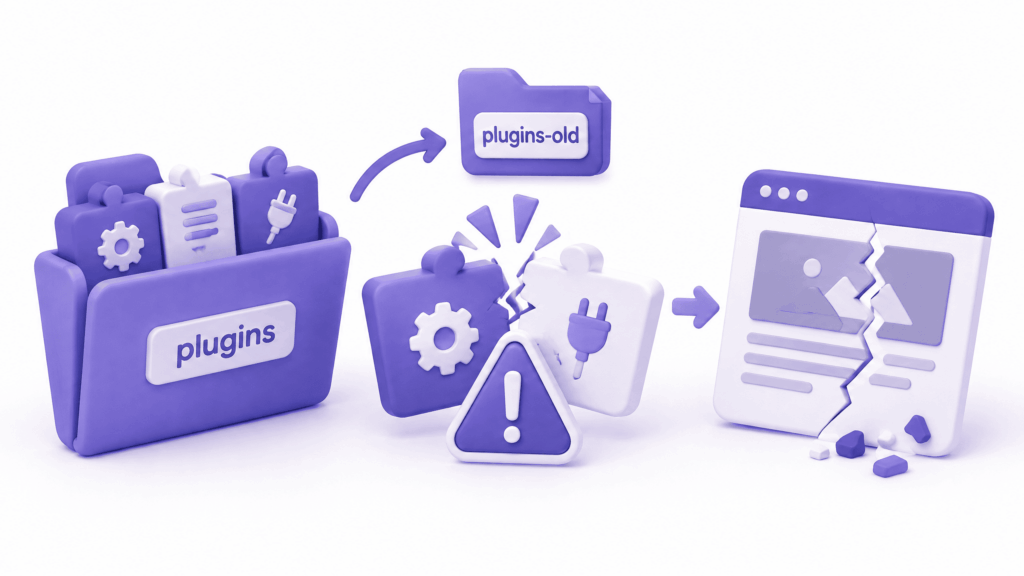
Plugins are the most common cause of a website broken after update. 96% of WordPress vulnerabilities and compatibility issues in 2025 were traced to plugins, not WordPress core, because plugins are written by different developers on different timelines, and they don’t always test their updates against every combination of other plugins.
When plugin A updates and removes a function that plugin B still calls, PHP throws a fatal error. When two plugins both try to load the same JavaScript library in different versions, JavaScript breaks. When a security plugin updates and adds a new rule that blocks something your site needs, specific features stop working.
How to fix it:
If you have dashboard access; go to Plugins → All Plugins → select all → Bulk Deactivate. Test your site. If it loads, you’ve confirmed a plugin is the cause. Reactivate plugins one at a time, testing after each, until the broken one reveals itself.
If you’re locked out, open your hosting file manager, navigate to wp-content/, and rename the plugins folder to plugins_disabled. WordPress automatically deactivates everything when the folder is missing. Test the site. When it loads, rename the folder back to plugins and reactivate plugins one at a time through the dashboard.
Once you find the culprit, the options are: roll it back to the previous version (covered below), deactivate it until the developer releases a fix, or find an alternative plugin that does the same job.
Cause 2: Theme Conflict or Theme Update Gone Wrong
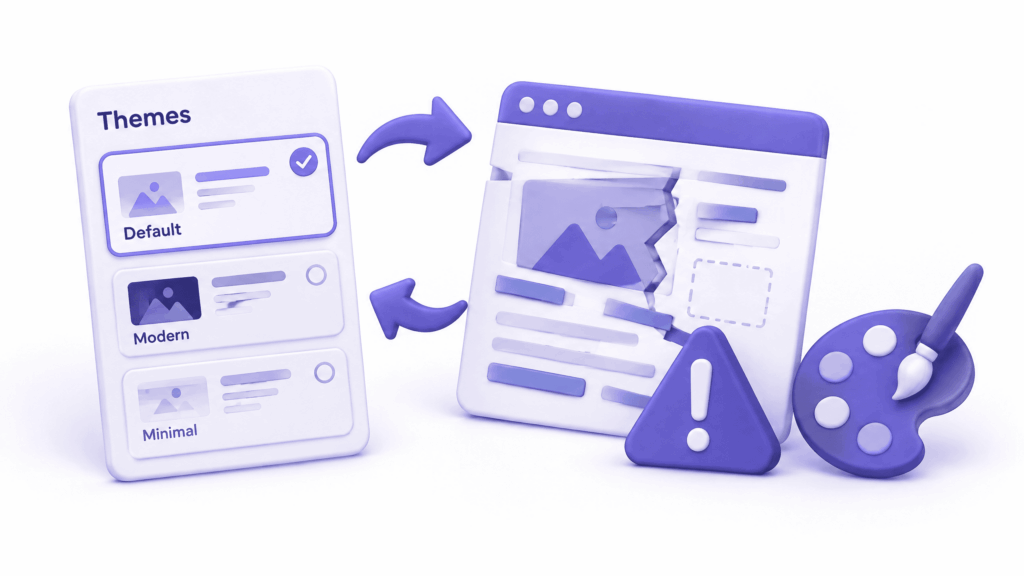
Theme updates carry the same risk as plugin updates, and they’re often more visually obvious when they go wrong.
A theme update can introduce CSS changes that clash with a child theme’s custom styling. It can remove template files that your page templates depend on. It can change the way it loads scripts in a way that conflicts with your page builder. And if you’ve been editing your theme’s files directly instead of using a child theme, a theme update overwrites all your custom changes instantly.
If you switched to a default WordPress theme (Twenty Twenty-Four) and your site loaded fine, the problem is with your active theme.
How to fix it:
Switch to a default WordPress theme temporarily to confirm the diagnosis. If the site loads with the default theme, your theme’s update is the cause.
From there, roll back the theme to the previous version (covered in the rollback section below). If you were editing theme files directly and lost custom changes to the update, this is the exact reason child themes exist, any customisation goes in the child theme, which never gets overwritten by parent theme updates. If you don’t have a backup of your pre-update theme files, this is an expensive lesson that’s unfortunately not reversible without one.
Cause 3: PHP Compatibility Problem
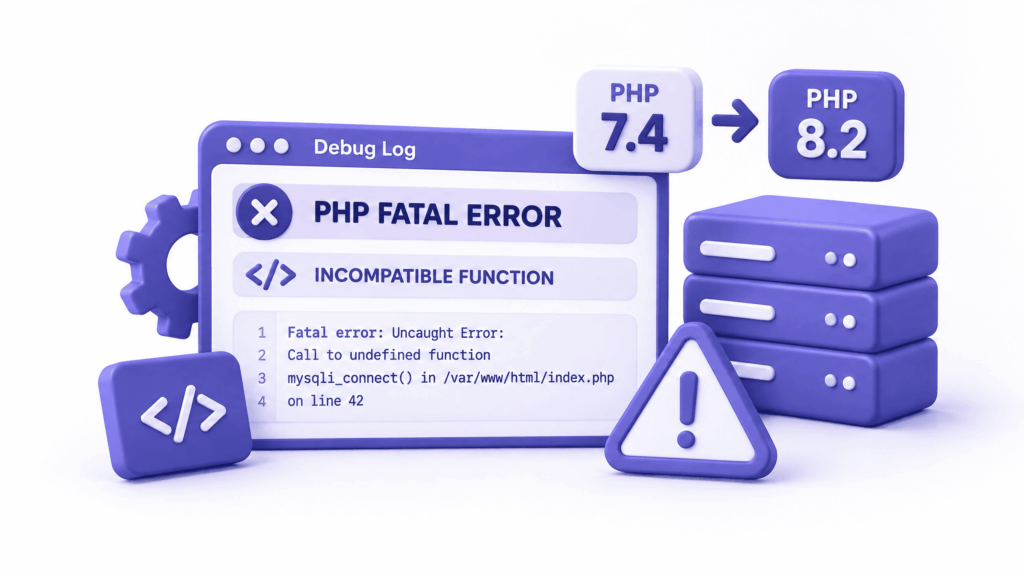
WordPress runs on PHP. Your hosting server runs a specific PHP version. Plugins and themes are written to work with certain PHP versions, and when the PHP version on your server is updated, or when a plugin updates to use a newer PHP feature your server doesn’t support, things break.
This is increasingly common. PHP 8.0, 8.1, 8.2, and 8.3 all introduced changes that broke plugins written for PHP 7.x. A plugin update that works perfectly on a server running PHP 8.2 might crash immediately on a server still running PHP 7.4.
The debug log will show this clearly. A PHP compatibility error looks like:
Fatal error: Uncaught Error: Call to undefined function str_contains() in /wp-content/plugins/your-plugin/file.php:45
str_contains() was introduced in PHP 8.0. If your server is on 7.4, that function doesn’t exist and anything calling it crashes.
How to fix it:
Check your PHP version in your hosting control panel, usually under PHP Configuration or PHP Manager. Compare it to what the plugin’s changelog says it requires. If the plugin needs PHP 8.0 and you’re on 7.4, you have two options: upgrade your PHP version (recommended), or roll back the plugin to a version that supports your current PHP.
Upgrading PHP is usually better, newer PHP versions are faster and more secure. But do it on a staging site or test environment first. A PHP version change affects every plugin and theme simultaneously, and occasionally something else breaks when you jump versions.
Cause 4: CSS Changes Breaking the Visual Layout
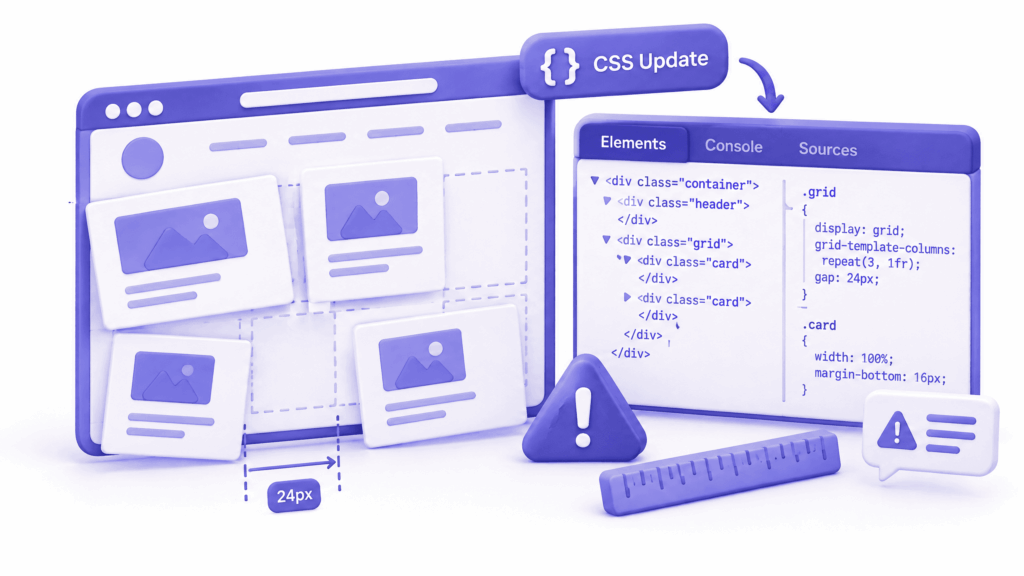
Sometimes the site loads fine, technically. It’s just that everything looks wrong. Sections are misaligned, fonts changed, colours are off, the header looks nothing like it used to.
This happens when a theme or plugin update changes CSS that your site depends on. Particularly:
- A page builder plugin (Elementor, Divi, Beaver Builder) updating and changing how it generates CSS classes
- A theme updating and changing class names or CSS variable names that your custom CSS uses
- A child theme’s custom CSS targeting a class that no longer exists after the parent theme updated
How to fix it:
Open your browser’s DevTools (F12), click on the broken element, and look in the Elements panel at which CSS classes are applied versus what your custom CSS is targeting. If your custom CSS says .header-nav-wrapper and the theme update changed that class to .site-navigation-wrapper, that’s why nothing applies.
Update your custom CSS to target the new class names. If you have a lot of custom CSS that’s now broken by class name changes, rolling back the theme is faster while you figure out the full extent of the changes.
Also try clearing your caching plugin and your browser cache before doing anything else, sometimes what looks like a CSS problem is actually an old cached stylesheet being served.
Cause 5: Caching Serving the Old Broken Version
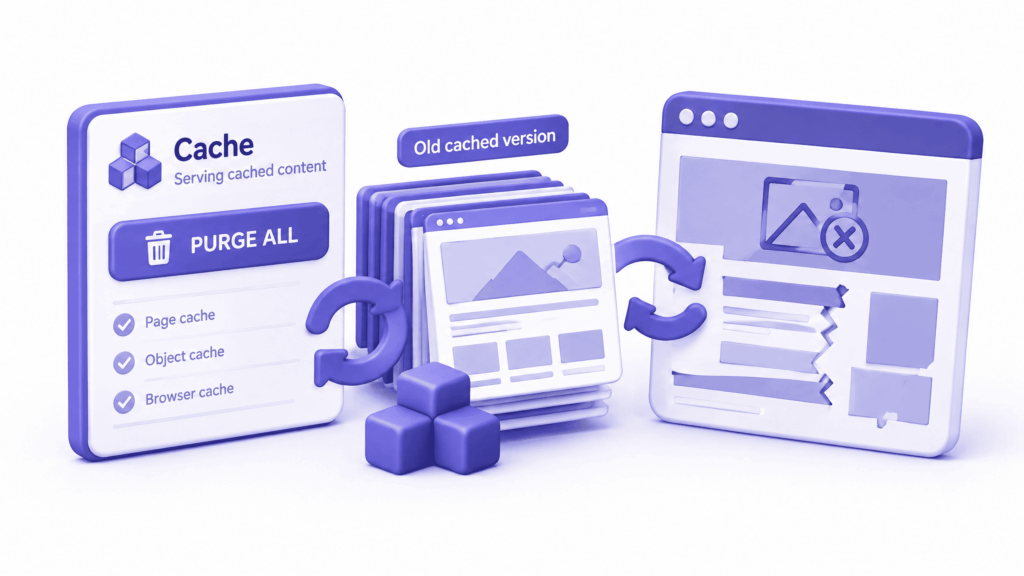
Here’s the ironic version of a broken website after an update: the update itself worked fine. But your caching plugin is still serving visitors an old cached version of the site, one from before the update, and that version now conflicts with the updated code running underneath.
Caching saves your site’s pages as static files to serve them faster. When the underlying code changes during an update, the cached files can become stale or incompatible with the new version. Visitors (and you) see a broken layout, missing elements, or JavaScript errors; but the actual site code is fine.
How to fix it:
Clear your WordPress caching plugin’s cache completely. In WP Rocket: Dashboard → WP Rocket → Clear Cache. In W3 Total Cache: Performance → Dashboard → Empty All Caches. In LiteSpeed Cache: LiteSpeed Cache → Manage → Purge All.
Also clear your Cloudflare cache if you’re using it, log into Cloudflare, go to Caching → Configuration → Purge Everything.
Then hard-reload your site in a private browser window (Ctrl+Shift+R) to bypass your browser’s local cache too.
If the site looks fine after this, caching was the only issue. It wasn’t actually broken, it just looked broken because visitors were seeing an outdated cached version.
Cause 6: Stuck in Maintenance Mode
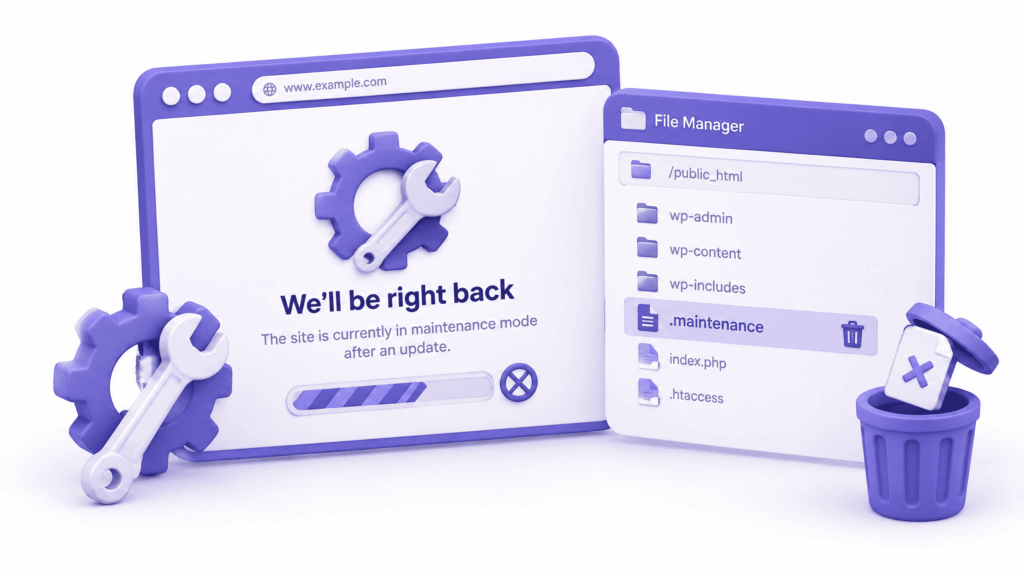
During any update, WordPress creates a file called .maintenance in the root folder. This file triggers the “Briefly unavailable for scheduled maintenance” message that visitors see while the update runs.
Normally WordPress deletes this file the moment the update completes. But if the update was interrupted: your browser closed, your internet dropped, the server timed out; the file stays behind. Your site never comes back out of maintenance mode. Every visitor keeps seeing the maintenance message indefinitely.
How to fix it:
This is the easiest fix in this entire guide. Open your hosting file manager. Navigate to your site’s root directory, the same folder where wp-config.php lives. Find the file called .maintenance (you may need to enable “show hidden files”). Delete it.
Your site comes back immediately. No other changes needed.
Cause 7: WordPress Core Update Conflict
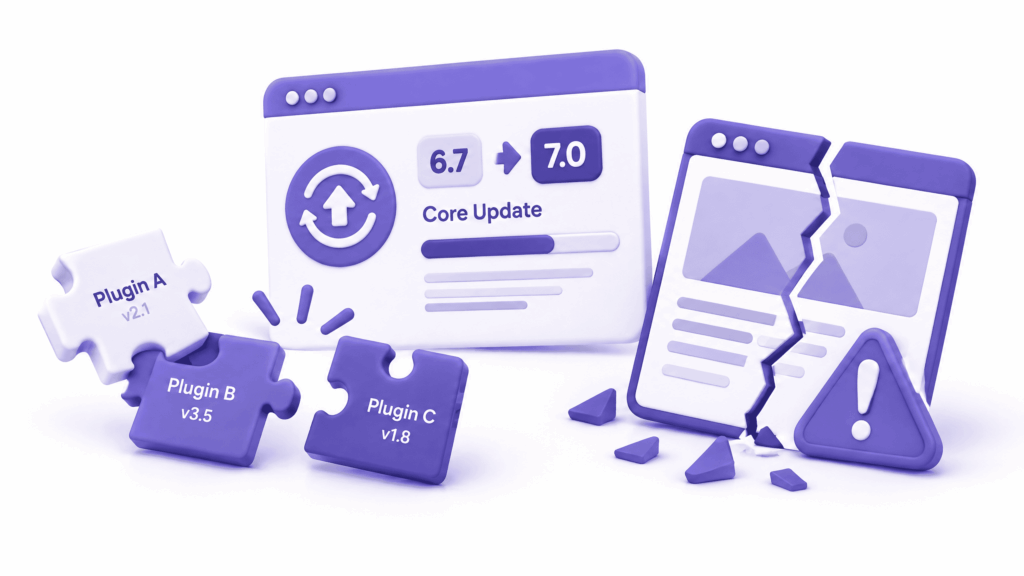
Major WordPress core updates, the ones that bump the version number significantly, like from 6.4 to 6.5, sometimes introduce changes that older plugins and themes haven’t prepared for yet.
WordPress core updates typically change how certain functions work, deprecate old functions, or introduce new requirements. A plugin written two years ago that hasn’t been updated since might call a function that no longer works the same way, producing a fatal error the moment WordPress core loads it.
How to fix it:
Same process as a plugin conflict, deactivate plugins one at a time to find the one that’s incompatible with the new core version. Once found, check the plugin’s support page or changelog to see if a compatibility update has been released. If not, deactivate the plugin and look for an alternative while waiting for the developer to push a fix.
Also check your theme, some themes built for much older WordPress versions have compatibility problems with major core updates.
How to Roll Back a Plugin or Theme Update
Rolling back means reverting to the previous version of a plugin or theme that was working before the update broke things. It’s not permanent, it’s a holding position while the plugin developer releases a fix or while you plan a proper resolution.
Using WP Rollback plugin:
This is the simplest method if you can still access your WordPress dashboard. Install and activate the WP Rollback plugin. Go to Plugins → find the problematic plugin → click “Rollback.” You’ll see a list of all previous versions. Select the one that was working before the update and click Rollback.
Without dashboard access:
Download the previous version’s zip file from the plugin’s page on WordPress.org, click the Advanced View link on any plugin page to access older versions. Upload the zip via your hosting file manager into wp-content/plugins/, overwriting the current version. Or delete the broken plugin’s folder entirely and upload the old version’s folder in its place.
After rolling back, test thoroughly. Then leave auto-updates disabled for that specific plugin until a confirmed-working newer version is released.
How to Restore From a Backup
If you can’t identify the specific cause, the rollback isn’t working, or multiple things broke simultaneously, restoring from a backup is the cleanest solution.
Before restoring, take a snapshot of the current broken state, download the files and export the database from phpMyAdmin. This preserves the broken state in case you need to investigate it later or recover any content that was added after the last backup.
From your hosting control panel:
Most quality hosts have a backup restore option in the control panel; look for Backup Manager, Website Restore, or Jetbackup. Choose a restore point dated before the update. Confirm what the restore includes; ideally files, database, and plugins together.
From a WordPress backup plugin:
If you use UpdraftPlus, WP Time Capsule, or BlogVault, access the backup from their respective dashboards and restore to the pre-update version. Some of these allow restoring individual components, just the plugins folder, or just the database, without reverting the entire site.
After restoring, clear all caches before testing. Then plan how to handle the update properly, either waiting for a fix from the developer or testing the update on a staging site first.
According to WordPress’s own documentation on updates, always back up your site before running any update, particularly major version updates. A backup makes a broken post-update site a 30-minute recovery. No backup can mean starting over.
How to Update WordPress Safely Next Time
The right answer to a website broken after update isn’t “stop updating”, outdated WordPress sites are security risks. The right answer is updating more carefully.
Never click “Update All.” It updates everything simultaneously, which means if something conflicts, you have no idea what caused it. Update core, theme, and plugins separately with testing in between.
Update in the right order: WordPress core first, then your theme, then plugins one by one. New plugin versions are written to work with the latest core and theme versions, updating them in this order gives each component the environment it expects.
Test on a staging site first. A staging site is a copy of your live website on a private URL. Many quality hosts include staging environments. Apply updates there, test everything thoroughly, then apply them to the live site only when you’ve confirmed nothing broke.
Maintain recent backups. A backup from yesterday means a broken update today costs you one day of data at most, not everything you’ve built. Automated daily backups through your host or a plugin like UpdraftPlus should be non-negotiable.
Read update changelogs before applying. The changelog tells you what changed. If a major version says “breaking changes” or “removed deprecated functions,” that’s a signal to test more carefully before pushing to live.
What ElySpace Does for Clients
At ElySpace, a website broken after update is one of the most common emergency requests we handle, and almost always the fastest to resolve because we know where to look.
More importantly, for clients on our website management plans, this scenario rarely happens at all. We apply WordPress, plugin, and theme updates on a staging environment first, test that everything works, then push to live. We maintain daily backups so that even if something unexpected breaks on live, we’re restoring to yesterday’s working version within minutes, not spending hours diagnosing.
If your site is broken right now and you need urgent help, reach out at elyspace.com. If you want a setup where updates don’t put your business at risk in the first place, we can talk about what ongoing maintenance looks like for your site.
FAQs (Frequently Asked Questions)
Why does my website break after an update?
WordPress is a chain of interconnected parts: core software, your theme, and every plugin; each updated on its own schedule by different developers. When one part updates and changes something another part depends on, the chain breaks. A function gets removed, a class name changes, a PHP version requirement shifts — any of these can produce a website broken after update instantly.
How do I fix a white screen after a WordPress update?
Enable WordPress debug mode by adding define(‘WP_DEBUG’, true); and define(‘WP_DEBUG_LOG’, true); to wp-config.php. Check /wp-content/debug.log for the specific PHP error. Then deactivate all plugins via file manager by renaming the plugins folder. If the site comes back, reactivate plugins one at a time until the broken one reveals itself.
Can I undo a WordPress update?
You can roll back plugins and themes to previous versions using the WP Rollback plugin or by manually uploading an older version’s files. Rolling back WordPress core itself is possible but more complex, you’d need to download an older version from wordpress.org and overwrite the core files, while keeping your wp-config.php and wp-content folder intact. This is why testing updates on staging before applying to live is far preferable.
My site is stuck on “briefly unavailable for scheduled maintenance”, how do I fix it?
Delete the .maintenance file from your site’s root directory using your hosting file manager. This file is created at the start of every update and deleted when the update completes. If the update was interrupted, the file stays and the maintenance message never clears. Deleting it manually brings the site back immediately.
How do I find which plugin broke my site after an update?
Deactivate all plugins at once, either through the dashboard or by renaming the plugins folder in your hosting file manager. Test the site. If it loads, rename the folder back, log into your dashboard, and reactivate plugins one at a time, testing after each reactivation. The plugin that breaks the site when reactivated is the culprit.
Should I update WordPress automatically or manually?
Manual updates with staging testing are safer for business-critical sites. Automatic updates are convenient but carry the risk of unattended breakage. If you use automatic updates, pair them with automated backups and uptime monitoring so you know immediately when something breaks and have a clean restore point available.
What if I don’t have a backup and my site is broken after an update?
First, try the fixes above: deactivating plugins, switching themes, clearing cache; to get the site working again without needing to restore. If none of those work, contact your hosting provider. Many hosts maintain their own server-level backups even if you don’t have a backup plugin installed. Ask specifically for the most recent pre-update snapshot. This is the strongest argument for setting up automated backups from day one, the hosting provider’s backup isn’t guaranteed to exist or cover what you need.