 Live Chat
 Contact
 Shopping Cart
 Eshan Riyaz
You open Google Analytics or Search Console on a Monday morning. The traffic chart has a cliff. Last week everything was normal. This week, gone. Down 30%. Down 50%. Sometimes down 80%.
When your website traffic dropped suddenly, the temptation is to immediately change things; update content, tweak meta titles, start posting more. Most of the time, that’s the wrong move. You can’t fix something you don’t understand yet. And changing the wrong things while traffic is already down can make the diagnosis harder and the recovery slower.
The first job is not fixing. It’s understanding. What dropped, when it dropped, and why, in that exact order. Once you know the cause, the fix is usually straightforward. Without knowing the cause, you’re guessing.
This guide walks through every real reason a website’s Google traffic drops suddenly, how to check for each one, and what to do when you find it.
Before You Assume the Worst
A traffic drop in Analytics doesn’t always mean Google stopped sending people to your site. Sometimes it means something else changed, and checking this first saves a lot of unnecessary anxiety.
Check whether it’s all traffic or just one source. In Google Analytics, look at your channels; Organic Search, Direct, Social, Referral. Did everything drop, or only organic search? If everything dropped simultaneously, it’s probably a tracking issue or the site was down. If only organic dropped, it’s a Google issue.
Check whether it’s all pages or just some. Look at your top pages from the same period last year or last month. Did all of them drop? Or just specific ones? A site-wide drop suggests something technical or a broad algorithm hit. A drop concentrated in specific pages suggests a content or ranking issue on those pages specifically.
Check whether it matches seasonality. Some businesses have predictable traffic patterns, tour companies in winter, retailers after Christmas, tax services outside tax season. Your drop might be completely normal for this time of year. Compared to the same period twelve months ago, not just the previous week.
Got your answers? Good. Now let’s find the actual cause.
Step 1: Check If the Data Is Even Real
Before investigating Google and your SEO, make sure the number you’re looking at is accurate.
Check your Google Analytics tracking code. If the tracking code was accidentally removed: during a site update, a theme change, a plugin deactivation; Analytics stops recording visits. Your traffic didn’t drop. You just stopped counting it. Go to your website’s source code and search for your GA4 measurement ID. If it’s not there, the tracking broke and needs to be reinstalled.
Check for a recent website migration or domain change. If your site moved to a new domain, changed from HTTP to HTTPS recently without proper redirects, or migrated to a new hosting provider with any URL changes, Analytics might be tracking the new version separately while the old properties show a drop.
Check for a date filter someone accidentally set. It sounds trivial but it happens, someone set a date range filter in Analytics that limits the data, making it look like traffic dropped when it’s just hidden. Reset all filters and check the raw numbers.
If the tracking is confirmed working, the traffic drop is real. Move on.
Step 2: Pin Down Exactly When It Dropped
The date a traffic drop started is one of the most valuable pieces of information you have. It tells you what to look for.
In Google Search Console, go to Performance → Total Clicks and look at the graph. Zoom into the date range where the drop began. Note the exact date or week.
Then compare that date to:
- Google algorithm update history (covered below)
- Any changes you made to the site around that time
- Any server issues or downtime your host reported
- Any major content changes, URL changes, or redesigns
A traffic drop that started on the same day as a known Google algorithm update tells you something very different from a drop that started the day after you updated your theme. The date is your first diagnostic tool.
Check 1: Google Algorithm Update
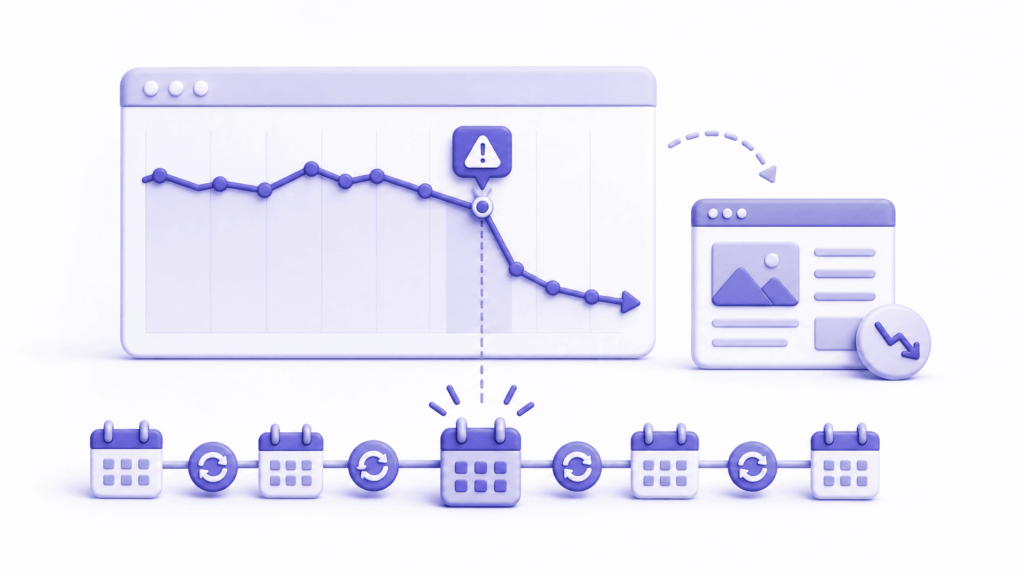
This is the most common reason a website traffic dropped suddenly, Google released an update that changed how it evaluates and ranks sites, and your site moved down in the results.
Google released its December 2025 Core Update starting December 11, 2025. The results were striking: 23% of sites gained traffic, while 77% either stayed flat or declined. That’s not a small shuffle. For the sites that dropped, traffic losses ranged from modest to catastrophic.
How to check:
Match the date your traffic dropped against Google’s confirmed update history. The best sources for this are Search Engine Land’s Google algorithm update tracker and Google’s own announcements on the Search Central Blog. If your traffic dropped within a few days of a confirmed update, the update is almost certainly involved.
What it means:
Algorithm updates don’t penalise you for breaking rules, they recalibrate what Google considers helpful, trustworthy, and relevant. A site that ranked well under the old criteria might rank lower under the new ones, not because it got worse but because the goalposts moved.
Recovery from an algorithm update isn’t instant. It typically requires improving the quality signals Google now cares more about; content depth, E-E-A-T (Experience, Expertise, Authoritativeness, Trustworthiness), page experience, and genuine helpfulness. Quick surface-level fixes rarely move the needle.
Check 2: Pages Accidentally Blocked from Google

This is the check that causes the most embarrassment when it’s found, because it’s usually an innocent mistake with a massive consequence.
WordPress has a setting under Settings → Reading called “Discourage search engines from indexing this site.” It’s designed for staging environments. If someone accidentally checked this box on your live site: during a migration, a redesign, or just exploring settings; Google stops indexing your pages. Traffic collapses.
There’s also robots.txt; a file at yourdomain.com/robots.txt that tells search engine crawlers what they can and can’t access. If a line like Disallow: / or Disallow: /your-main-section/ was added accidentally, Google stops crawling those pages and they disappear from search results.
How to check:
Visit yourdomain.com/robots.txt in your browser. Look for any Disallow: / entries that cover large sections of your site. Also check Settings → Reading in WordPress and confirm the checkbox is unchecked.
In Google Search Console, go to Settings → Crawling and check for any crawl restrictions. Also check the URL Inspection tool, paste in your homepage URL and see whether it’s indexed, blocked, or has crawl errors.
This check takes two minutes and has saved countless panicked business owners who thought they had a major SEO problem.
Check 3: Manual Action Penalty
A manual action is when a human reviewer at Google looks at your site and decides it violates Google’s spam policies, and manually applies a ranking penalty.
Unlike algorithm updates, manual actions are explicit. Google tells you about them. They show up in Google Search Console under Security & Manual Actions → Manual Actions. If there’s a penalty, it’s listed there with an explanation.
Common reasons for manual actions: spammy backlinks from low-quality sites pointing to yours, thin or duplicate content, hidden text or keyword stuffing, participating in link schemes, or user-generated spam in your comments or forum.
How to check:
Go to Google Search Console → Security & Manual Actions → Manual Actions. If the page says “No issues detected,” you don’t have a manual action and this isn’t your problem. If it lists an action, read the description carefully, it tells you exactly what Google found problematic.
How to fix it:
Fix the specific issue Google identified. Then submit a reconsideration request through Search Console explaining what you found and what you did to fix it. Manual action recoveries typically take weeks to months after approval.
Check 4: Technical Errors Killing Your Rankings
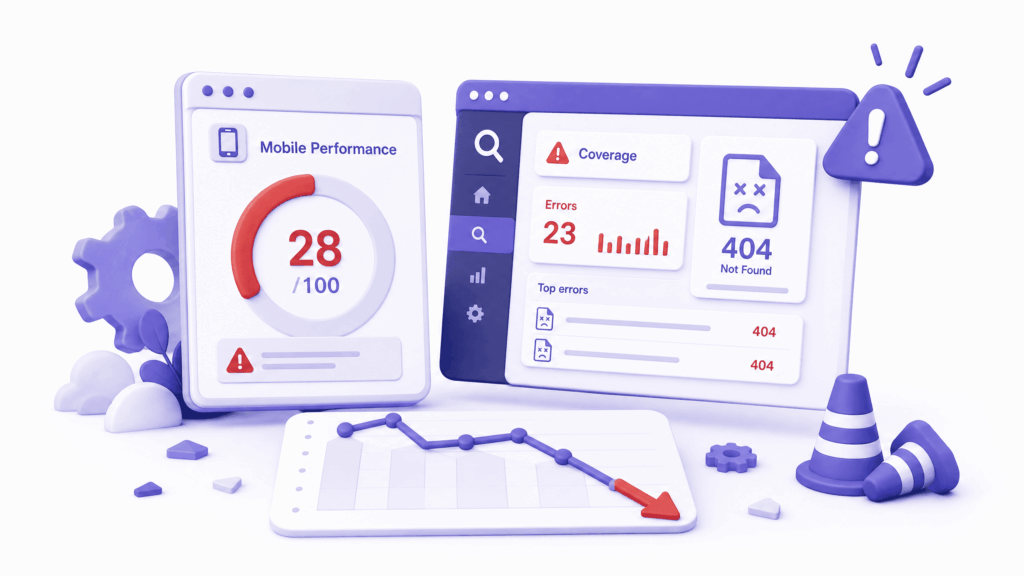
Technical problems on your site can tank your traffic without any algorithm involvement at all. Google needs to be able to reach, crawl, and render your pages to rank them. If something is blocking that process, pages disappear from results.
The most common technical issues that cause a sudden traffic drop:
Site speed collapse. A slow website produces poor Core Web Vitals scores, which Google uses as a ranking signal. A plugin adding heavy scripts, an image that’s 10MB instead of 100KB, or a server upgrade that went wrong can suddenly push your site from a 70 PageSpeed score to a 35. Rankings follow.
Broken links and 404 errors. If a site redesign or URL restructuring changes your URLs without proper 301 redirects, all your old URLs return 404 errors. Google drops those pages from its index and the traffic they were generating goes with them.
SSL certificate expired. Google doesn’t rank non-secure pages as favourably. If your SSL lapsed and your site reverted to HTTP, some ranking signals weakened.
How to check:
Run your site through Google PageSpeed Insights and note the mobile score. In Search Console, go to Pages → Not Indexed and look for a spike in 404 errors. Check your SSL certificate status through your hosting panel.
Check 5: Indexing Problems
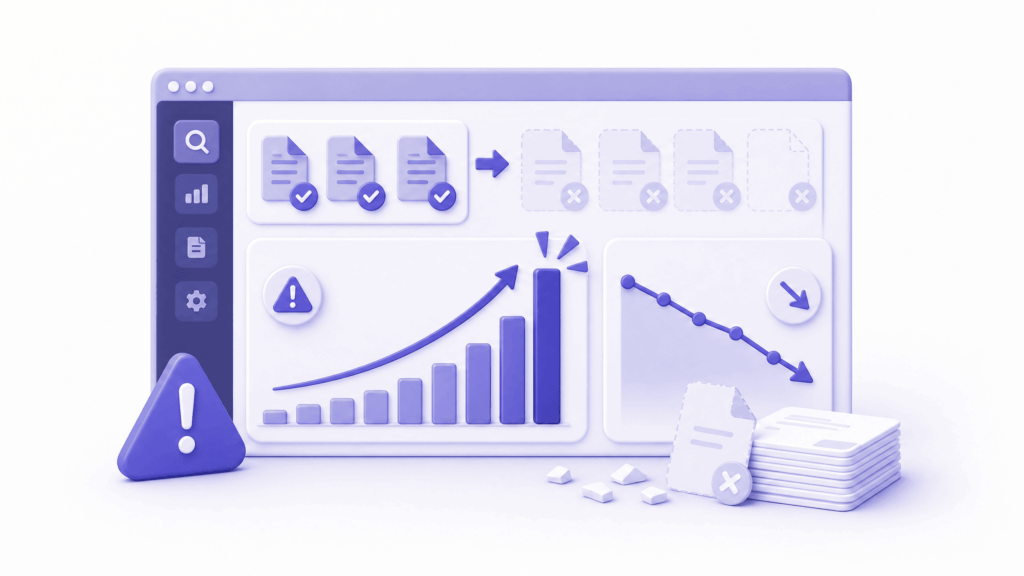
Your pages need to be in Google’s index to appear in search results. If Google stopped indexing your pages, or removed previously indexed pages, your traffic disappears.
Reasons pages get deindexed: a noindex meta tag was accidentally added (easy to do with SEO plugins), Google found thin or duplicate content and removed the page from results, or a canonical tag is incorrectly pointing pages to a different URL.
How to check:
In Google Search Console, go to the Pages report. Look at the “Not Indexed” section. Any sudden spike in deindexed pages is a red flag. Use the URL Inspection tool to check specific important pages, paste the URL and look at whether it’s indexed, what the canonical URL is, and whether there are any crawl errors.
Also check your SEO plugin settings. In Rank Math: SEO → Titles & Meta → check that the global noindex settings haven’t been accidentally toggled. In Yoast: go to Settings and check that key pages aren’t set to noindex.
Check 6: A Competitor Overtook You
Sometimes your traffic drops not because you did anything wrong but because a competitor did something right.
If a competitor published significantly better content, earned high-authority backlinks, improved their technical SEO, or launched a comprehensive content strategy in your niche, Google may have elevated them above you in the rankings. Same keywords, same queries, but now they show up higher and you show up lower.
How to check:
Search for your main keywords manually in an incognito browser. Are you still ranking where you were? If competitors are now above you who weren’t before, that’s your answer. Look at what they’re doing differently, content length and depth, backlinks, page speed, structured data.
This type of traffic drop doesn’t have a quick fix. It requires improving your content and authority to regain the ground you lost.
Check 7: Search Demand Changed
This one is easy to overlook and surprisingly common. The keywords your site ranks for might simply be searched less often now. Demand shifted. People changed how they search for things. A trend peaked and declined.
If you rank for keywords related to a topic that was trending and has since cooled, a technology that got replaced, a news topic that faded, a seasonal product outside its season, your traffic drops even though your rankings haven’t changed at all.
How to check:
Open Google Trends and search for your main topic or keywords. Look at the search interest over time. If the interest chart shows a steady decline over the same period your traffic dropped, demand is the issue, not your rankings.
This is also one reason year-over-year comparisons are more meaningful than month-over-month for businesses with seasonal patterns.
Check 8: AI Overviews Stealing Your Clicks

This is the most significant structural shift affecting website traffic today, and it’s worth understanding because it affects sites that are ranking perfectly well.
AI Overviews appear at the top of Google search results for many queries now, a generated summary that answers the question directly before the user sees any organic results. As of late 2025, AI Overviews appear on around 15% of all queries. Organic click-through rates for pages ranking in top positions dropped between 34% and 58% on queries that trigger an AI Overview.
60% of all searches in the US now end without a click to any website. The user got their answer from Google directly.
This means a site can maintain its rankings and still see traffic drop, because fewer people are clicking through even when it ranks well.
How to check:
In Google Search Console, compare your average position against your click-through rate over time. If your average position stayed the same or improved but your clicks dropped, zero-click behaviour and AI Overviews are the likely explanation.
The response isn’t to chase AI Overviews directly. It’s to make content so specific, so detailed, and so experience-based that it earns clicks even when a summary exists. Structured data, deep FAQ sections, and content that requires visiting the page to get real value are all worth investing in.
According to Google’s Search Central documentation on AI Overviews, well-structured, helpful content that answers specific questions clearly is more likely to be referenced in AI Overviews, which at least keeps your brand visible even when clicks are lower.
Check 9: You Changed Something on the Site
Surprisingly often, when a website traffic dropped suddenly, the business owner knows exactly why, they just forgot to connect the dots.
Did you recently:
- Redesign the website and change URL structures without setting up redirects?
- Rewrite or significantly shorten content that was ranking well?
- Remove pages that were getting organic traffic?
- Change your site’s primary topic or niche focus?
- Switch to a new theme that removed structured data or changed the heading hierarchy?
- Install a new plugin that adds scripts slowing the site down significantly?
Any of these can cause a sudden traffic drop. And most are fixable once identified.
How to check:
In Search Console, use the Compare feature to look at which specific pages lost the most traffic. Then check your site’s change history; plugin logs, theme update history, recent content changes. Match the timing.
If you removed pages that were ranking, restore them or set up proper redirects from the old URLs to the closest relevant current pages. If you shortened content, consider whether the pages lost the depth and detail Google was rewarding.
Check 10: Tracking and Analytics Problems

Worth revisiting here even though it was covered at the start, because it’s more common than people expect and the fix is embarrassingly simple.
If your Google Analytics or Search Console data suddenly shows a dramatic drop and you can’t explain it through any of the causes above, confirm the tracking is working. Install Google Tag Assistant or use the Realtime report in Analytics, visit your own site and watch whether a session appears in real time. If it doesn’t, your tracking code is broken.
Also check: was the Analytics property accidentally switched to a different date range, a filter applied that excludes most traffic, or the wrong property selected?
How to Recover: The Right Approach
Recovery from a traffic drop depends entirely on the cause. But a few principles apply regardless:
Fix technical issues first. Blocked pages, broken redirects, missing tracking, expired SSL, these are mechanical problems with mechanical fixes. Address them before touching content or strategy.
Don’t make sweeping content changes immediately after an algorithm update. Algorithm recoveries typically require the next update cycle to take effect. Making large changes right after a drop can confuse the signal further. Identify what Google now values more and improve gradually.
Focus on the pages that dropped the most. In Search Console, sort by the biggest traffic decrease over the affected period. Work on those specific pages; improving depth, updating accuracy, strengthening trust signals, before broadening the effort.
Build for users, not just search engines. The consistent direction of every Google update since 2022 has been toward rewarding content that genuinely helps people. Sites that keep asking “is this actually useful to someone?” tend to recover faster than those optimising primarily for rankings.
At ElySpace, when a client reports a sudden traffic drop, our first step is always the same, Search Console, date matching, technical audit, then content review in that order. The diagnosis drives the fix. If your site has experienced a traffic drop and you want a professional assessment of what’s causing it, reach out and we’ll take a proper look.
FAQs (Frequently Asked Questions)
Why did my website traffic drop suddenly overnight?
The most common overnight causes are: a Google algorithm update rolling out, pages being accidentally blocked from Google crawlers (check Settings → Reading in WordPress and your robots.txt file), a manual action penalty appearing in Search Console, or a tracking code breaking so Analytics stops recording visits. Check Search Console and Analytics within the same 24-hour window to narrow down which category applies.
How do I know if Google penalised my website?
Go to Google Search Console → Security & Manual Actions → Manual Actions. If a penalty exists, it’s listed there with a description. If that page shows “No issues detected,” there is no manual penalty, any traffic drop is from algorithm changes or technical issues, not a direct penalty.
Can a website lose traffic without losing rankings?
Yes, and this is increasingly common currently. AI Overviews and zero-click searches mean users get answers directly from Google without clicking through to websites. If your average position in Search Console stayed flat but your clicks dropped, this structural change is likely the cause rather than any ranking drop.
How long does it take to recover from a traffic drop?
It depends entirely on the cause. A broken tracking code is fixed in minutes. Technical issues like redirects and crawl errors can show recovery in Search Console within weeks once fixed. Algorithm update recoveries typically take months and often require the next major update to confirm improvement. Manual action recoveries happen after Google approves a reconsideration request, which takes weeks.
Should I change my content immediately after traffic drops?
Not immediately, and not all of it. First identify which pages dropped and why. For pages that dropped due to content quality issues, improve them thoughtfully; add depth, update accuracy, strengthen the expertise signals. For pages that dropped due to technical issues, fix the technical problem first. Broad sweeping content changes without understanding the cause can disrupt rankings further.
What is the first thing to check when website traffic drops?
Check Google Search Console, specifically the Performance report, filtered to the period when the drop started. Look at which pages lost the most clicks and which queries disappeared. Then cross-reference the drop date with known Google algorithm updates. This two-step check identifies the category of problem (algorithm, technical, or content) in most cases within fifteen minutes.
Can website traffic drop because of my hosting?
Yes. If your site experienced significant downtime, Google’s crawlers may have encountered errors repeatedly and begun reducing how often they crawl and rank your pages. Check your uptime monitoring history around the period the traffic dropped. Slow hosting that worsens Core Web Vitals scores also contributes to gradual ranking drops over time, though this is usually a slower decline than a sudden one.