 Live Chat
 Contact
 Shopping Cart
 Rashid Malla
If you’ve ever typed ls -l in a terminal and stared at a string like -rwxr-xr-- wondering what on earth it means, you’re not alone. File permissions trip up almost everyone the first time they meet the command line, and honestly, most tutorials don’t help. They throw a table of numbers at you and expect it to click.
It won’t click that way. It clicks when someone walks you through the logic instead of the memorization.
That’s what this guide does. By the end, you’ll understand how file permissions work, how to read and change them with chmod, why chmod 777 is usually a bad idea, and who’s actually allowed to touch these settings in the first place. If you’re brand new to the command line, it’s worth pairing this with the rest of the Linux fundamentals content on ElySpace before diving in.
What Are File Permissions, Really?

Strip away the jargon, and file permissions are just a set of rules attached to every file and folder on a Linux, macOS, or Unix-like system. Those rules answer three questions: who can read this, who can write to it, and who can execute it as a program.
That’s genuinely it. Three questions, applied to three groups of people. Once that sinks in, the rest is just notation.
Windows users sometimes assume this concept doesn’t exist outside of Linux servers. It does, just hidden behind a friendlier interface. On a Linux box, though, you deal with permissions directly, and that’s where confidence with the command line actually gets built. I’ve spent years fixing broken deployments where a single wrong permission setting locked out an entire application, so trust me: this is worth understanding properly, not just copy-pasting a command you found on a forum.
The concept traces back to the original Unix filesystem permission model, which is still the backbone of how Linux, macOS, and most servers handle access control today. It’s old, but it hasn’t needed replacing. For a broader look at how this fits into securing a server, our Linux security basics guide on ElySpace is a good next stop.
Reading the ls -l Output
Run ls -l in any directory, and each line starts with a ten-character string. Here’s an example:
-rwxr-xr-- 1 root root 33685504 Jun 28 2024 hashcat.hcstatBreak that first block down piece by piece:
- The very first character tells you the file type. A dash means a regular file,
dmeans a directory,lmeans a symbolic link. - The next nine characters split into three groups of three:
rwx,r-x,r--. - Each group represents read, write, and execute, in that order, for owner, group, and others, respectively.
So in the example above, the owner has full read, write, and execute access. The group can read and execute but not write. Everyone else can only read. A dash in any position just means that particular permission is switched off.
Once you can read that string at a glance, half the confusion around file permissions disappears.
Owner, Group, and Others: The Three Tiers

Every file on the system has exactly one owner and one group attached to it, and everyone else falls into a third bucket. Understanding file owner, group, and others permissions is the backbone of the whole system.
Owner is usually whoever created the file, though ownership can be transferred with the chown command. The owner typically gets the most generous permissions by default.
Group is a set of users bundled together for shared access. If five developers are all in a group called: devteam, giving a project folder group read and write access lets all five collaborate without touching the file’s ownership.
Others cover literally everyone else with an account on the system. This is the tier you want to be most careful with, since loosening it opens the file to anyone who can log in, or in some misconfigured server setups, anyone at all.
Keeping these three tiers straight matters more than memorizing any specific chmod number. The number is just shorthand for a decision you’re making about these three groups.
How Binary to Octal Permissions Actually Works

Here’s where people usually check out mentally, but stick with me because it’s genuinely one of the more elegant parts of Unix design.
Each permission- read, write, execute- is really just a binary switch. On or off. 1 or 0. For any single group (say, the owner), you’ve got three switches in a row: read, write, execute. That gives you eight possible combinations, from all off (000) to all on (111).
Rather than writing out binary every time, Unix systems convert each three-digit binary combination into a single octal digit, since octal runs from 0 to 7 and lines up perfectly with three binary digits. Read is worth 4, write is worth 2, and execute is worth 1. Add up whichever ones are switched on, and you get your octal digit.
Want read and write but not execute? That’s 4 + 2 = 6. Want everything? 4 + 2 + 1 = 7. Want nothing at all? That’s 0.
Here’s the full mapping, laid out so you can check any combination at a glance:
| Permissions (rwx) | Binary | Octal |
|---|---|---|
--- | 000 | 0 |
--x | 001 | 1 |
-w- | 010 | 2 |
-wx | 011 | 3 |
r-- | 100 | 4 |
r-x | 101 | 5 |
rw- | 110 | 6 |
rwx | 111 | 7 |
A quick way to use this table: pick out which of read, write, and execute you want switched on, add their values together (4 for read, 2 for write, 1 for execute), and the total is your octal digit. Want write and execute but not read? 2 + 1 = 3, which the table confirms lines up with -wx. Want all three? 4 + 2 + 1 = 7.
Do that calculation three times, once for owner, once for group, once for others, and you get a three-digit number like 640 or 754. That number is the entire permission set for a file, compressed into three characters. It looks cryptic until you know the trick, and then it looks almost obvious.
chmod Octal vs Symbolic: Two Ways to Say the Same Thing

There are two ways to tell chmod what you want, and knowing both makes you faster on the command line.
Octal notation is the three-digit shorthand covered above. You’d type:
chmod 754 script.shThat sets owner to read/write/execute (7), group to read/execute (5), and others to read-only (4). Fast, compact, and once you’re fluent in the binary-to-octal permissions logic, it’s the quickest way to set permissions.
Symbolic notation spells things out with letters instead. You use u for user (owner), g for group, o for others, and a for all three, combined with +, -, or = to add, remove, or set permissions exactly.
chmod u+x script.shThat single line adds execute permission for the owner without touching anything else. Compare that to octal, where you’d need to know the current permissions first, calculate the new number, and set the whole thing at once.
Neither method is objectively better. Octal is faster when you’re setting permissions from scratch or scripting something. Symbolic is safer when you just want to tweak one thing without accidentally resetting everything else. Most people who work on the command line regularly end up using both, depending on the situation.
Changing File Permissions from the Command Line
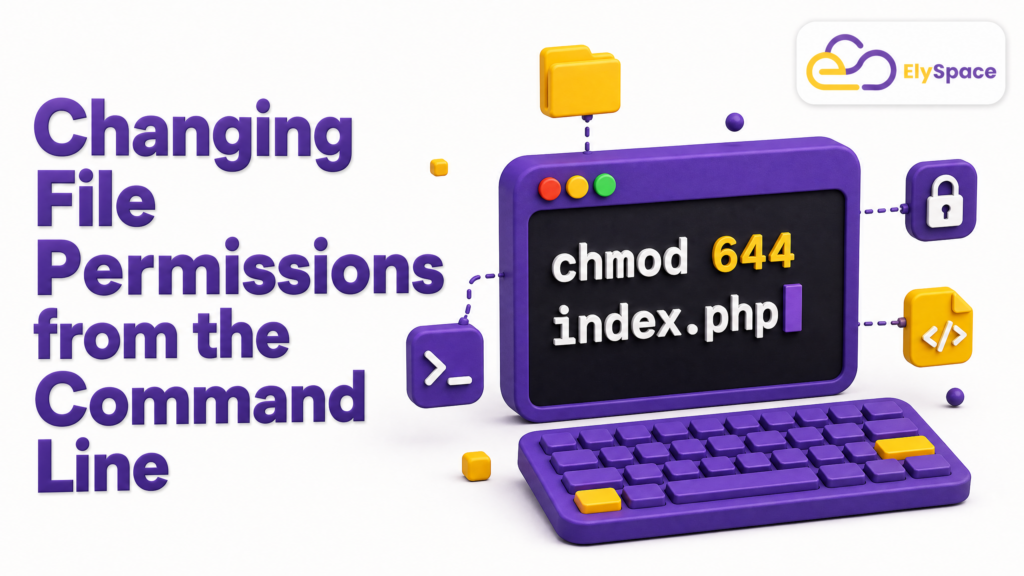
The actual mechanics of changing file permissions from the command line come down to one command: chmod, short for “change mode.”
The basic structure looks like this:
chmod [permissions] [filename]A few real examples make this concrete. To give a script full permissions for everyone (again, think carefully before doing this):
chmod 777 script.shTo remove write access for the group and others on a sensitive config file:
chmod go-w config.ymlTo apply the same permissions recursively across an entire directory:
chmod -R 755 project-folder/That -R flag matters. Without it, chmod only touches the folder itself, not the files sitting inside it. I’ve seen this trip up beginners more than once; they set permissions on a folder, assume everything inside inherited the change, and then wonder why a script still won’t run.
After running chmod, always double-check your work with ls -l. It takes two seconds and saves you from debugging a permissions issue an hour later.
chmod 777 Explained (and Why You Should Think Twice)

Search “chmod 777” anywhere near a beginner’s forum, and you’ll find it recommended as a fix for basically everything. Permission denied error? Just chmod 777 it. It’ll almost certainly work.
It’ll also almost certainly be the wrong move.
chmod 777 explained plainly: it sets full read, write, and execute permissions for the owner, the group, and every other user on the system. No restrictions anywhere. On a personal laptop with one user account, the practical risk is low. On a shared server, a web host, or anything internet-facing, it’s a genuinely dangerous habit.
Think about what it actually allows. Any user, any process, any script running under any account can now modify or execute that file. If it’s a web-facing directory and someone finds a way in, chmod 777 just handed them the keys to write whatever they want there, including malicious code. Security researchers at OWASP flag overly permissive file access as a recurring root cause behind real-world server compromises, not just a theoretical risk.
The better instinct is to figure out exactly which permission is actually missing and grant only that one. Nine times out of ten it’s an execute permission on a script, or a write permission for a specific group, not a blanket “let everyone do anything” setting. Precision here isn’t pedantic; it’s the difference between a secure system and an easy target.
Who Can Actually Change File Permissions?

This question comes up constantly, and the answer is straightforward. Only the file’s owner or the root user (the system administrator account) can change permissions on a file.
Being able to read or even write to a file doesn’t automatically grant you the ability to change its permissions. Those are separate powers. A regular user without ownership, even one with full read and write access through group membership, still can’t run chmod on that file successfully. They’ll get a permission denied error.
If you need to hand off that ability, the owner can transfer ownership with: chown, or a system administrator with root access can adjust things directly. On multi-user systems, this restriction is exactly what keeps one user from quietly rewriting another user’s access rules.
Common Mistakes People Make with File Permissions

A few patterns show up again and again once you’ve watched enough people learn this system.
The first is reaching for chmod 777 as a universal fix, covered above. The second is forgetting the -R flag when a whole directory tree needs updating, leaving subfolders with stale, inconsistent permissions. The third, and this one’s sneaky, is confusing file permissions with file ownership. Changing who owns a file (chown) and changing what that file allows (chmod) are two completely different operations, and mixing them up leads to a lot of wasted debugging time.
One more worth mentioning: giving execute permission to files that were never meant to run as programs. A text document doesn’t need execute access. If it has it, that’s usually a leftover from a lazy chmod 777, not an intentional choice.
Wrapping This Up
File permissions aren’t actually complicated once the logic behind them is visible instead of hidden inside a memorized table. Three groups, three questions each, and a compact number or letter code to represent the answer. That’s the whole system.
Next time you hit a permission denied error, resist the chmod 777 shortcut. Run: ls -l, Figure out exactly which of the nine switches needs flipping, and flip only that one. Your future self, or whoever inherits your server, will thank you.